How to Manage Support Tickets
in OpenCRMApp
The Tickets module in OpenCRMApp brings your vtiger CRM support queue to your phone. Filter tickets by status or priority with saved views, preview any ticket in a bottom sheet without leaving the list, update Priority, Severity, and Status with one tap, and track every field change with a timestamped history log — all from the field.
Saved List Views — Filter Your Queue Instantly
When you open the Tickets module the list defaults to All — every ticket in your vtiger CRM. Tap the ≡ All pill (top-left of the list) to open the Views panel and switch to a focused view in one tap.
Out of the box, the Tickets module includes:
- All — every ticket regardless of status or priority (checked by default)
- Open Tickets — only tickets where Status is not Closed, so your team never misses an unresolved issue
- High Priority Tickets — filtered to Urgent or High priority tickets, your most critical queue
Your vtiger CRM administrator can add more custom views (by department, assigned user, SLA breach date, etc.) and they all appear here automatically. A Search views… bar at the top of the panel lets you find a view quickly when many are configured.
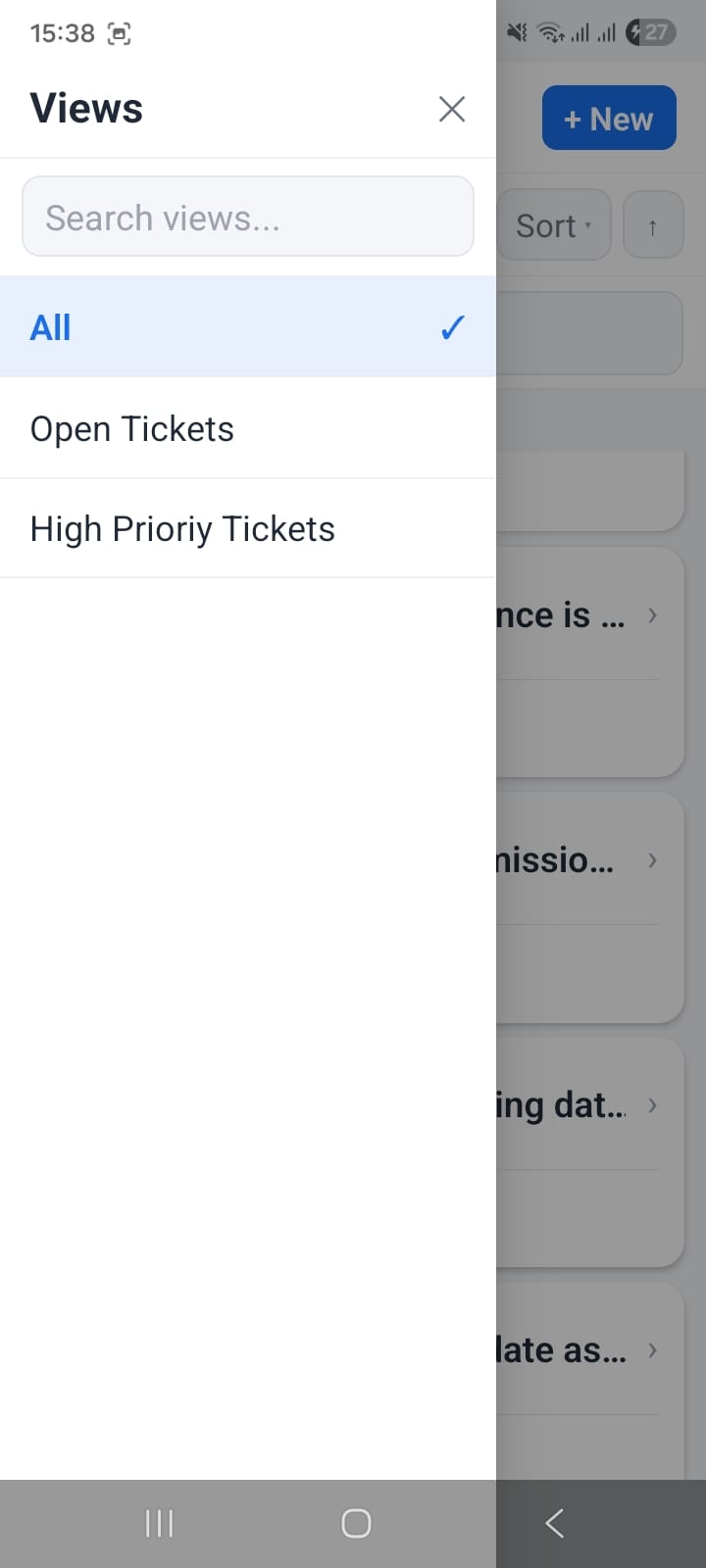
Views panel — tap Open Tickets or High Priority Tickets to filter the queue instantly; custom views added in vtiger appear here automatically
Quick Preview — See Ticket Details Without Leaving the List
The Tickets list has a quick-preview bottom sheet that slides up when you tap the Edit or View action buttons on a row — without fully navigating into the record. This lets you triage tickets at speed without losing your place in the list.
The quick preview sheet shows:
- Ticket title — full title with avatar initials (e.g., "US" for User access...)
- DETAILS section — the Title field displayed in a compact card
- Edit button — opens the full edit form for this ticket
- Open button — navigates to the full detail view
- RELATED section — shows linked module counts at a glance (e.g., 1 Activities ›)
The list itself remains visible in the background — blurred behind the sheet — so you can dismiss the preview and continue scanning the list without re-loading anything.
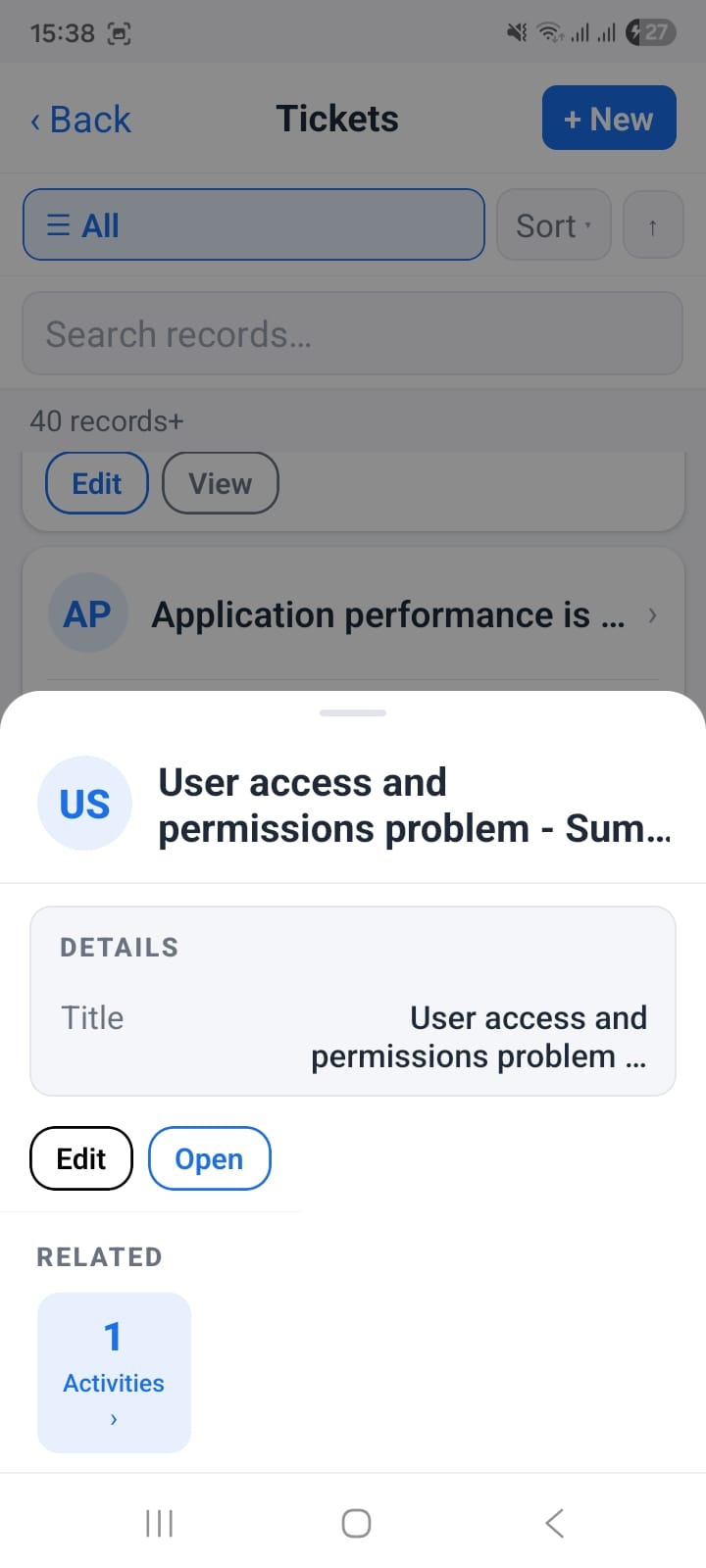
Quick-preview sheet — see title, Edit/Open actions, and linked Activities count without opening the full record
Inline Field Updates — Priority, Severity & Status in One Tap
Inside the full ticket detail view, the header area shows a summary row with key fields:
- Ticket Number (e.g., TT3)
- Assigned To — the responsible agent
- Organization Name — the customer account
- Priority, Severity, Status
- Title and Description (truncated)
- Contact Name — the individual who raised the ticket
Below the summary, three pill buttons let you update the most-changed fields without tapping Edit:
Tap any pill to open a dropdown and select a new value. The change saves to vtiger CRM immediately and appears in the ticket's change history (see next section). This is the fastest way to escalate or resolve a ticket without scrolling through the entire edit form.
Change History — Full Audit Log with Before → After Values
Every ticket detail view has three tabs: Details, Related, and Updates. The Updates tab is your complete audit trail — every field change ever made on this ticket, who made it, and when.
Each history entry shows:
- Agent avatar and name — who made the change (e.g., System Administrator)
- Timestamp — exact time and date of the change (e.g., 11:38 AM · 09-25-2026)
- Action badge — a blue Updated pill
- Field name — which field changed (e.g., PRIORITY)
- Before → After — the old value shown in red strikethrough and the new value in green
This visual diff format makes it immediately clear what changed without having to read a text description. Multiple field changes in the same save appear as separate rows under the same timestamp entry.
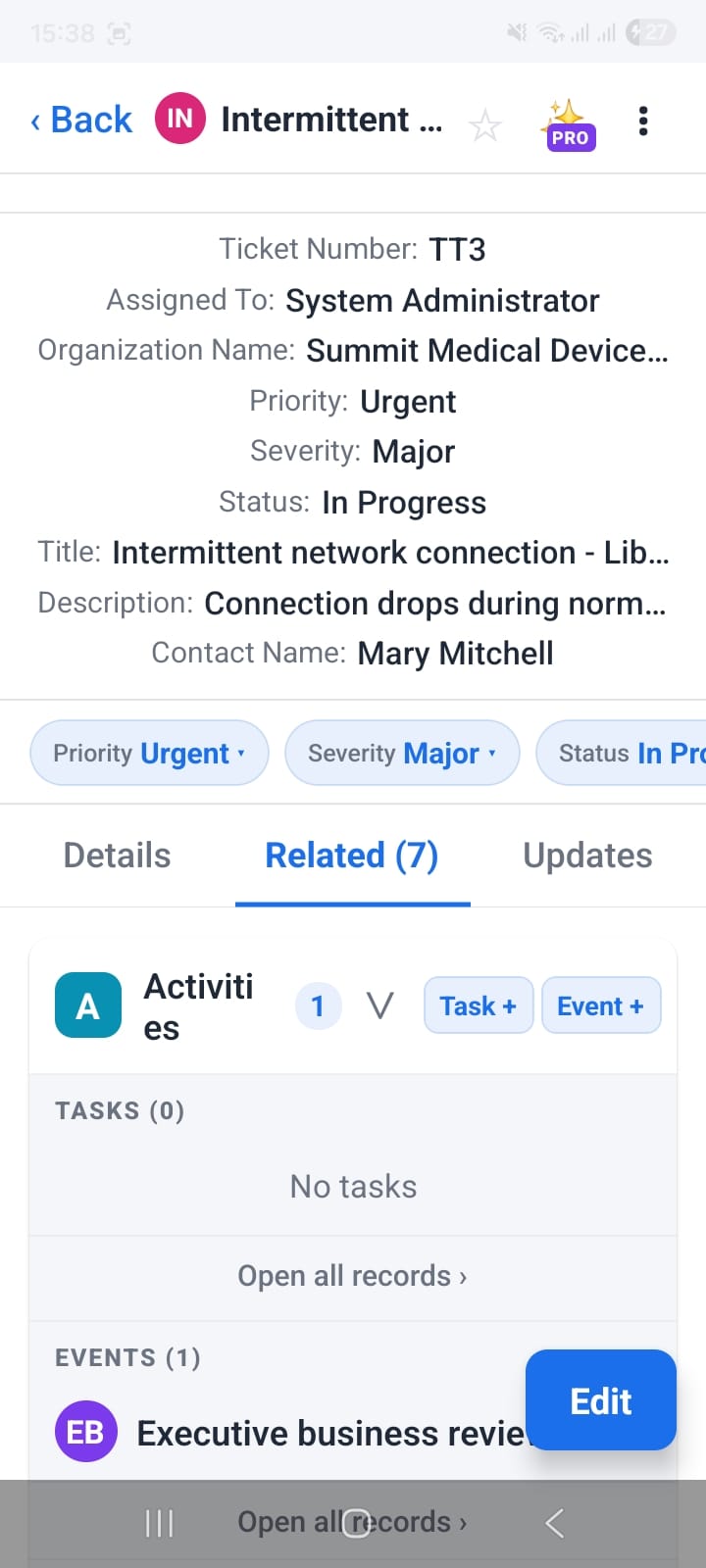
Related tab — 7 linked modules, Activities panel expanded showing 0 tasks and 1 event (Executive business review)
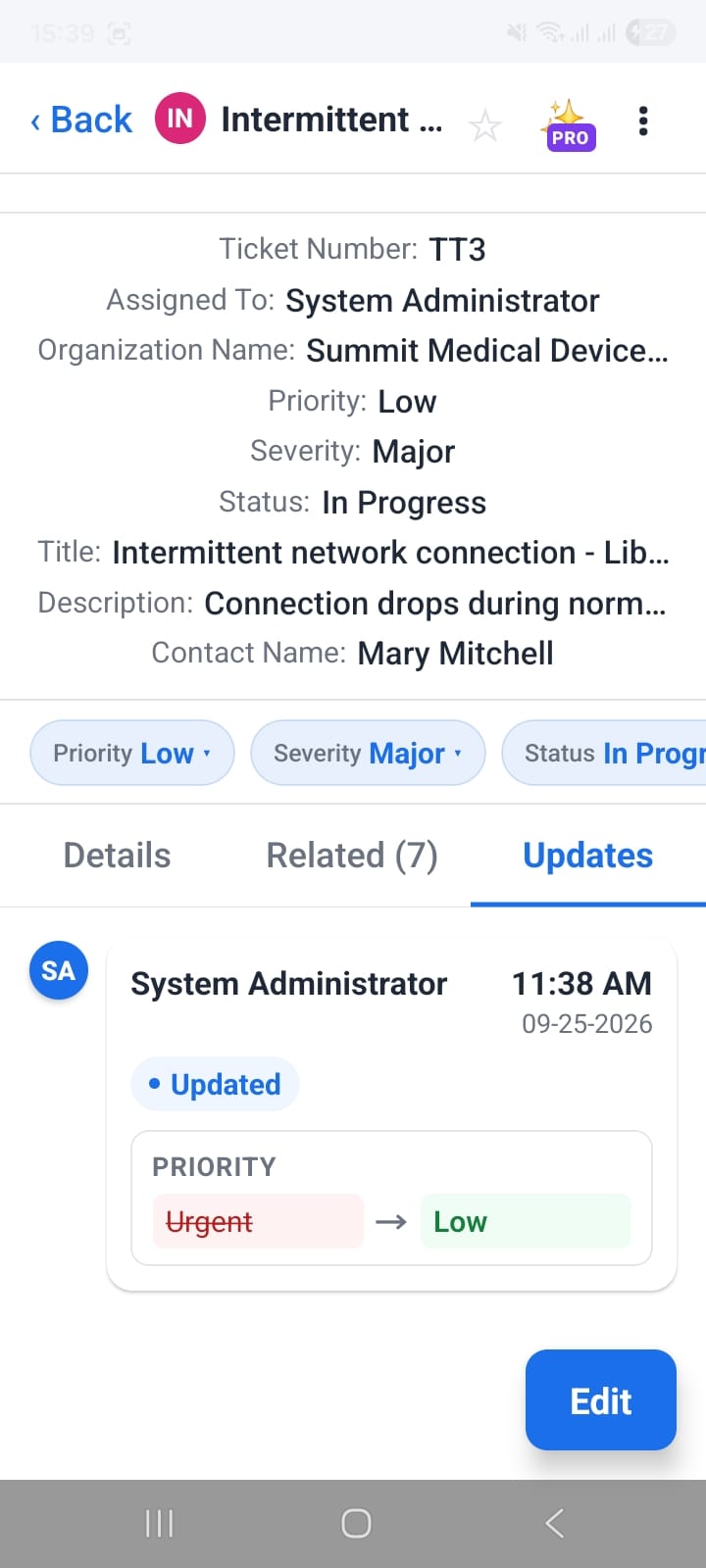
Updates tab — timestamped audit log showing Priority changed from Urgent (red strikethrough) → Low (green)
Related Activities — Tasks & Events Linked to a Ticket
The Related tab (showing the count of linked modules, e.g., Related (7)) lists every record connected to this ticket across your vtiger CRM. For support workflows, Activities is the most important panel.
The Activities panel expands to show two sub-sections:
- TASKS — follow-up tasks assigned to agents. The count shows 0 tasks or lists them if present. Task + button creates a new task pre-linked to this ticket.
- EVENTS — scheduled meetings or calls. Shows the count and the event title (e.g., Executive business review). Event + button creates a new event pre-linked to this ticket.
Each sub-section has an Open all records › link at the bottom to see the full list when there are many items. The pre-linking means the ticket reference is already filled in the new task or event — saving data entry and keeping the relationship intact in vtiger CRM.
Summary: Full Ticket Management from Your Phone
- Switch between Open Tickets and High Priority Tickets views instantly from the Views panel
- Use the quick-preview bottom sheet to triage tickets without leaving the list — see title, Edit/Open actions, and related counts
- Tap Priority ▾, Severity ▾, or Status ▾ pills in the detail header to update fields without opening the edit form
- Check the Updates tab for a full timestamped audit log — every field change shown as old value (red strikethrough) → new value (green)
- Use the Related tab to see linked Tasks and Events; tap Task + or Event + to create new activities pre-linked to the ticket