How to Set Up Smart Notifications
for Your CRM Workflows
OpenCRMApp's workflow builder lets you create personal notification rules in 4 steps: WHEN (trigger), IF (conditions), THEN (actions), and NAME (message body). This guide walks through every option you'll see in the app.
Step 1 — WHEN: Choose a Trigger
The first step tells OpenCRMApp when to evaluate the rule. Tap the Trigger Type dropdown and you'll see five options:
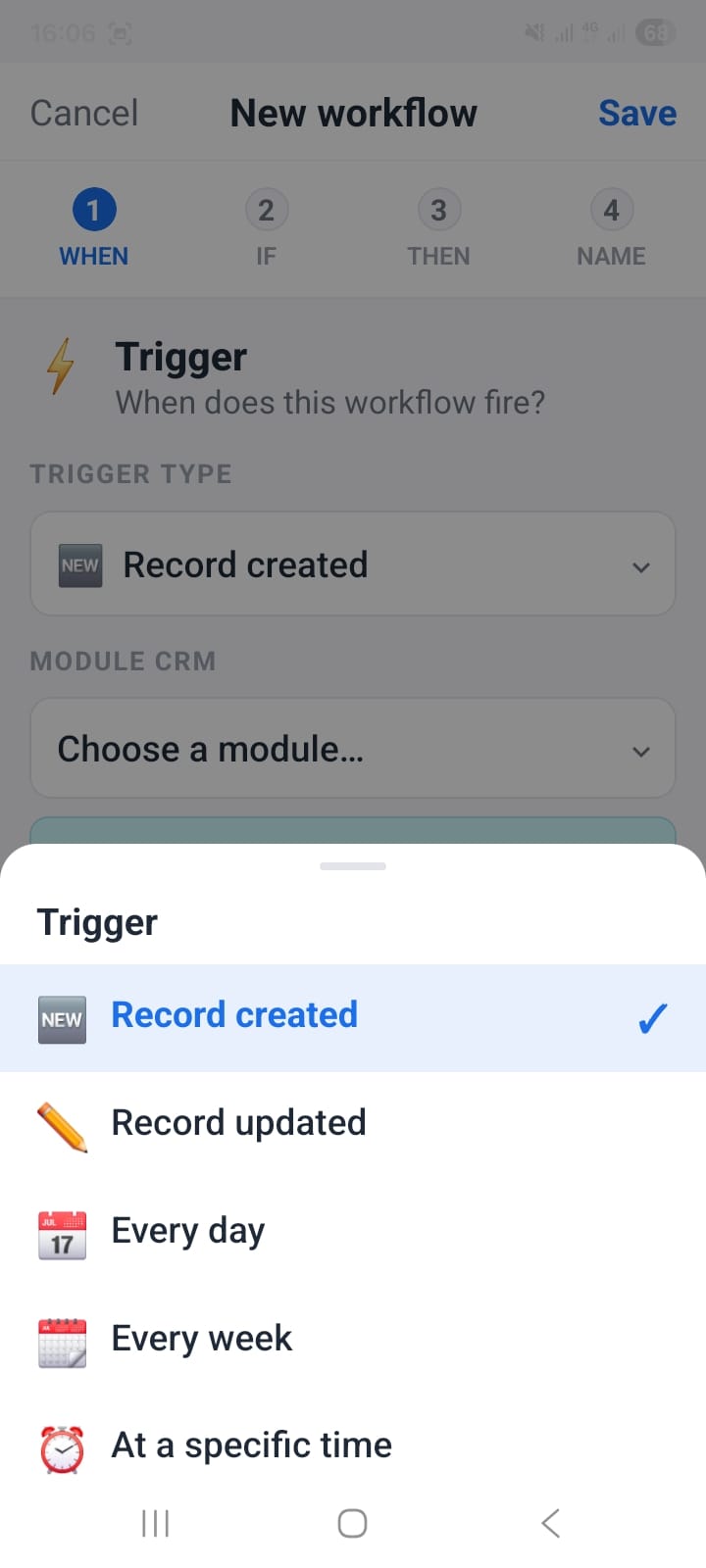
Step 1 — WHEN: pick how the workflow fires
After choosing the trigger, select the CRM module (Leads, Contacts, Potentials, Tickets…) the rule applies to, then tap Actions → to continue.
Step 2 — IF: Add Conditions
Conditions are optional but essential to avoid notification noise. Without a condition, every record create or update in the module would trigger a notification.
Tap + Add a condition. A bottom sheet opens with three parts:
- Field — any field on the module (picklist, text, date, number…). Example: Sales Stage
- Operator —
equals,is not,is empty,is not empty - Value — the value to match. Example: Closed Won

Step 2 — IF: condition set to Sales Stage equals Closed Won
You can add multiple conditions — they are combined with AND logic, so all conditions must be true for the workflow to fire. Once your conditions are set, tap Actions →.
Step 3 — THEN: Choose an Action
This step decides what happens when the trigger fires and all conditions match. Tap + Add an action to open the action picker:
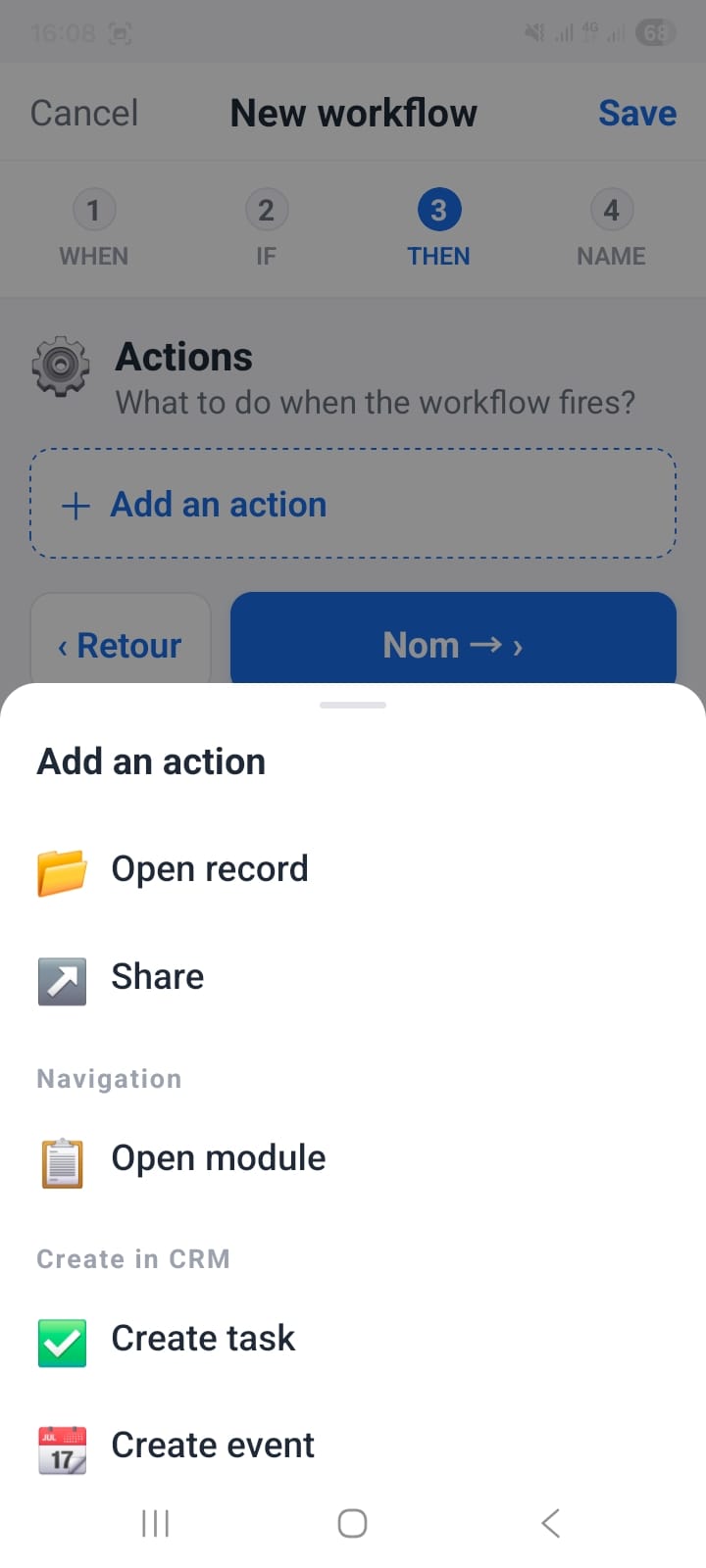
Step 3 — THEN: pick the action the notification will trigger
Step 4 — NAME: Title, Message Body & Save
The final step ties everything together. You give the workflow a name, write an optional notification body message, and review a summary before saving.
Workflow name
A short internal label so you can identify the rule in your workflow list. Example: Opportunity won.
Notification body
Write the message that will appear in the push notification. You can insert dynamic CRM field values using the ${"{"}fieldname{"}"} syntax — OpenCRMApp replaces these with the actual values from the record when the notification fires.
Tap Insert a variable to pick a field from a dropdown — the placeholder is inserted at the cursor position automatically.
Date : ${"{"}closingdate{"}"}
↑ This renders as: "This ACME Deal is won — Date: 11-09-2026" in the notification on your phone.
Summary & Save
Below the name field, a Summary block shows you exactly what the workflow will do before you save:
Toggle Enable this workflow to activate it immediately, then tap ✓ Save.

Step 4 — NAME: notification body with variable placeholders, summary, and Save
A Complete Example: Alert When a Deal is Won
Here is the exact setup for a workflow that notifies you the moment any deal moves to Closed Won:
- WHEN: Trigger = Record updated · Module = Potentials
- IF: Sales Stage
equalsClosed Won - THEN: Open record
- NAME: "Opportunity won" · Body =
This ${"{"}potentialname{"}"} is won Date : ${"{"}closingdate{"}"}
Combining Workflows with Kanban
Notification workflows tell you when something changes. The Kanban board shows you where all your deals stand at any moment. Read the companion article on Kanban view for deals to complete your setup.
Summary
- The workflow builder has 4 steps: WHEN → IF → THEN → NAME
- 5 trigger types: Record created, Record updated, Every day, Every week, At a specific time
- Conditions use operators: equals, is not, is empty, is not empty — multiple conditions are combined with AND
- Actions: Open record, Share, Open module, Create task, Create event
- Notification body supports
${"{"}fieldname{"}"}variable placeholders — use the "Insert a variable" picker to avoid typos - The Summary block on the NAME step shows a full recap before you save