How to Manage Deals with
Kanban View in OpenCRMApp
The Kanban board in OpenCRMApp gives your sales team a visual pipeline of all Opportunities — organized into draggable columns by Sales Stage or any picklist field. See deal counts, amounts, and probabilities at a glance, then tap any card to open the full CRM record.
Switching to Kanban View
Open the Opportunities module (or any other module that supports Kanban). In the top-right header you'll see two view icons next to the + New button:
- The list icon (≡) — the default row-by-row list view
- The grid icon (⊞, highlighted in blue) — Kanban board view
Tap the grid icon to switch to Kanban. The app remembers your last-used view per module.
Kanban by Sales Stage
By default, deals are grouped by Sales Stage. A Group by · Sales Stage pill appears just below the filter bar showing which field the columns are based on.
Each column header shows the stage name and a blue badge with the number of deals in that column. Cards inside each column display:
- Deal name (truncated if long)
- Amount in the CRM currency (e.g. DH 1.0M)
- Probability percentage (e.g. 85.000%)
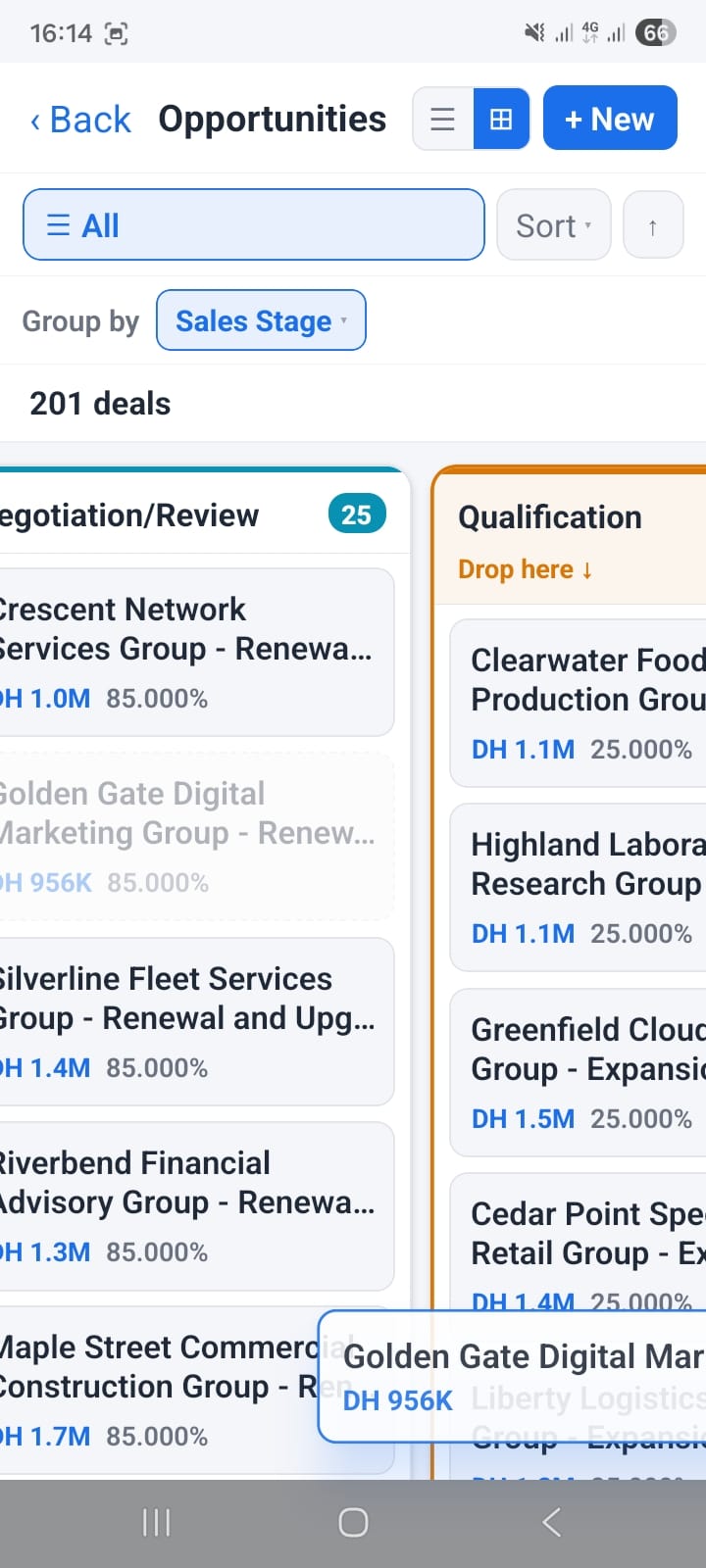
Kanban board grouped by Sales Stage — 201 deals, column badges show count, cards show amount and probability
Drag & Drop Between Columns
You can move a deal to a different sales stage directly on the board. Long-press a card to pick it up, then drag it to the target column. A "Drop here ↓" indicator appears in the destination column to confirm placement. The record is updated in vtiger CRM immediately.
Grouping by Any Picklist Field
Sales Stage is just the default. Tap the Group by pill (showing the current field name) to switch to any other picklist field on the module.
In the example below, the board is grouped by Type — showing columns like Existing Business (99 deals) and New Business. The same drag-and-drop interaction works here too.

Kanban grouped by Type — 198 deals split between Existing Business and New Business columns
Opening a Deal from the Board
Tap any card to open the full deal record. The detail view shows every vtiger field — Type, Expected Close Date, Lead Source, Next Step, Assigned To, Sales Stage, Campaign Source, Probability, and timestamps.
A floating Edit button (blue, bottom-right) lets you update any field directly on your phone. All changes sync back to your vtiger CRM server immediately.
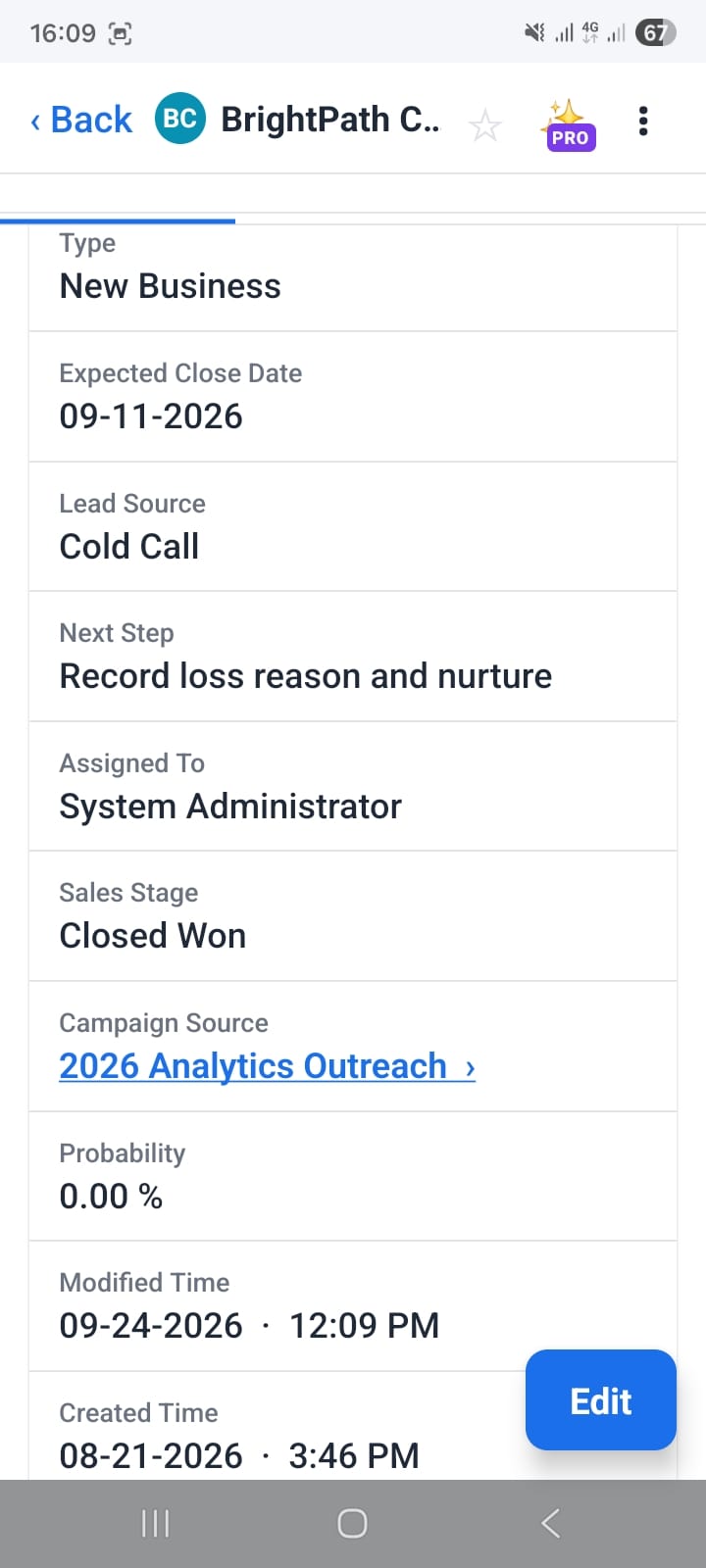
Deal detail view opened from a Kanban card — all fields visible, Edit button in bottom-right corner
Kanban + Notification Workflows: The Full Picture
Kanban gives you the visual pipeline overview. Notification workflows make it proactive — for example, you can set a Record updated workflow that fires whenever a deal's Sales Stage changes to Closed Won and sends you a push notification with the deal name and closing date.
Read the companion article on how to set up notification workflows to configure real-time alerts on top of your Kanban view.
Summary
- Switch to Kanban by tapping the grid icon (⊞) in the top-right of any module list
- Default grouping is Sales Stage — shown in the Group by pill
- Column headers show deal count badges; cards show name, amount, and probability
- Long-press a card to drag it to a different column — the record updates in vtiger instantly
- Tap Group by to switch columns to any picklist field (Type, Priority, Region, custom fields…)
- Tap any card to open the full deal detail view with an Edit button
- Combine with notification workflows to be alerted when deals move between stages