OpenCRMApp Global Features —
Search, Favourites, Notifications & More
Beyond the individual CRM modules, OpenCRMApp ships a set of cross-cutting features available from every screen — a global search that spans all 38 modules, starred records and favourite modules on the home screen, a one-tap Quick Create menu, a notification inbox with workflow management, multi-language support, and live in-app chat with the support team.
Home Screen — Starred Records & Favourite Modules
The OpenCRMApp home screen is your personal dashboard. It surfaces the two things you need most: individual CRM records you've starred, and the modules you use every day.
Starred records
Tap the ☆ star icon on any record's detail view to pin it to the STARRED section at the top of the home screen. The count badge shows how many records are starred (e.g., STARRED 1). Each starred card shows the record name and its module label — for example, Mary · Contacts. Tap the card to jump directly to that record.
Favourite modules
Below starred records, two toggle buttons switch between All Modules (every vtiger module) and Favourites (3) (your pinned modules, shown in amber). The FAVOURITES grid displays large module tiles — tap any tile to open that module's list instantly. Star any module tile from the All Modules view to add it to Favourites.
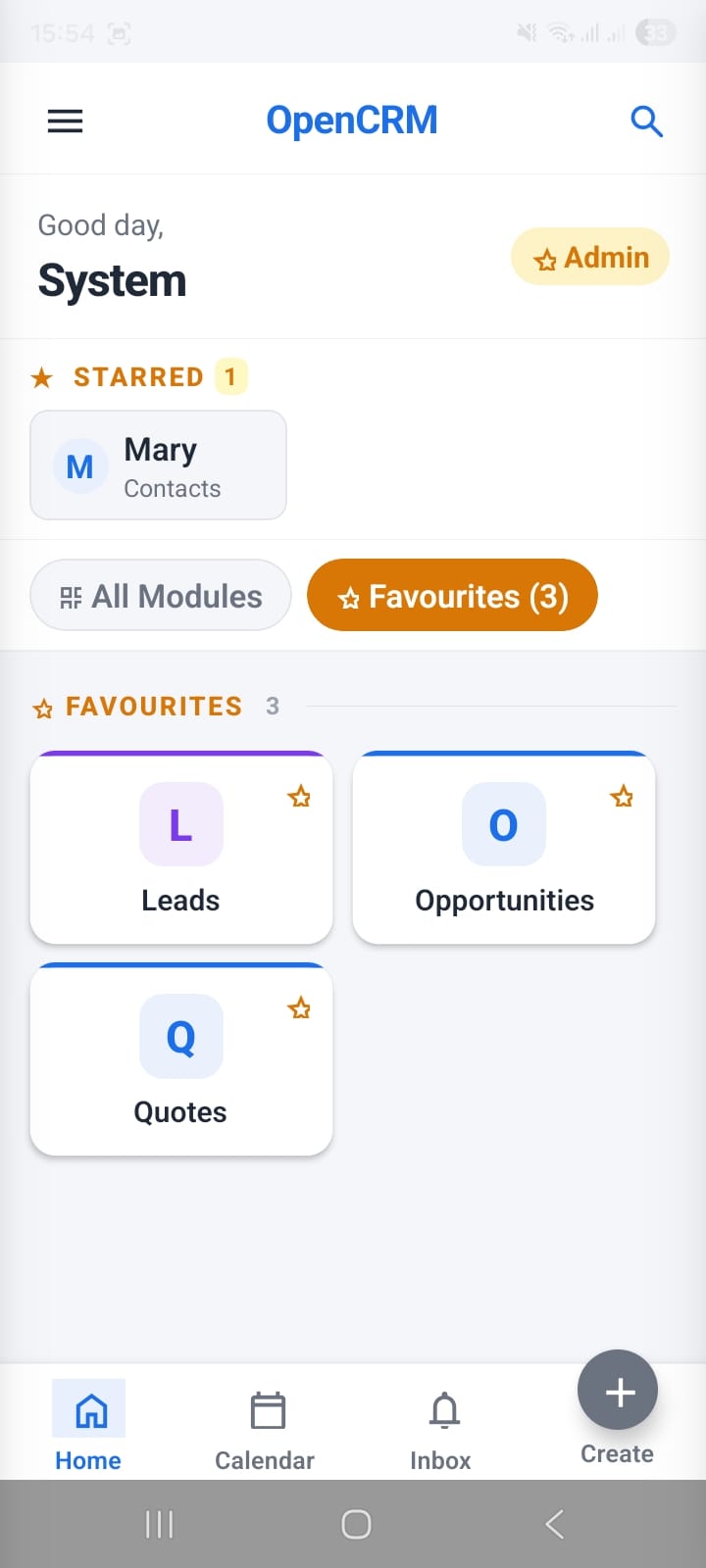
Home screen — starred record (Mary, Contacts) at the top; Favourites tab shows Leads, Opportunities, and Quotes as large tappable tiles
Global Search — Find Any Record Across 38 Modules
Tap the 🔍 search icon in the top-right corner of the home screen (or the search bar on any module list) to open Global Search. This is a single search bar that queries across all 38 vtiger CRM modules simultaneously.
Before you type anything, the search screen shows:
- Last searched module — highlighted at the top (e.g., ● Organizations) with a link showing the total module count (38 modules ›) to switch scope
- Recently modified · 100 — your 100 most recently touched records listed as quick-access cards, each showing the record name and module label
Start typing and results update instantly, pulling matches from every module — Contacts, Leads, Accounts, Opportunities, Tickets, and more — all in one list. Tap any result to open that record's detail view directly.
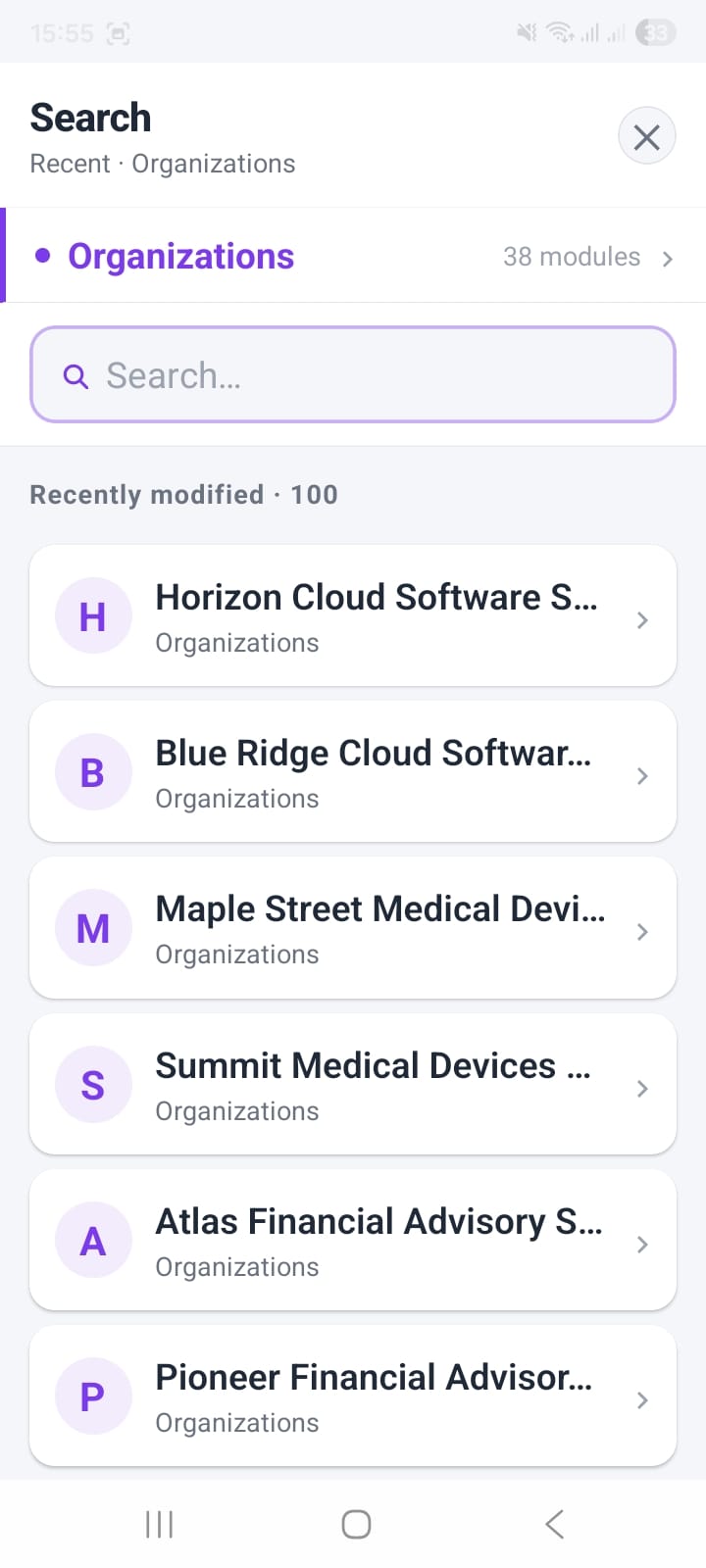
Global Search — before typing, shows the last-used module scope and 100 recently modified records for instant access
Quick Create — New Record from Any Screen
Tap the + FAB (floating action button, bottom-right) or the Create tab in the bottom navigation from any screen to open the Quick Create panel. This bottom sheet lets you create a new record in any module without navigating away from where you are.
The panel is organized into two sections:
- Popular — the most-used modules listed first for fast access: Contacts, Leads, Accounts, Potentials, Tickets (HelpDesk), Task (Calendar), Event (Events)
- All Modules — every other vtiger module below the Popular section (e.g., Products, Quotes, Purchase Orders…)
A Search modules… bar at the top filters the list when you have many modules and want to jump directly to a specific one. Tap any module row to open its creation form with all required fields ready to fill.
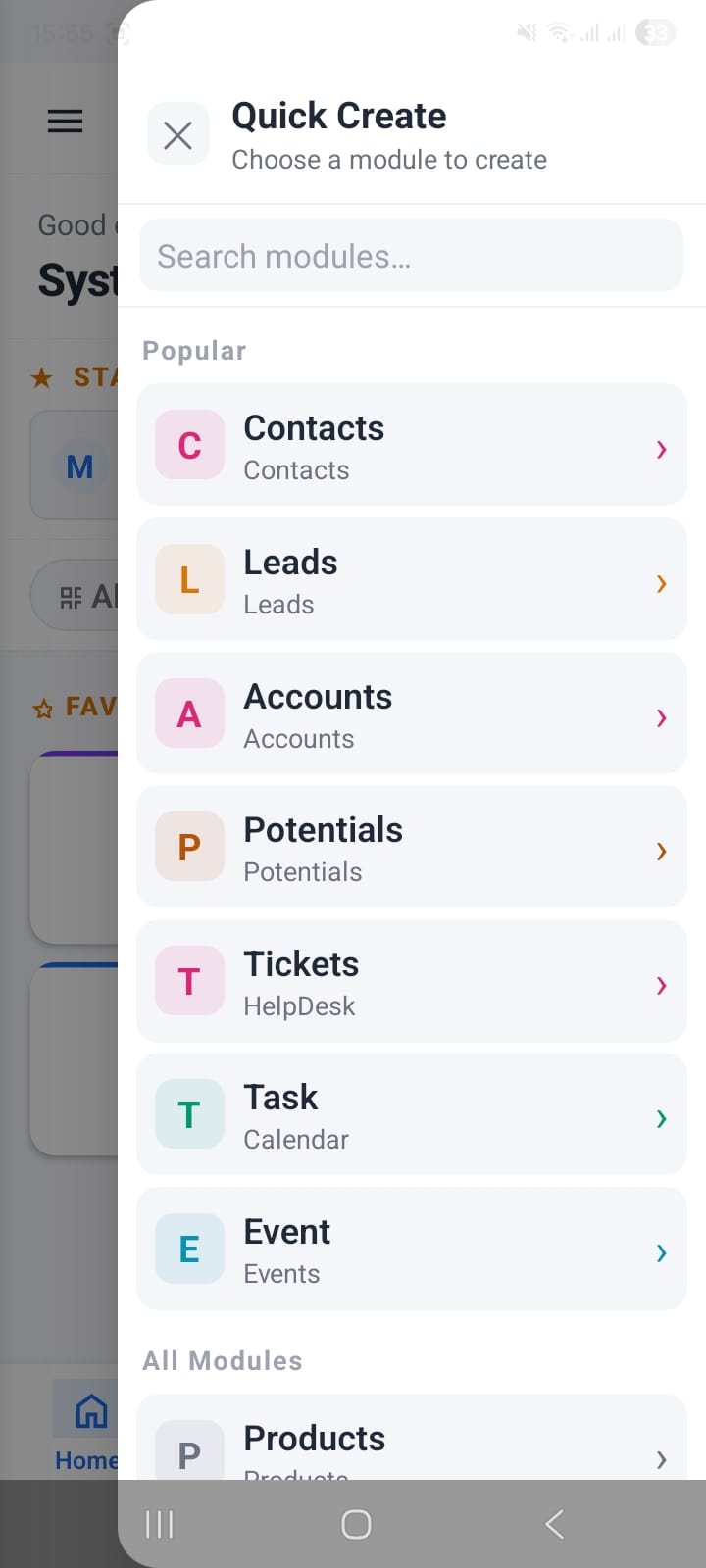
Quick Create — tap + from anywhere to open this panel; Popular modules listed first, full module list below, searchable
Notification Inbox — Real-Time CRM Alerts
The Inbox tab (bell icon, bottom navigation) is your notification centre. Every push notification delivered by your CRM workflows lands here as a persistent record, so you never lose an alert even if you dismiss it from the notification bar.
The inbox header shows the total unread count (e.g., Notifications 1 with a red badge) and a refresh button to pull the latest alerts. Filter tabs across the top let you narrow by notification type — for example, All (1) or 🏆 Deal Closed Won (1) — so high-priority alert types are never buried.
The CRM Workflows section within the inbox lists all active notification workflows with a count badge (e.g., 8) and a + New button to create a new workflow without leaving the inbox. Each workflow row shows its name, trigger type, and module at a glance — all toggle-switchable directly from this screen.
Example workflows visible in the inbox panel:
- New Lead Assigned — Record created · Leads
- Deal Closed Won — Record updated · Potentials
- Deal Closed Lost — Record updated · Potentials
- Daily Pipeline Review — Every day
- New Account Created — Record created · Accounts
- New Support Ticket — Record created · HelpDesk
- Weekly Team Review — Every week
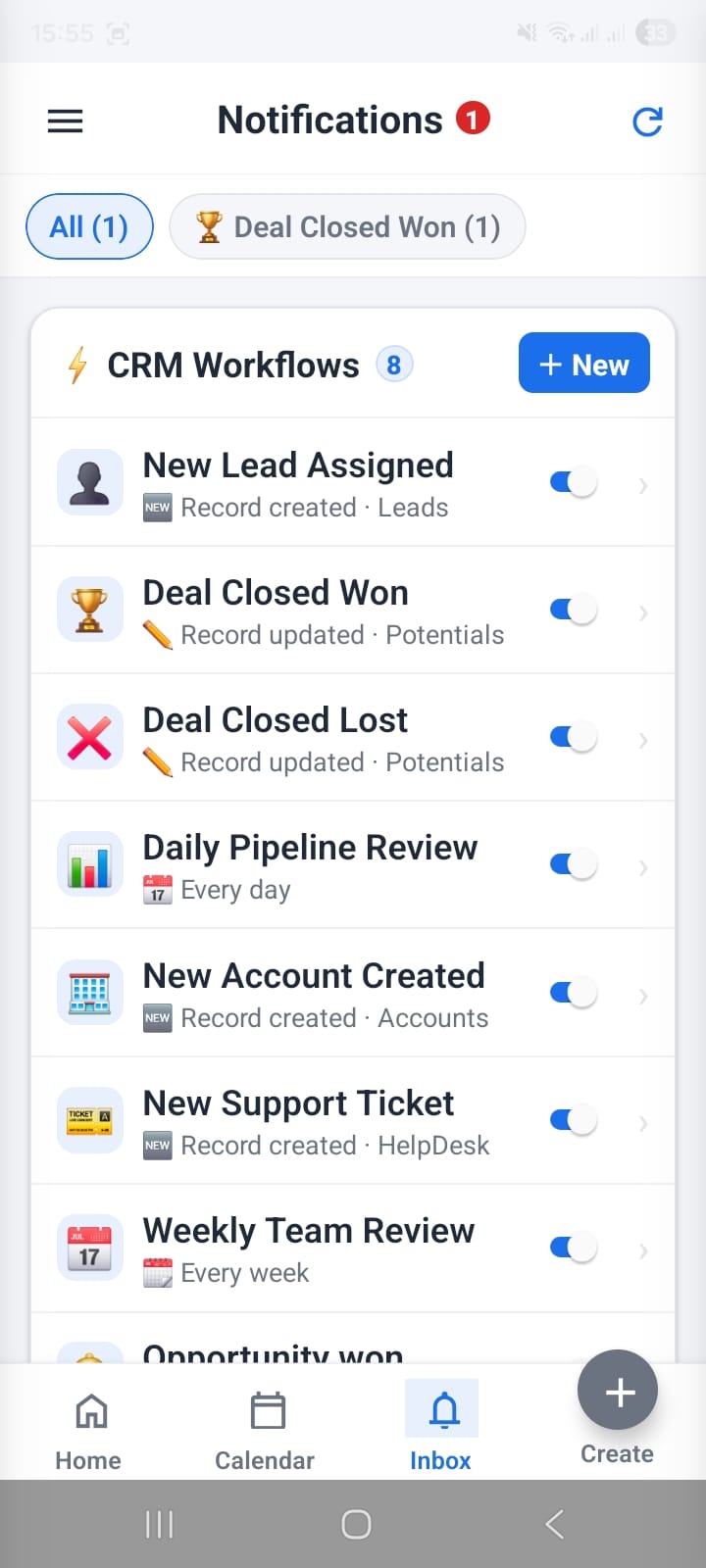
Notification inbox — filter by workflow type; all active workflows listed with toggles; + New creates a workflow without leaving the inbox
Local Workflows — Manage All Your Notification Rules in One Place
The Local Workflows screen (accessible from Settings or the Inbox) gives you full control over every notification workflow configured in the app. All 8 workflows are listed under MY WORKFLOWS (8), each as an expandable card.
Every workflow card shows:
- Name and trigger — e.g., Deal Closed Won · Record updated · Potentials
- Action icons — 🔔 (push notification) and 📁 or 📋 (additional actions like file attachment or report)
- Toggle switch — enable or disable the workflow without deleting it
- Retry — manually re-run the workflow to re-send the notification
- Edit — open the workflow builder to modify trigger, conditions, or message body
- Delete — permanently remove the workflow
The + button in the top-right header creates a new workflow from scratch. This screen is the single source of truth for everything that triggers a push notification to your phone.
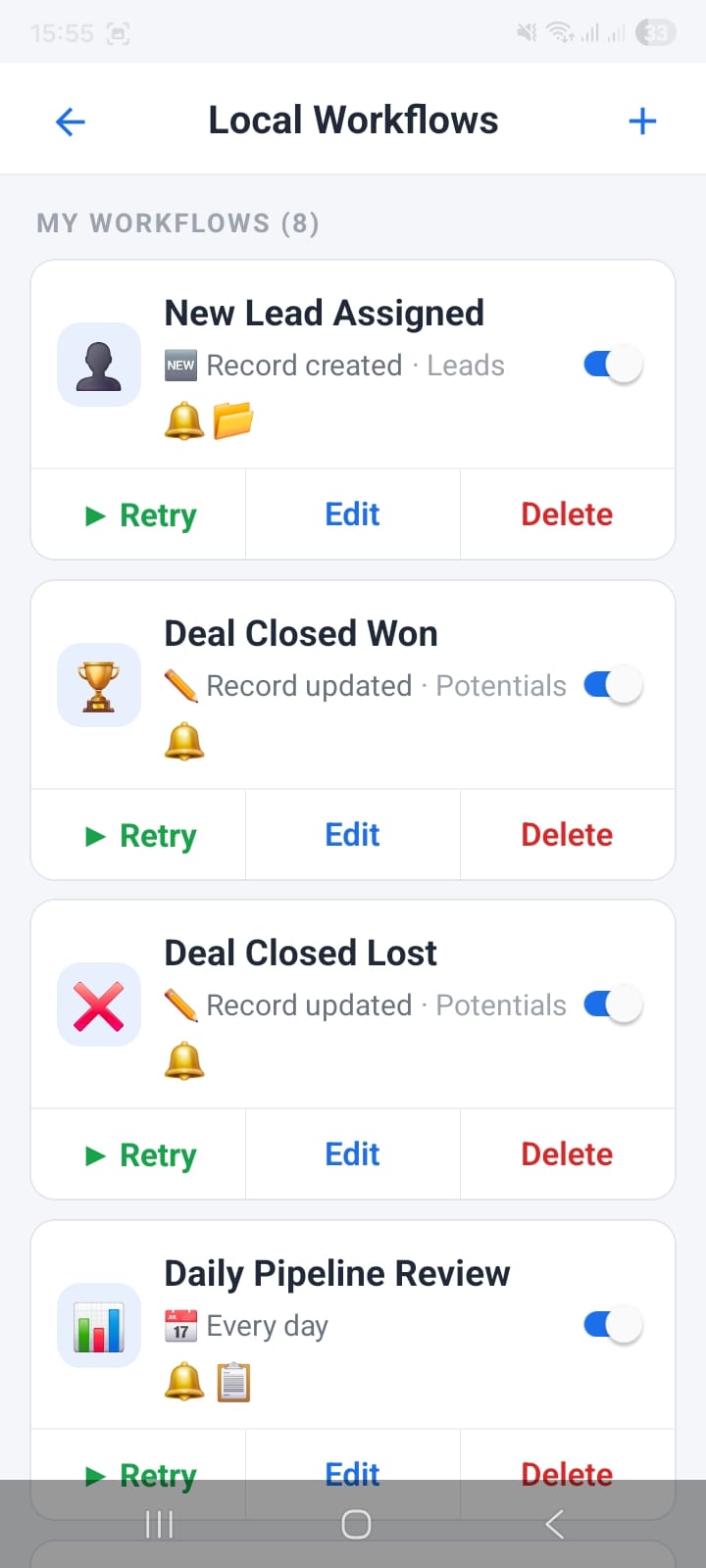
Local Workflows — all notification rules in one screen; toggle, retry, edit, or delete any workflow without opening vtiger CRM

Smart Workflow Notifications — push alerts delivered even when the app is closed, via background polling
Multi-Language Support — 9+ Languages Including Arabic & RTL
OpenCRMApp ships with full multi-language support. Open Settings → Language to choose your preferred display language. The app can auto-detect your device language (System (auto)) or you can manually override it from the list.
Available languages:
Arabic support includes full RTL (right-to-left) layout — the entire app mirrors its layout direction, including navigation, forms, and lists. Language changes apply instantly without requiring a restart.
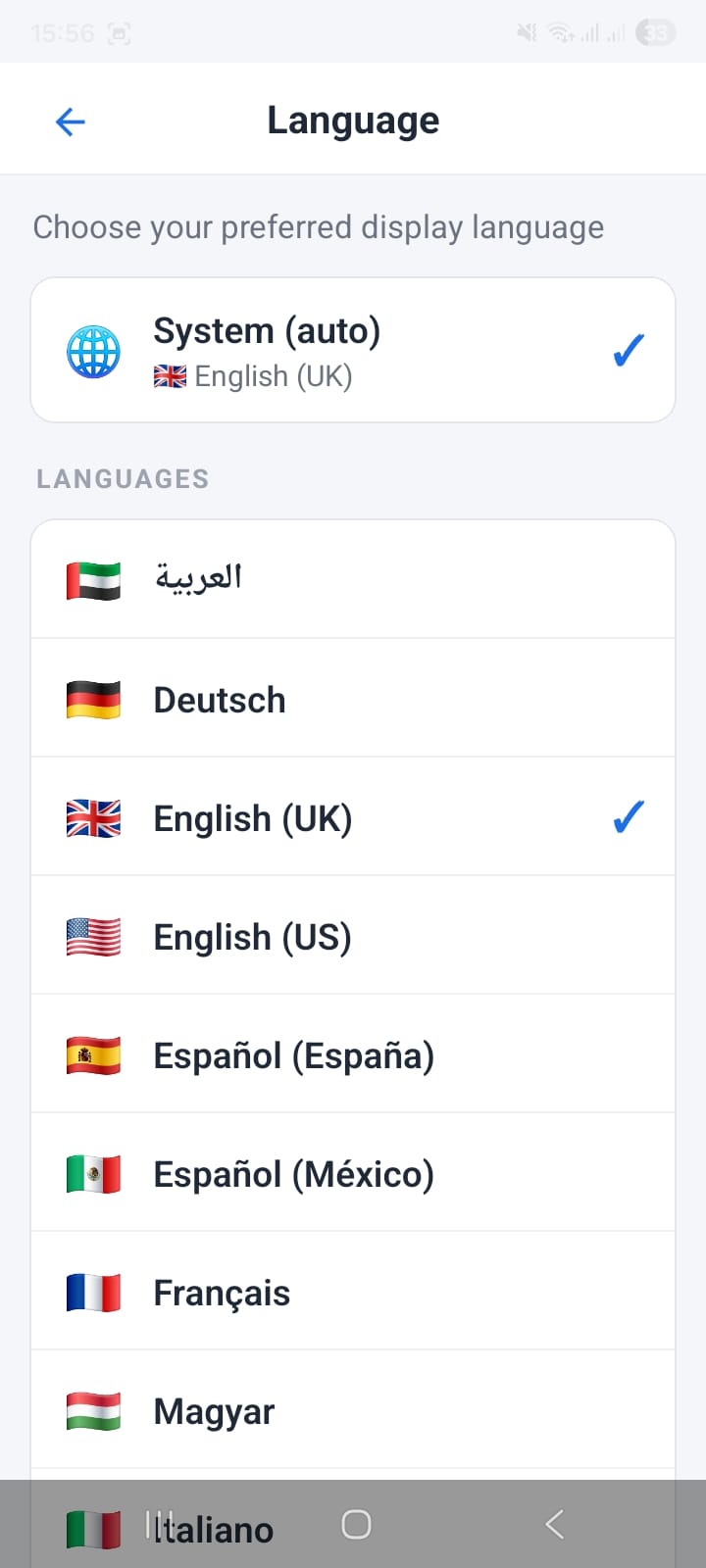
Language settings — 9+ languages with flag icons; System (auto) follows your device; English (UK) currently active
In-App Support Chat — Direct Line to the OpenCRMApp Team
Need help with a feature or want to report an issue? Tap Support from the app menu to open the built-in chat screen. The support agent's status is shown in the header — Online in green when the team is available.
Type your question in the text field at the bottom and tap the blue send button. The team replies within 24 hours. The chat history persists so you can reference previous conversations without starting over.
This is particularly useful for:
- Questions about configuring a specific workflow condition
- Reporting a sync issue with your vtiger CRM server
- Requesting a feature or asking about the PRO plan
- General feedback about the app
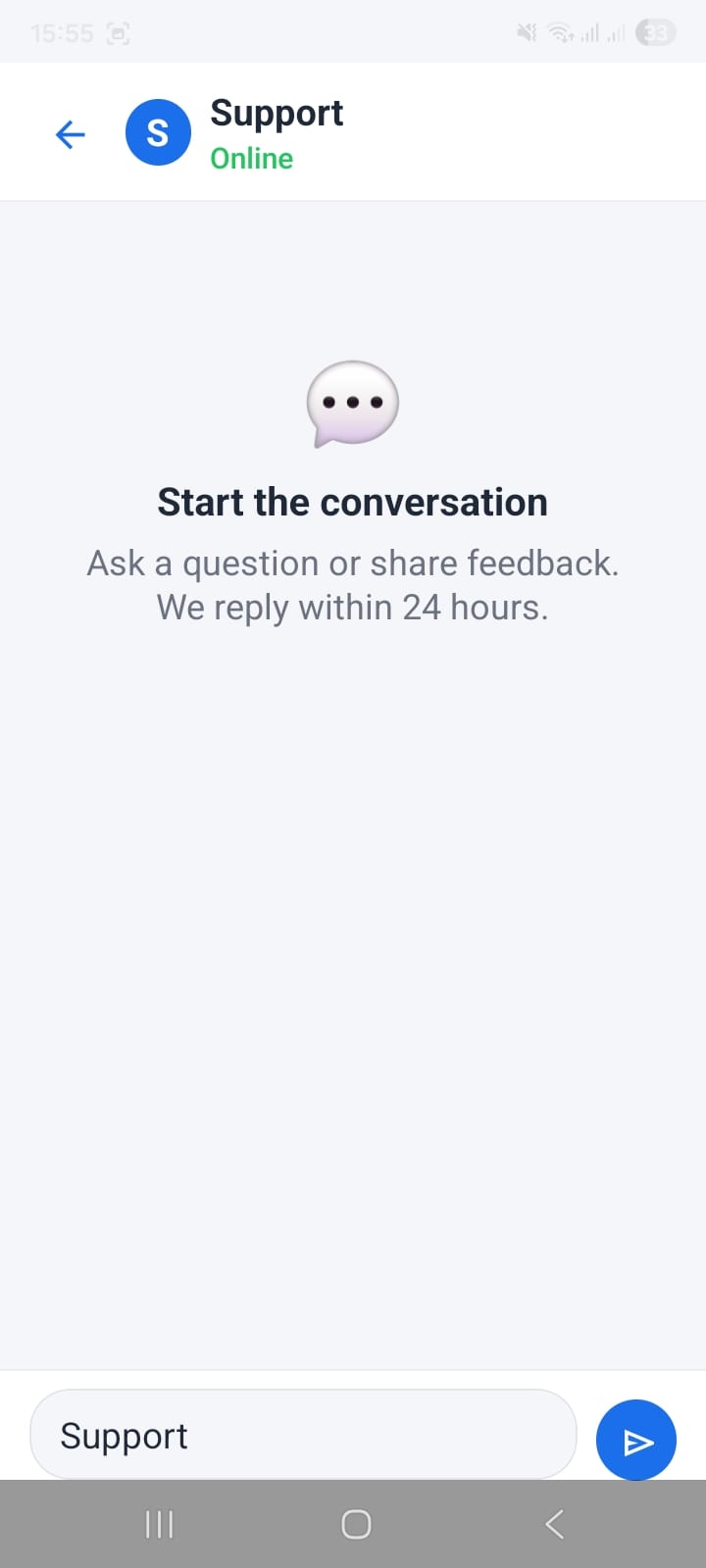
In-app support chat — Support team shown as Online; type your question and get a reply within 24 hours
Summary: Global Features Available from Every Screen
- Home screen — star individual CRM records for instant access; pin your most-used modules as Favourites tiles
- Global Search — one search bar across all 38 vtiger modules; Recently modified · 100 shows recent records before you type
- Quick Create (+) — create a Contact, Lead, Ticket, Task, Event, or any other record from any screen; Popular modules listed first
- Notification Inbox — all CRM workflow push alerts in one place, filterable by notification type; toggle workflows directly from the inbox
- Local Workflows — manage all 8+ notification rules with toggle, retry, edit, and delete — no need to open vtiger CRM
- Background polling — push notifications arrive even when the app is closed, so you never miss a critical CRM event
- Multi-language — 9+ languages (Arabic RTL, German, Spanish, French, Italian, Hungarian…), system auto-detect or manual override
- In-app chat — direct support line to the OpenCRMApp team, reply within 24 hours