How to Manage Activities & Tasks
in OpenCRMApp
The Calendar module in OpenCRMApp shows all your vtiger CRM Events and Tasks in one unified view — across three layouts (Month, Week, List), with powerful filters by source, status, and activity type, and a quick-create form to log new events on the go. Everything syncs back to vtiger CRM in real time.
Three Calendar Views — Month, Week, and List
The Calendar header has a three-segment switcher to flip between layouts:
Each view shows both ● Event and ● Task records together — you never need to switch between separate modules to see your full day.
Month View — Your Full-Month Pipeline at a Glance
Month displays the classic calendar grid for the current month (e.g., September 2026). Each day cell shows a truncated preview of the first activity (e.g., "Validate…", "Confirm…", "Project s…") so you can spot busy days instantly.
Tap any day to select it — the selected date highlights in blue. A day-detail panel slides in below the grid showing:
- The selected date label (e.g., Wed, Sep 9)
- ● 1 Events and ● 1 Tasks count badges — color-coded blue for events, amber for tasks
- Activity cards for that day, scrollable, with full time range and title
Navigate months with the ← → arrows flanking the month/year header. Weekend columns (Sat/Sun) appear in red so they stand out from weekdays.
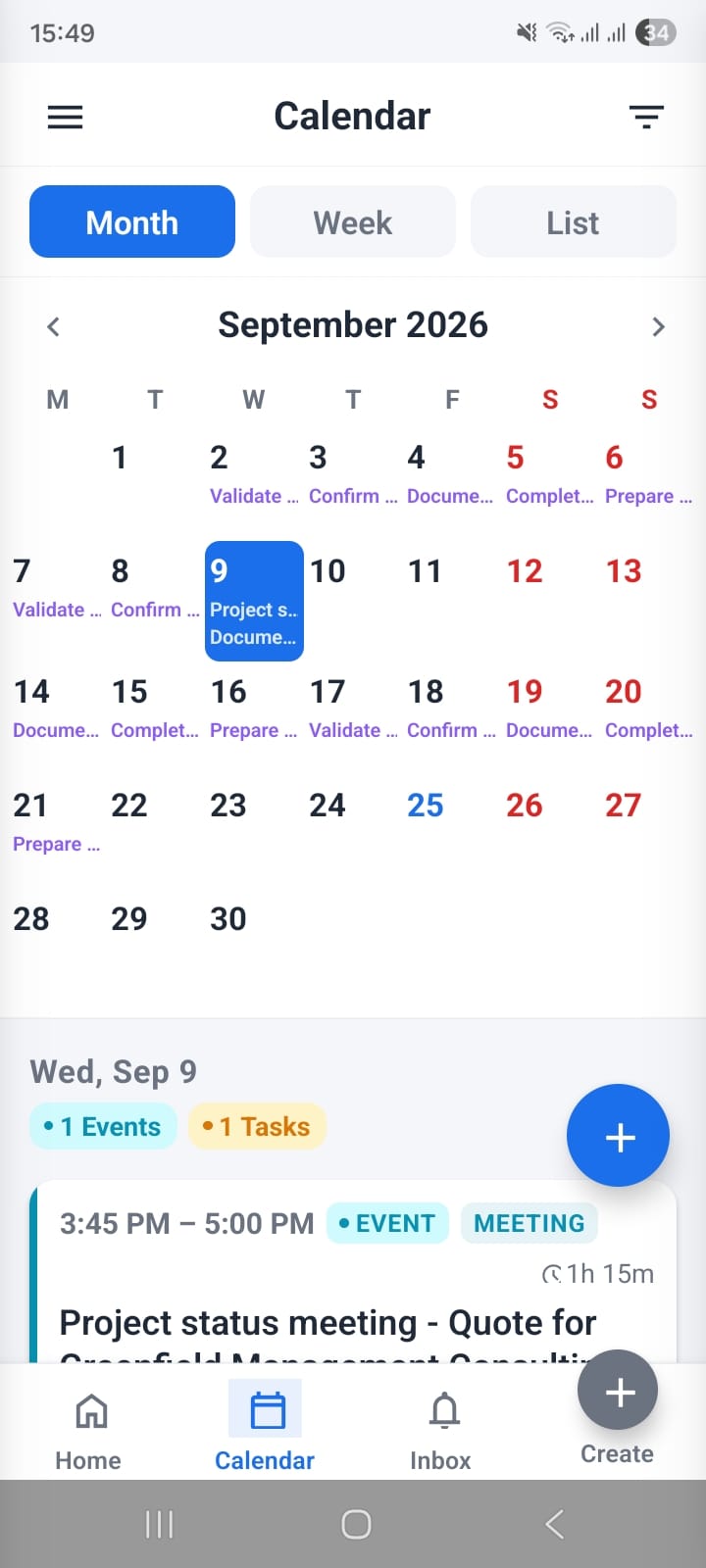
Month view — Sep 2026 grid with day-level activity previews; tap a date to see its Events and Tasks count and card list below
Week View — Events and Tasks Side by Side
Week shows a 7-day strip (Mon–Sun) for the current week. Days that have at least one activity show a small dot indicator below the date number. Tap any day to select it — the day highlights in blue and the activity list for that day loads below.
The week view renders both activity types in the same list, each with a distinct pill:
- ● EVENT — meetings, calls, and other calendar events with start/end time, location, assigned agent, and linked contact
- ● TASK — task records with due time, duration, status badge (e.g., COMPLETED in green, IN PROGRESS in blue), and location
Each activity card shows: time range, type badge, activity-type label (e.g., MEETING), duration (⏱ 1h 15m), full title, status, location, assigned agent, and linked contact — making it a self-contained summary with no need to open the record.
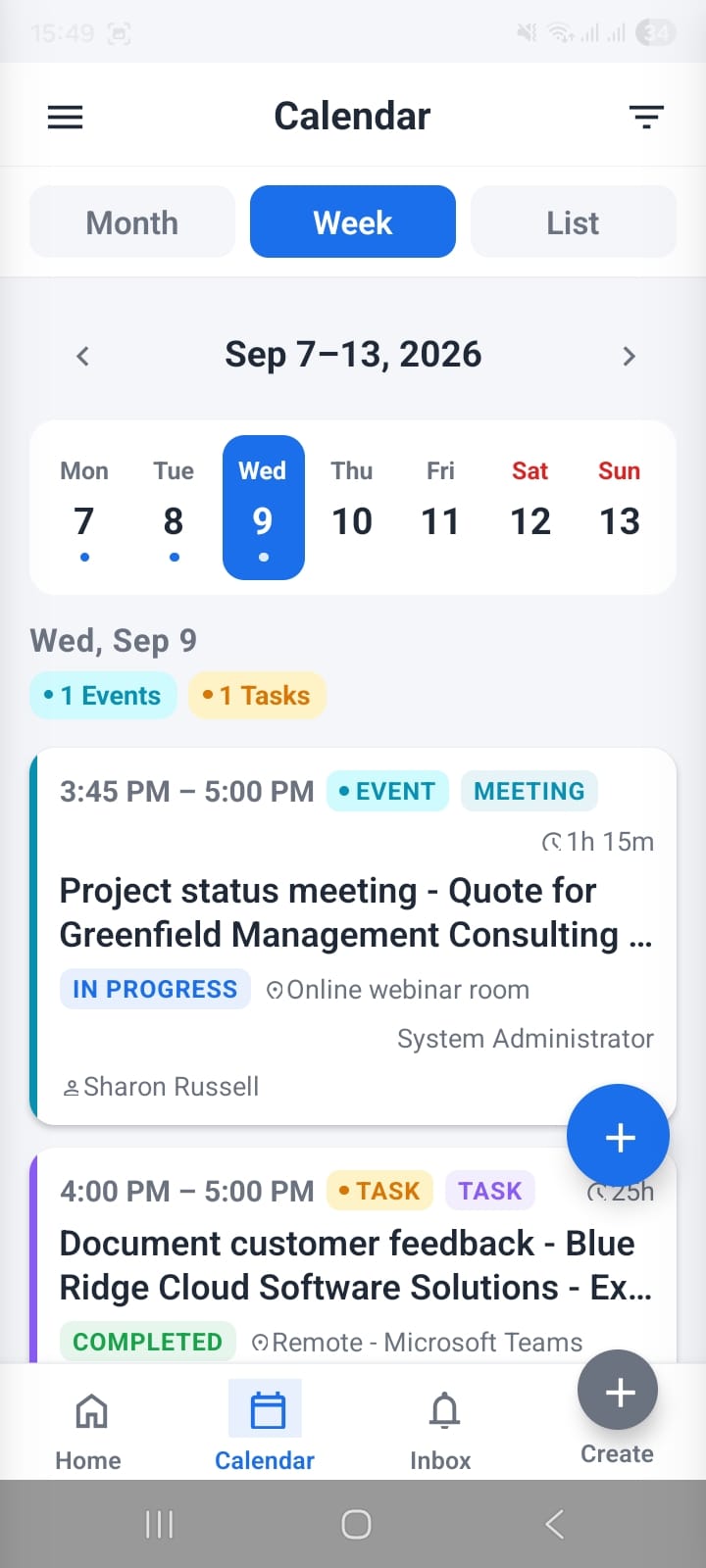
Week view — Sep 7–13 with Wed 9 selected; Events (blue) and Tasks (amber) appear together in the day panel with full card details
List (Agenda) View — Full Detail in Chronological Order
List view is the agenda layout — activities sorted chronologically with the most upcoming at the top, grouped by date. Each date row shows a count badge (e.g., 1E for 1 event). This is the best view when you want the complete picture of upcoming activities across multiple days without the spatial constraints of a grid.
Each activity card in List view includes:
- Time range — start and end time (e.g., 1:45 PM – 3:00 PM)
- Type badges — ● EVENT plus the Activity Type label (e.g., MOBILE CALL)
- Duration — ⏱ 1h 15m
- Title — full event title, bold
- Status — e.g., PLANNED
- Location — e.g., Online webinar room
- Assigned To — agent name
- Contact — linked contact person
- Related record — linked module record (e.g., the opportunity or account)
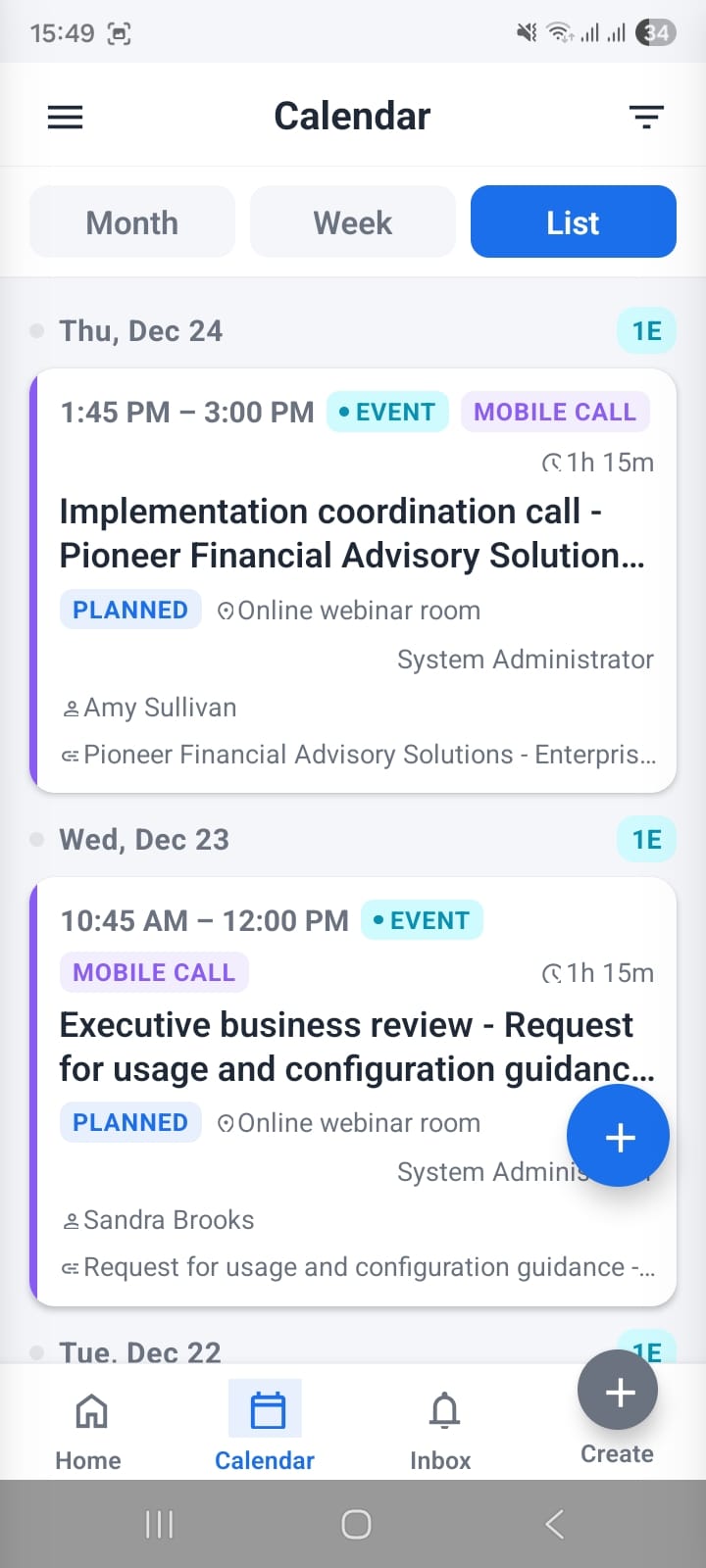
List (Agenda) view — events grouped by date with full details: time, type, status, location, agent, contact, and linked record
Advanced Filters — Narrow Your Calendar by Any Dimension
Tap the filter icon (top-right of the Calendar header, next to the hamburger menu) to open the Filters bottom sheet. You can combine multiple criteria to show exactly what's relevant:
Source
Toggle between Events and Tasks — or leave both selected to see everything. This is the fastest way to isolate your task list from your meetings calendar.
Assigned To
Filter by agent — for example, tap System Administrator to see only activities assigned to that user. Managers use this to view a team member's schedule without switching accounts.
Status
Select one or more statuses as pill toggles — all statuses from vtiger CRM are listed: Planned, Held, Not Held, Not Started, In Progress, Completed, Pending Input, Deferred. Combine Not Started + In Progress to see all open work at once.
Activity Type
Filter by the type of activity: Call, Meeting, Mobile Call, Client Visit, and any other custom types defined in your vtiger CRM. Useful when you want to review only client-facing calls or only internal meetings.
Tap Apply at the bottom to update the calendar with the selected filters. All three views (Month, Week, List) respect the active filter.
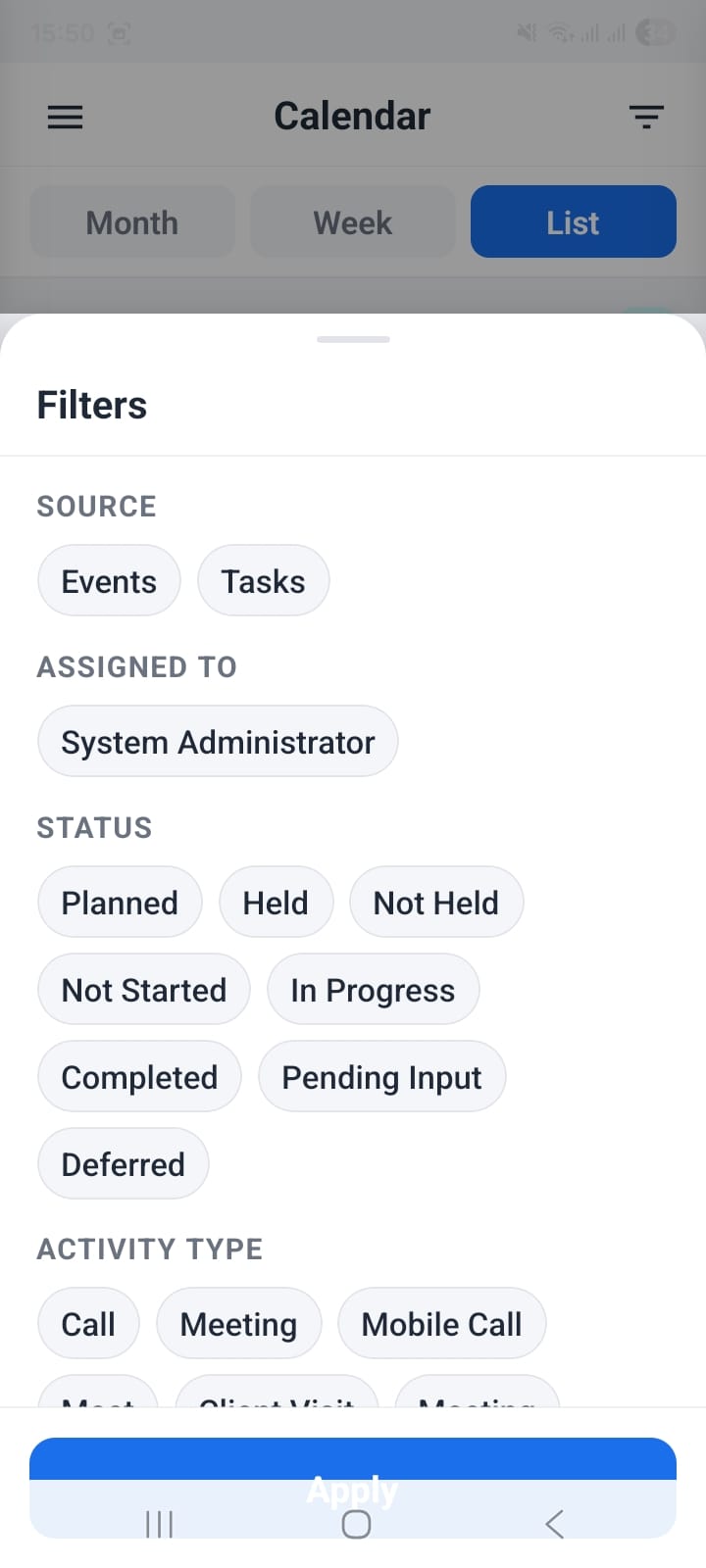
Filters panel — combine Source, Assigned To, Status, and Activity Type to narrow the calendar across all three views
Quick Create — New Event in Seconds
Tap the blue + FAB (floating action button, bottom-right) from any calendar view — or the Create tab in the bottom navigation — to open the New Events quick-create form.
The form uses the same required-field counter pattern as the rest of the app — the header shows 5 / 8 required filled, updating as you complete each field. Green checkmarks appear next to fields that are already valid.
The required fields in the Event creation form are:
- Subject * — the event title (free text)
- Assigned To * — defaults to the logged-in user (e.g., System Administrator)
- Start Date & Time * — date picker + time, pre-filled with today's date and 12:00 PM; Clear link to reset
- End Date * — defaults to one hour after start; Clear link to reset
- Status * — dropdown (Planned, In Progress, Held, etc.)
- Activity Type * — dropdown (Meeting, Call, Mobile Call, etc.)
- Plus two additional required fields below the fold
Tap Save (top-right) when all required fields are filled. The event is created in vtiger CRM and appears in your calendar immediately. Tap Cancel to discard without saving.
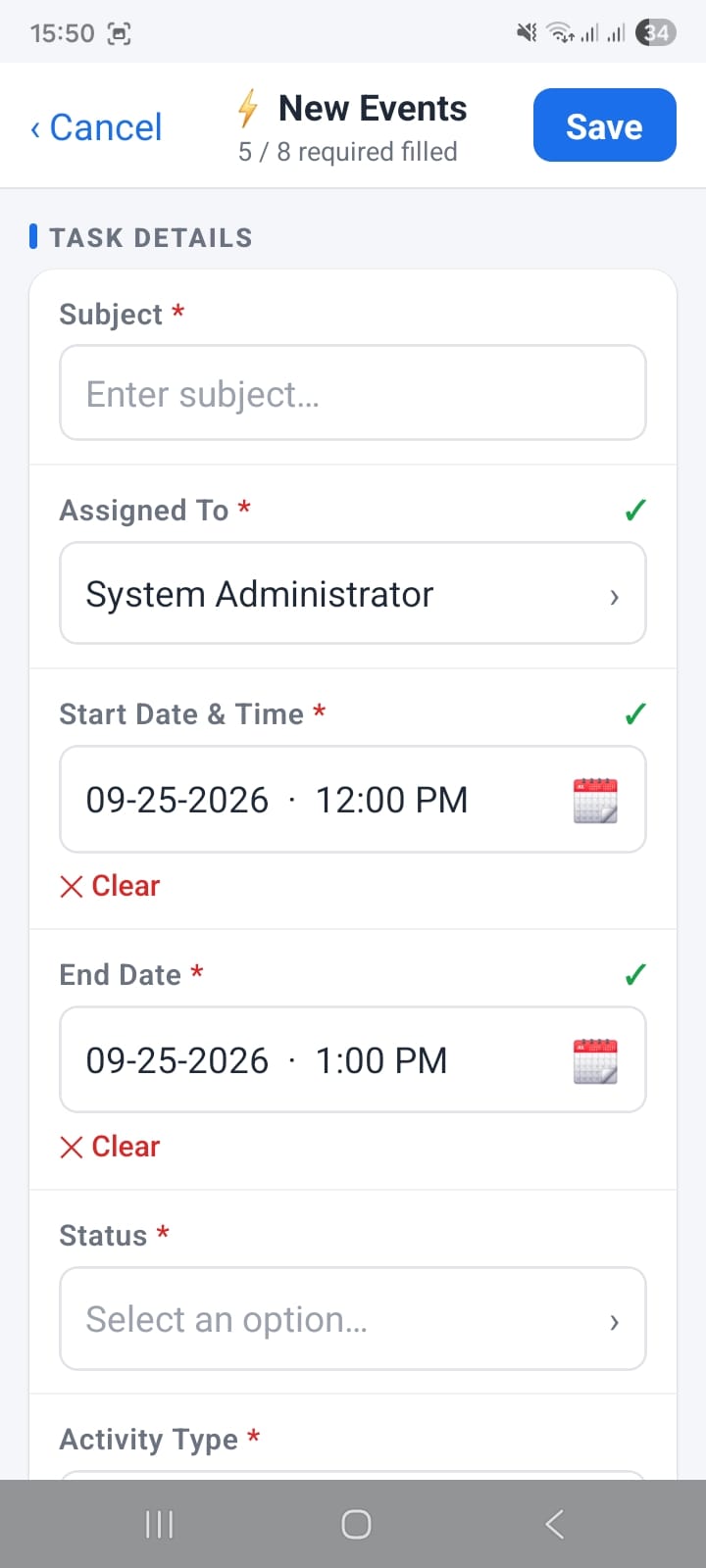
New Events form — 5 / 8 required fields filled; green checkmarks confirm valid fields, Save activates when all required fields are complete
Event Detail View — Full Info and Inline Updates
Tap any activity card (from any view) to open the full detail screen. The detail header shows a summary of all key fields at a glance:
- Subject (full title, not truncated)
- Type label — EVENTS or TASKS
- Assigned To, Start/End Date & Time, Activity Type
Below the summary, inline pill buttons let you update the most-changed fields without tapping Edit: Status In Progress ▾, Activity Type Meeting ▾ — tap any pill to select a new value and save immediately to vtiger CRM.
The detail view has three tabs — Details (all fields), Related (linked records), and Updates (change history) — matching the same layout used across all modules for a consistent experience. The blue Edit FAB opens the full edit form when you need to update any non-pill field.
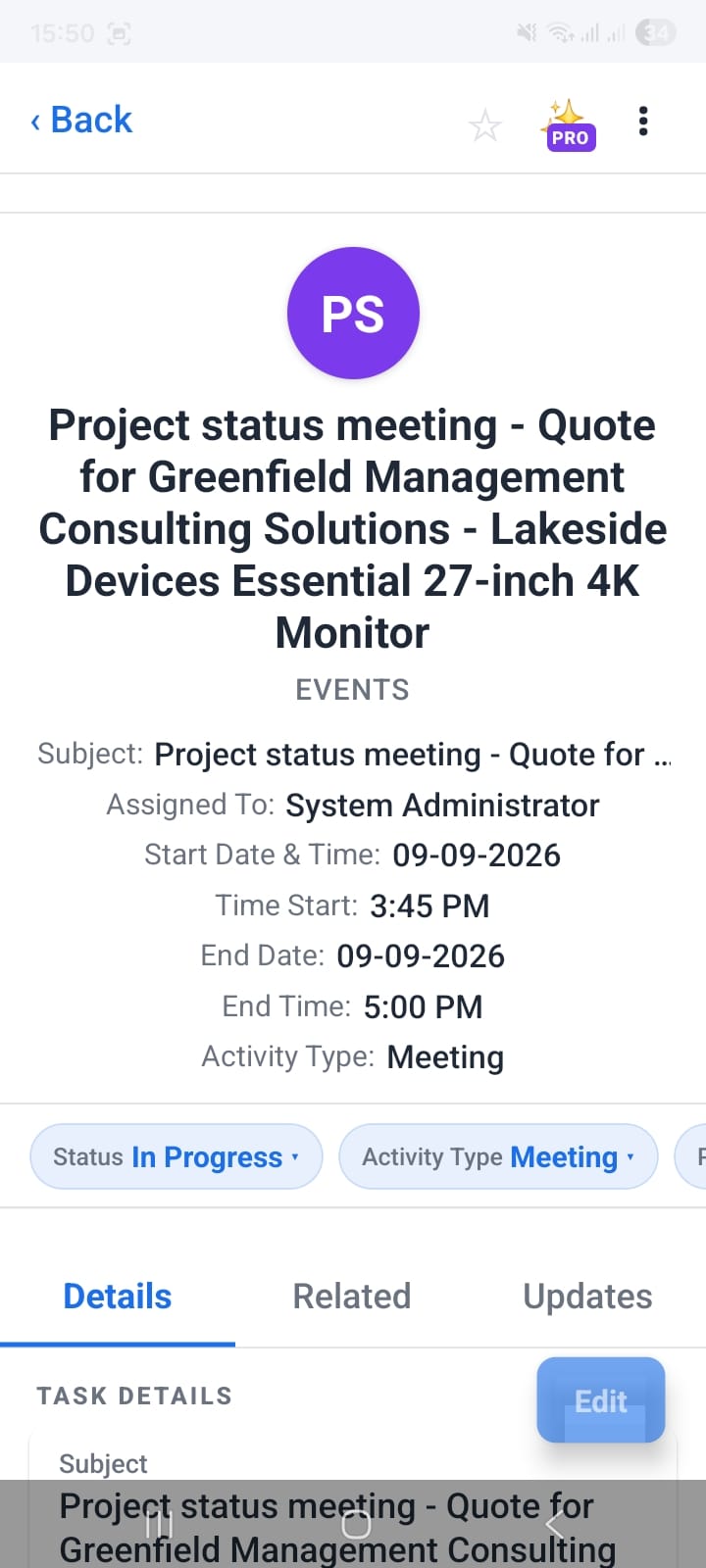
Event detail — full title, all date/time fields, inline Status and Activity Type pill updates, plus Details / Related / Updates tabs
Summary: Your Full Activity Workflow on Mobile
- Switch between Month, Week, and List views using the header tab — all three show Events and Tasks together
- Month view gives an overview with activity previews per day; tap a date to see its count badges and card list
- Week view shows a 7-day strip with dot indicators; the selected day loads a full card list with status badges color-coded by state
- List (Agenda) view is the most detailed — full time, type, status, location, agent, and linked contact visible per card without opening anything
- Use Filters (top-right icon) to narrow by Source (Events/Tasks), Assigned To, Status, and Activity Type — filters apply across all three views
- Tap the + FAB or Create tab to open the quick-create form with a 5 / 8 required filled counter guiding you to a valid record
- Inside any event, use the Status and Activity Type inline pills to update without opening the edit form; check the Updates tab for the full change history