OpenCRMApp brings the full power of vtiger CRM to your phone. This guide covers every major feature — from day-to-day module management to advanced workflow automation — so you can get productive from day one.
Contents
- Contact Management
- Support Tickets
- Activities & Calendar
- Global Features — Search, Home Screen & Notifications
- Record Actions — Call, WhatsApp, Email & Maps
- Quick Create
- Products, Services & Quotes
- Mandatory Field Validation
- Workflow Builder
- Notification Inbox & Workflow List
- Personal Reminders
- Multi-Language Support
- Offline Detection
1. Contact Management
The Contacts module is your central hub for every person in your CRM. OpenCRMApp surfaces the tools you use most — saved views, instant search, full editing, address lookup, and bulk import — without requiring you to navigate away from your list.
Saved List Views
At the top of the Contacts list you will find view tabs — All Contacts, My Contacts, Recently Modified, and any views you or your admin created in vtiger. Switching between them is instant and requires no reload.
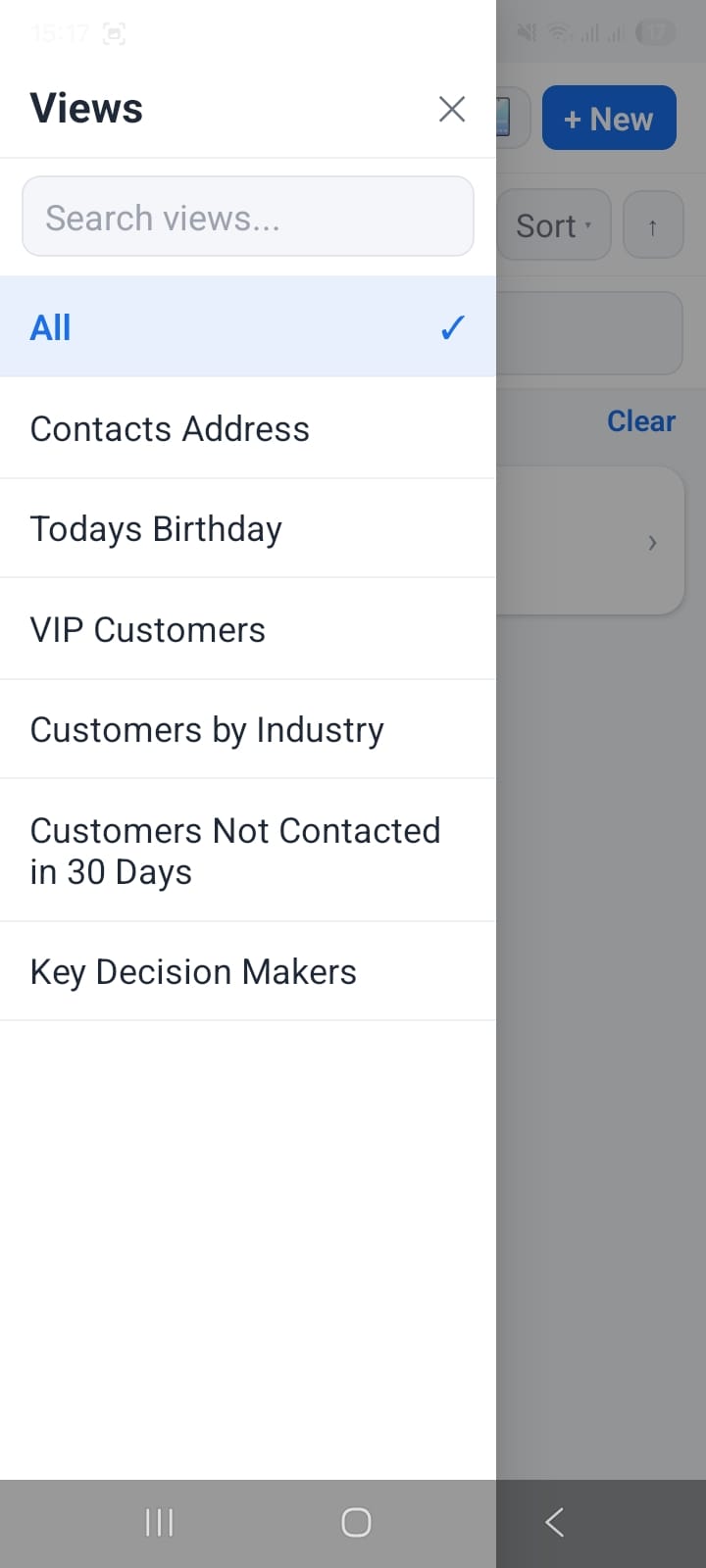
Saved list views at the top of the Contacts screen
Real-Time Search with Keyword Highlighting
Tap the search icon and start typing — results filter in real time across all searchable fields. Every matched keyword is highlighted in the result so you can confirm the right contact at a glance.
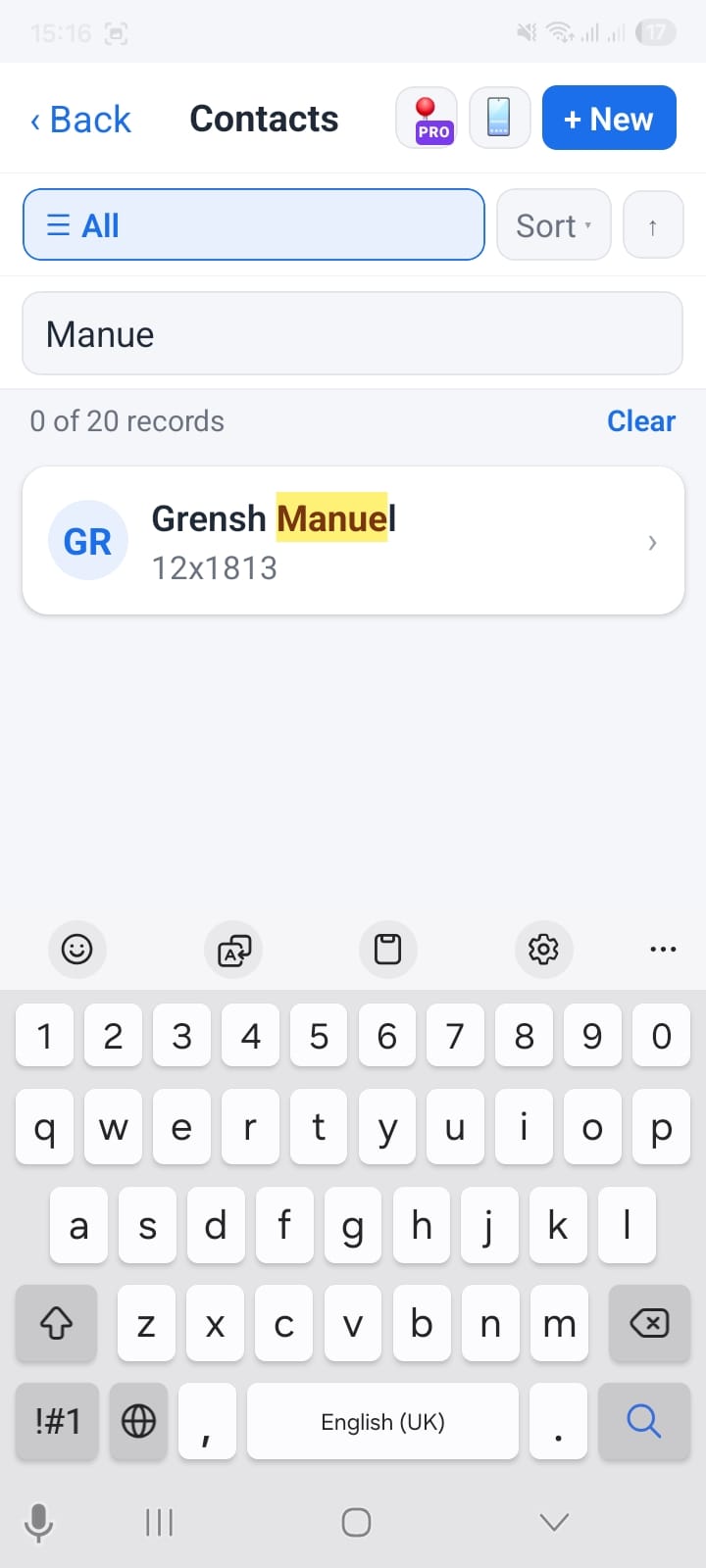
Keyword highlighting in contact search results
Editing a Contact
Tap Edit on any contact to open the full edit form. Required fields are marked with a red asterisk, and the header shows how many required fields still need to be filled — so you can't accidentally save an incomplete record.
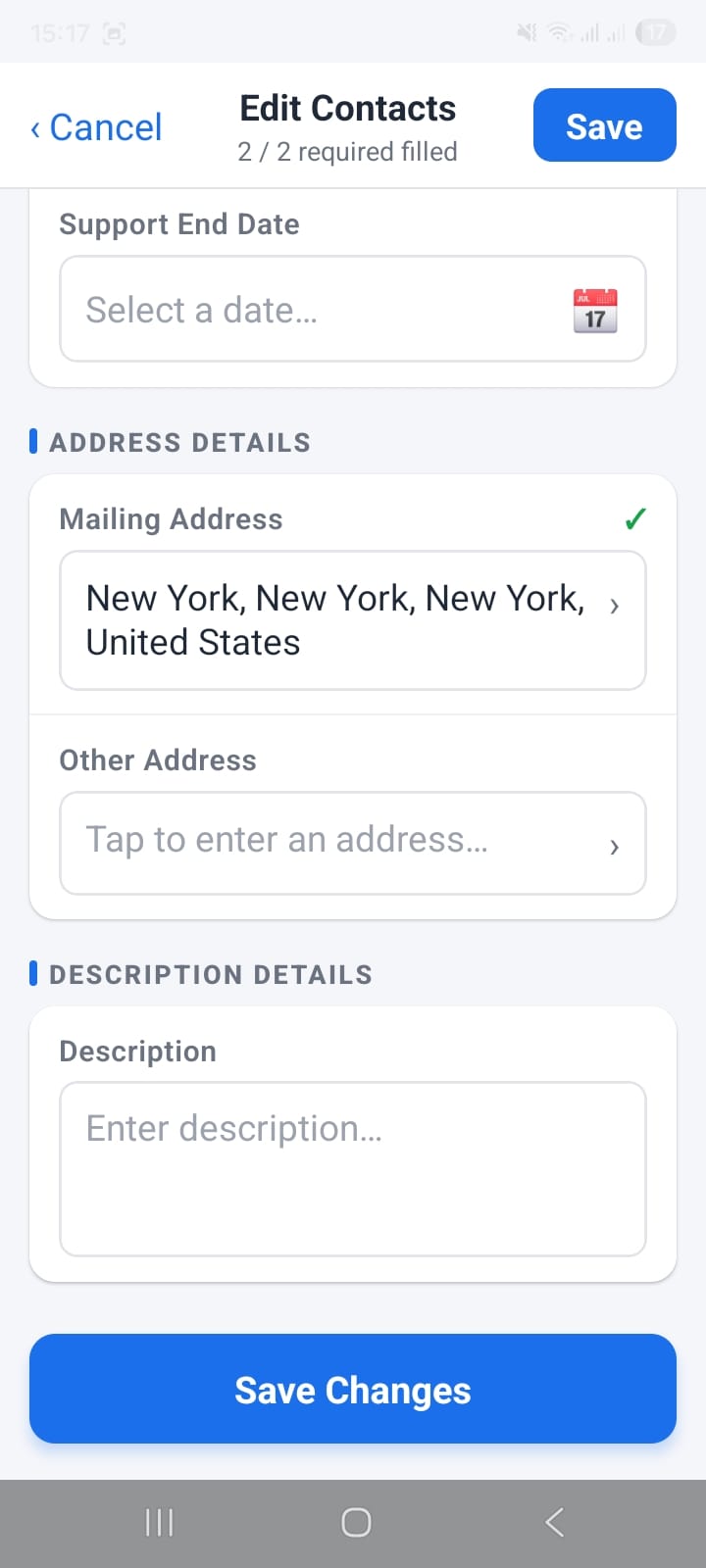
Contact edit form with required-field progress counter
Address Autocomplete
When filling any address field, a dedicated Mailing Address sheet opens with a live search bar. Type a city, street, or postcode and the app returns matching suggestions powered by a mapping API. Select one and Street, City, State, and Country fill automatically.
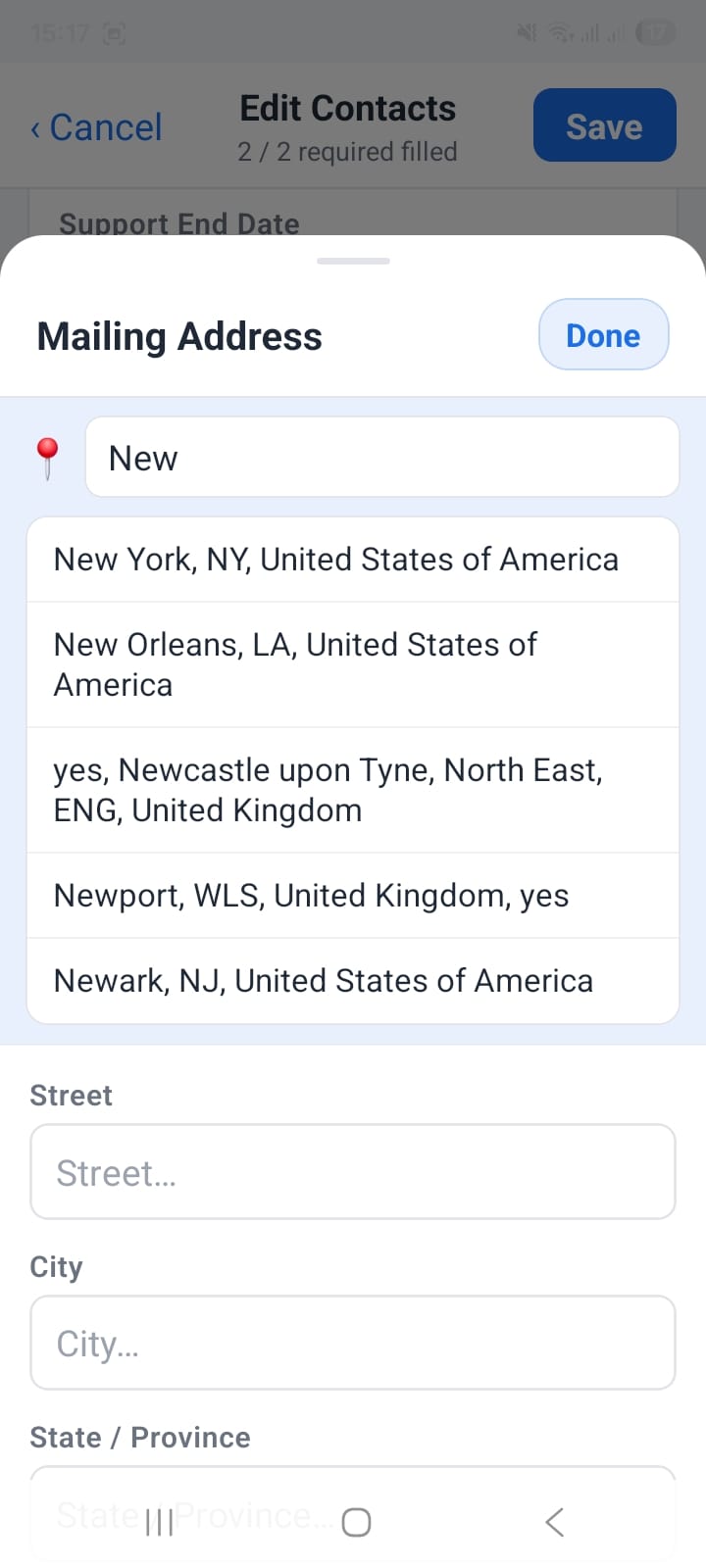
Address field with autocomplete trigger
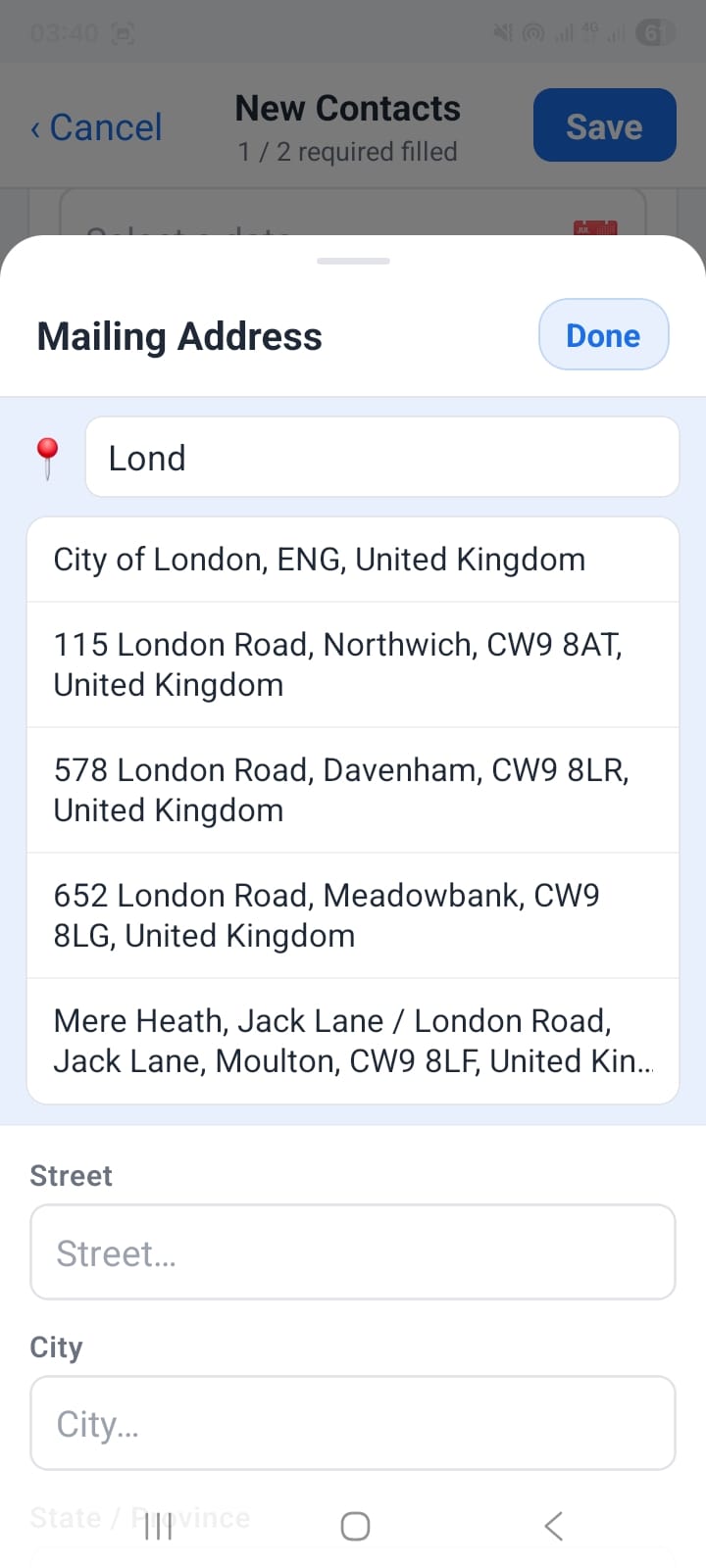
Live address suggestions — tap to fill all fields
Import Contacts from Your Device
Tap the import icon to pull contacts directly from your phone book. A multi-select screen lets you choose individual entries or import in bulk. You can also import from a connected Google account.
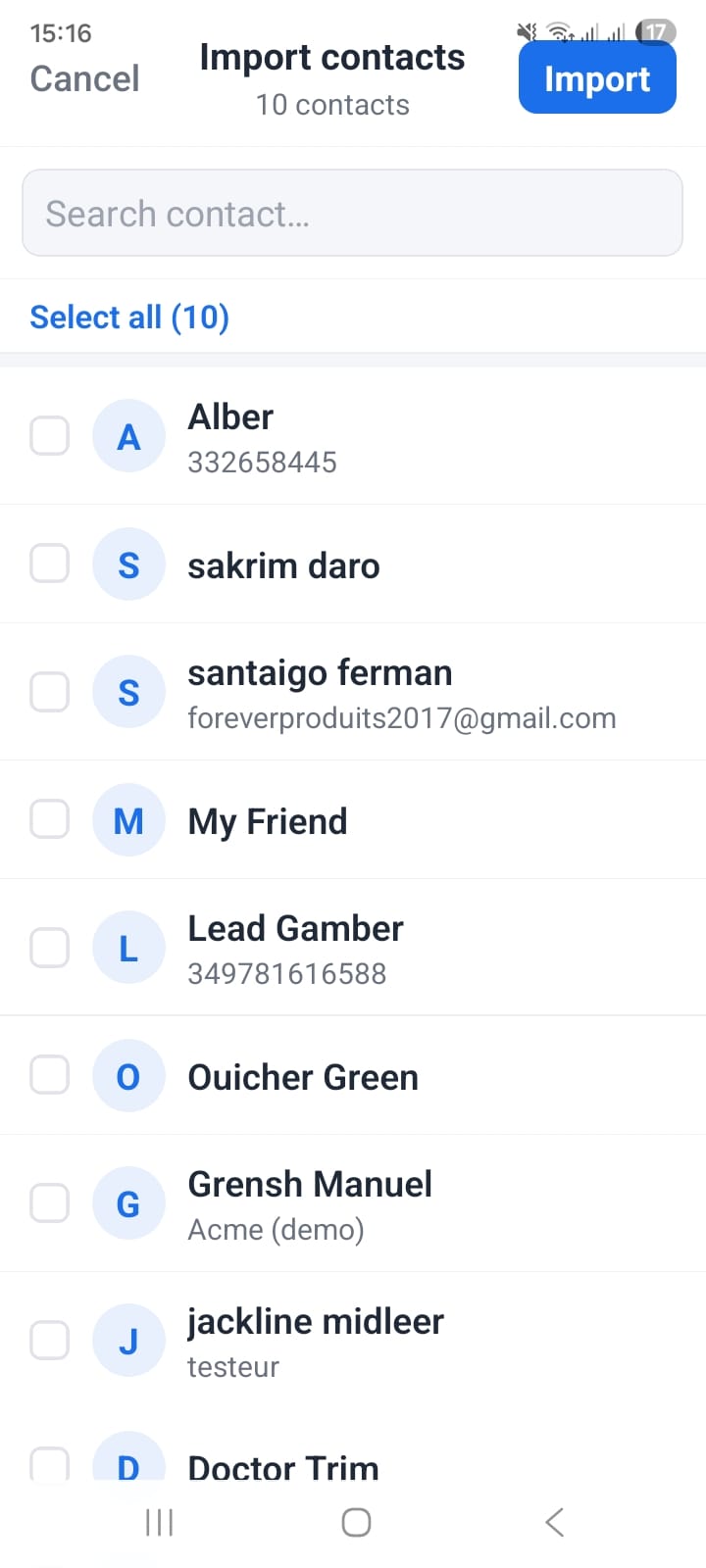
Import contacts from your phone
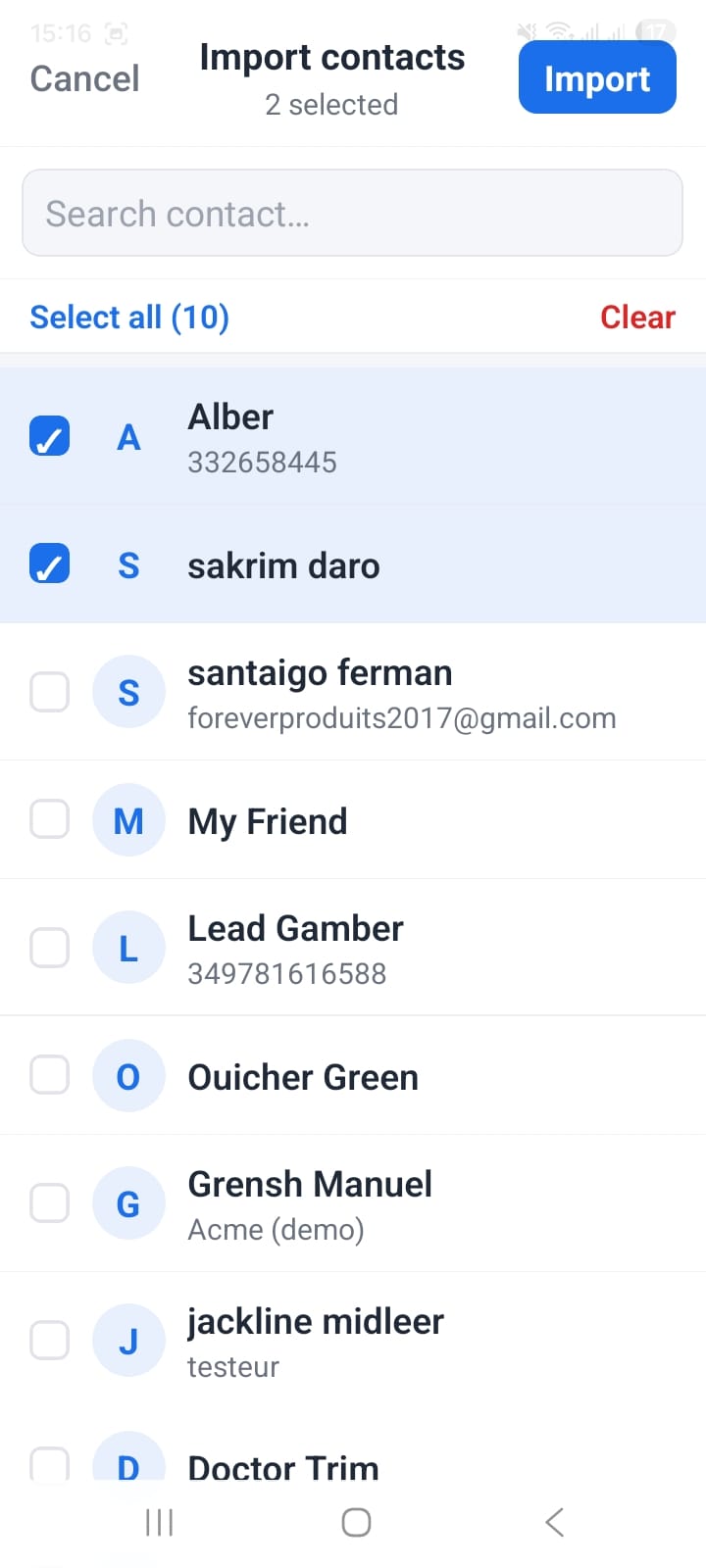
Choose to import from device or Gmail account
Duplicate & Delete
Long-press or open the action menu on any contact to access Duplicate (clone the record with a new ID) or Delete. A confirmation dialog prevents accidental deletions.
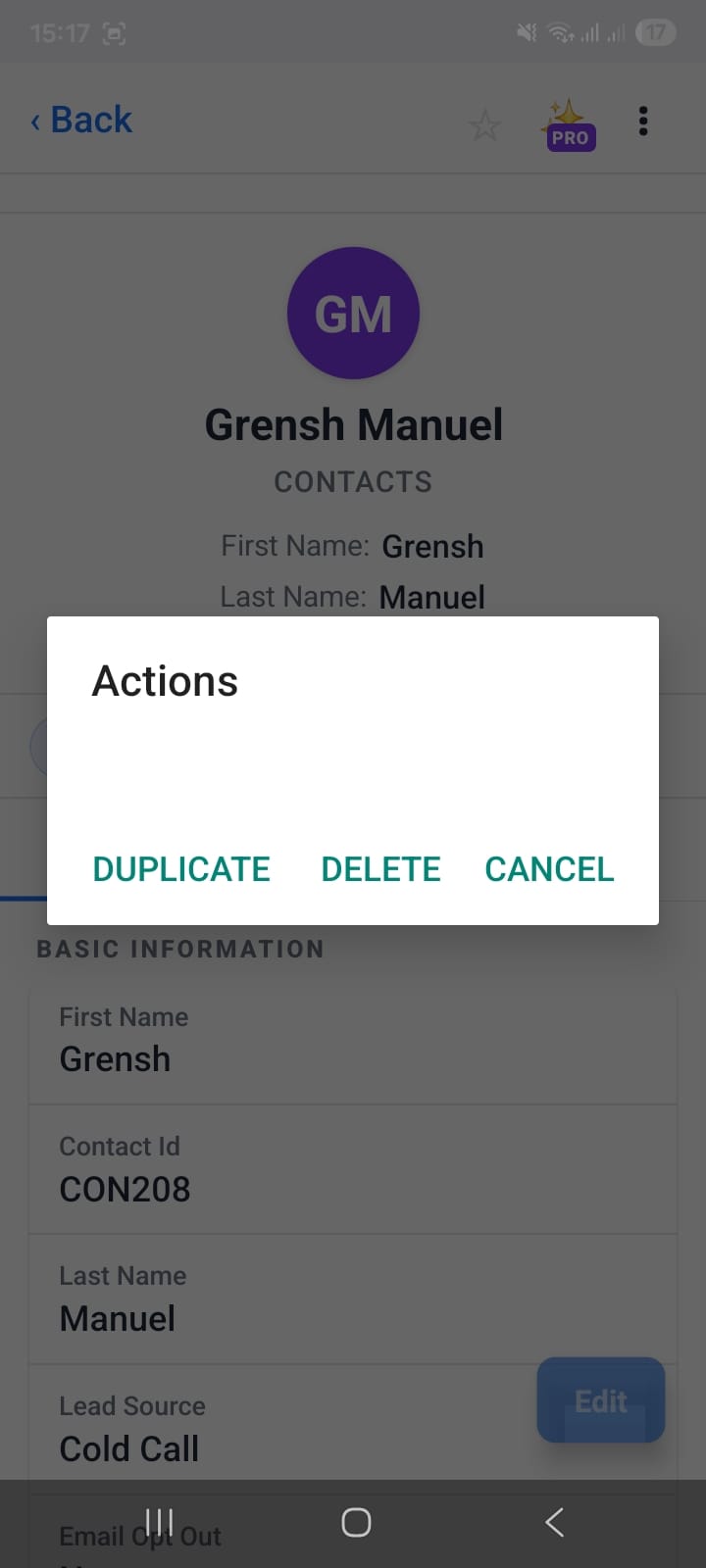
Duplicate or delete a contact from the action menu
18 Related Modules in One Tab
Open any contact and tap the Related tab to see everything linked: Activities, HelpDesk Tickets, Potentials, Quotes, Sales Orders, Invoices, Documents, Campaigns, and more — all in a single scrollable list, no desktop needed.
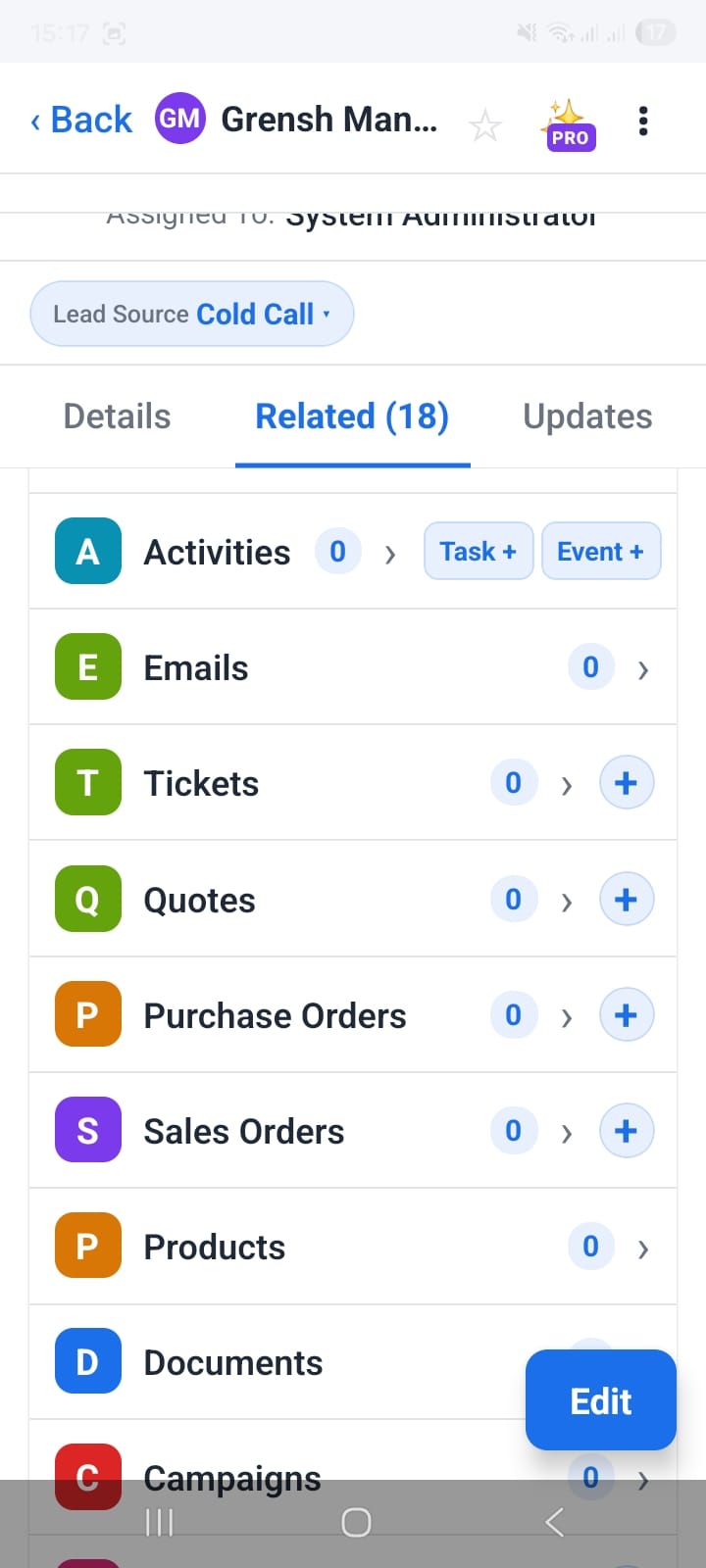
All 18 related modules visible from the contact detail screen
2. Support Tickets
The HelpDesk module in OpenCRMApp makes it easy to triage your support queue from the road. Switch saved views, preview tickets without leaving the list, update fields with a single tap, and audit every change with a timestamped history.
Saved Views — All, Open, High Priority
Three default views cover the most common filters: All Tickets, Open Tickets, and High Priority. Your CRM admin can add more. Each view remembers the last sort column so the most urgent ticket is always at the top.
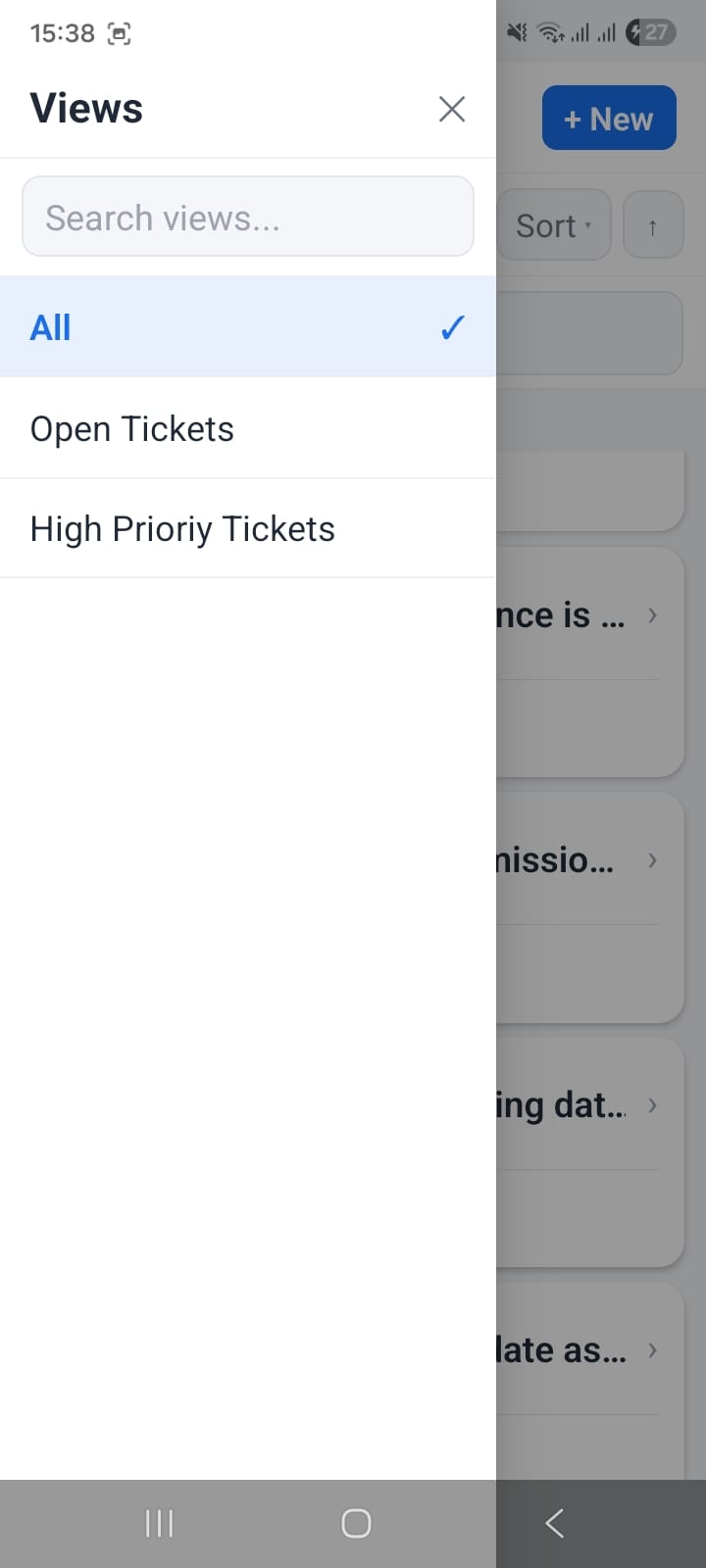
Three default saved views for the ticket queue
Quick Preview Bottom Sheet
Tap the preview icon on any ticket row and a bottom sheet slides up with the key fields — subject, status, priority, assigned to, and description — without navigating away from the list. Dismiss it to keep browsing.
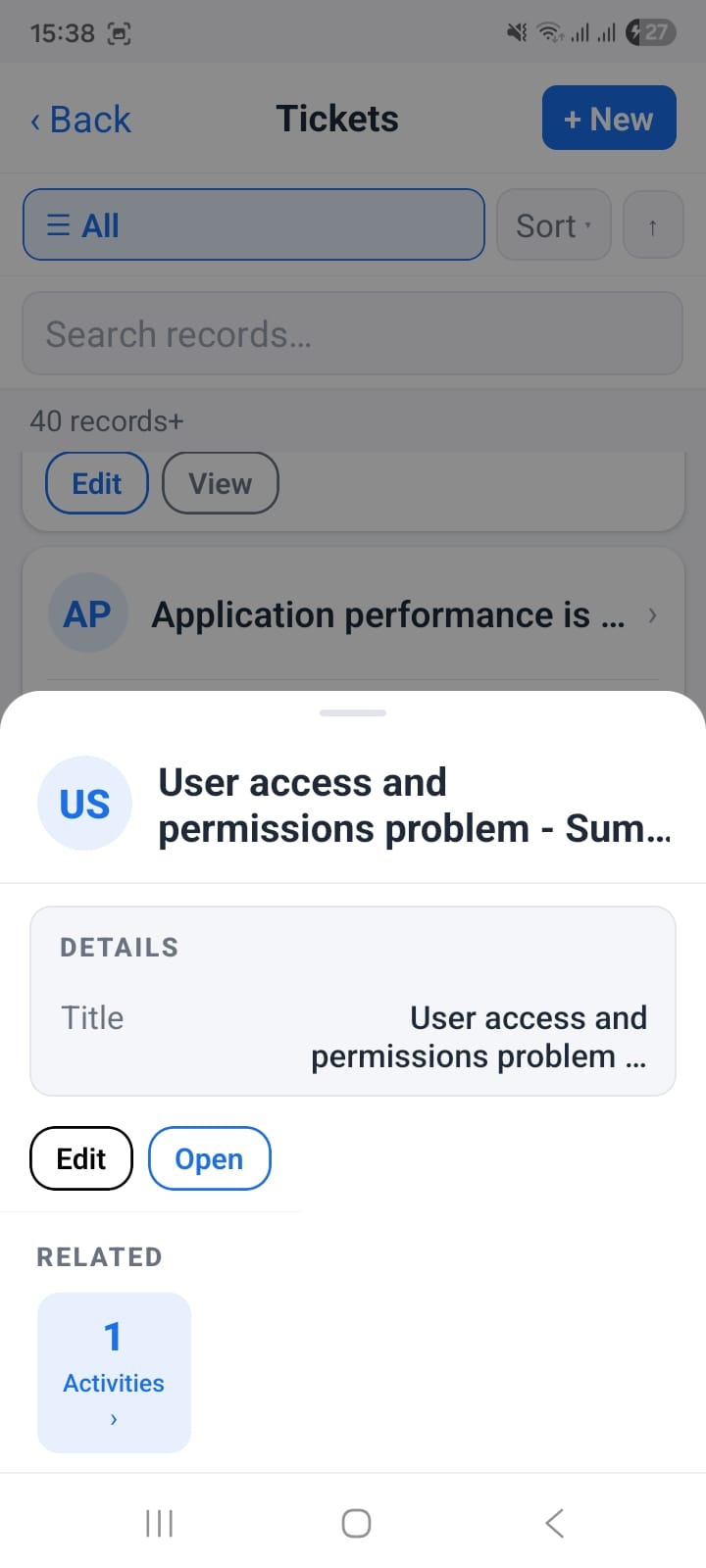
Quick-preview a ticket without leaving the list
Inline Field Updates — Priority, Severity, Status
Inside any ticket detail, Priority, Severity, and Status render as tappable pills. Tap a pill, select the new value from the picker, and the record saves immediately — no full edit form required.
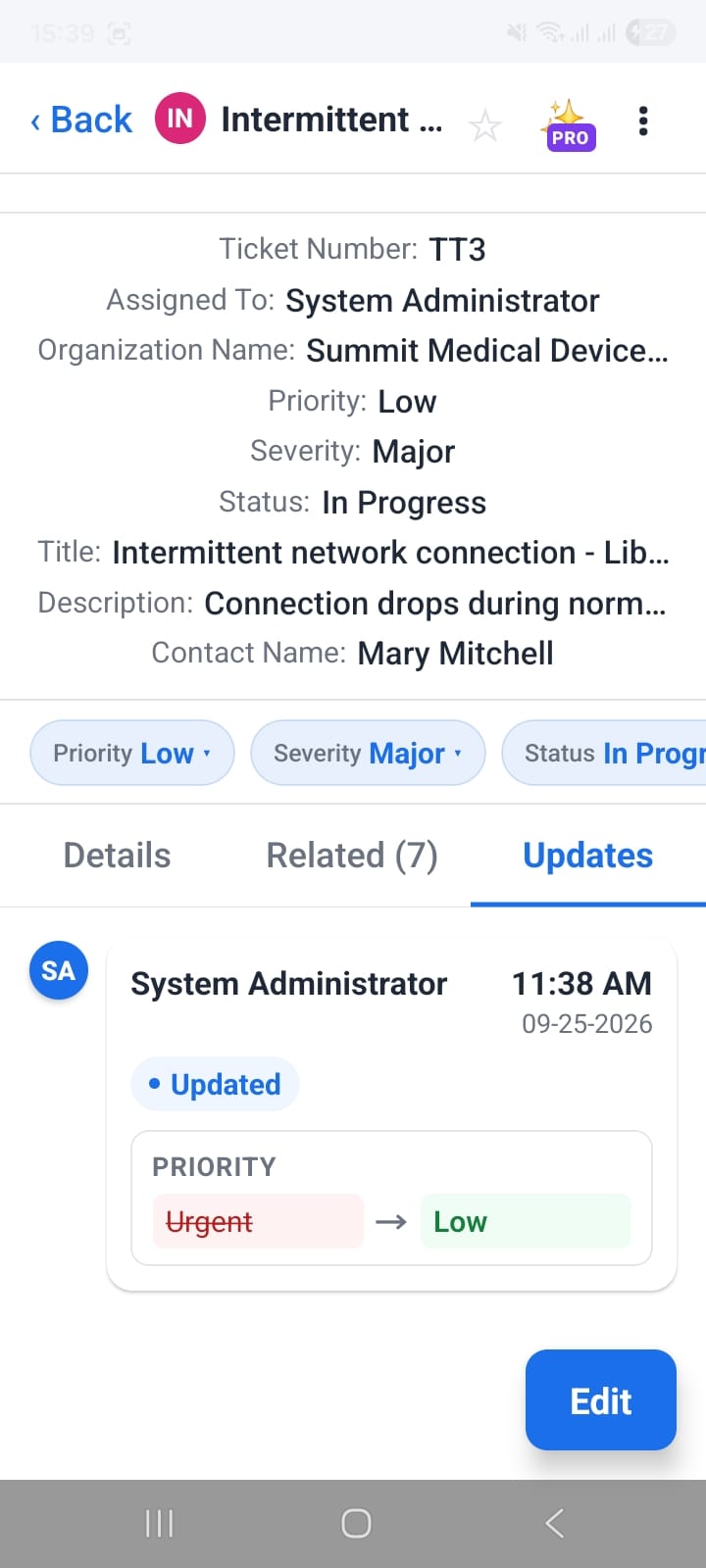
Priority, Severity, and Status pills update inline; changes are logged below
Change History & Related Activities
The Updates tab shows a complete audit log: every field change, who made it, and when — with before → after values. The Activities tab lists calls, emails, and tasks linked to the ticket.
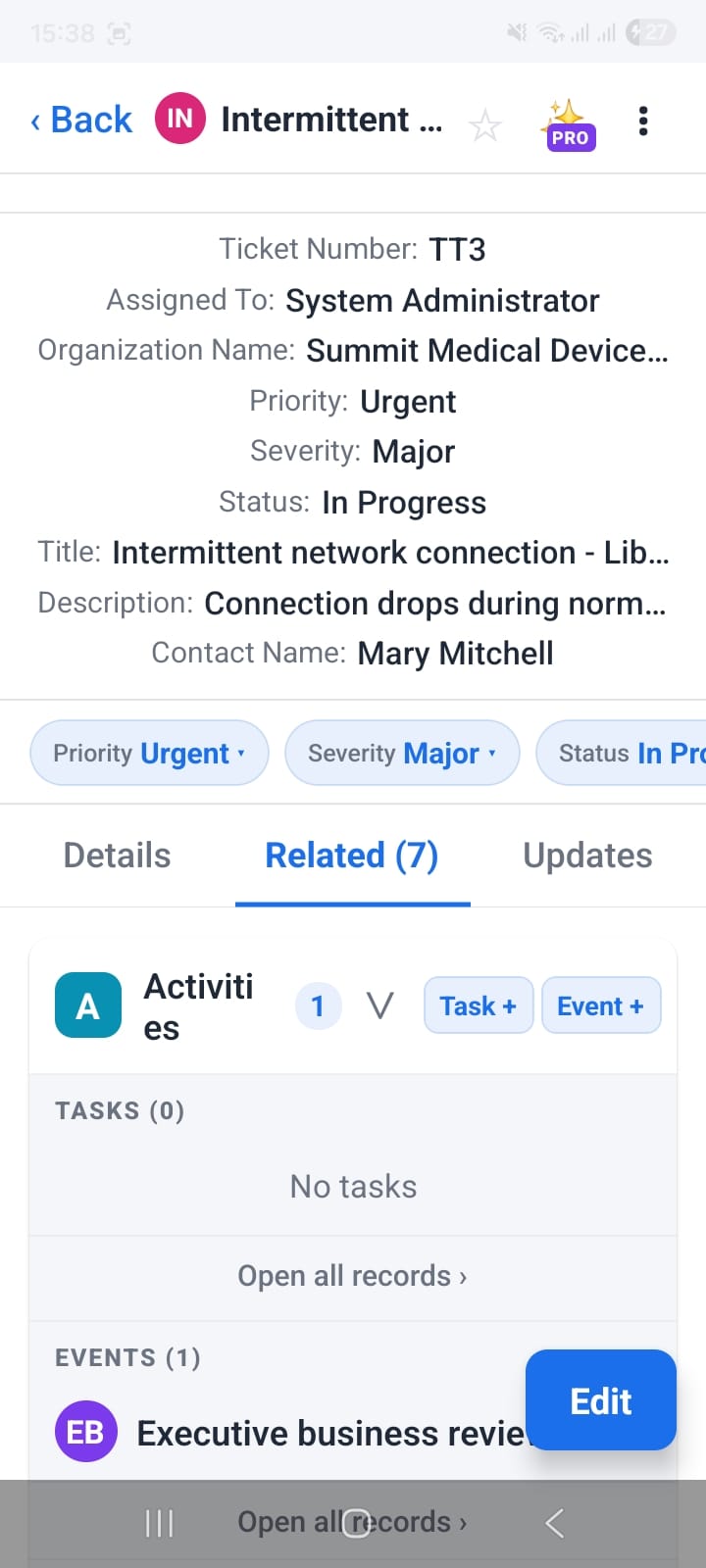
Full audit log with before/after values and related activities
3. Activities & Calendar
The Calendar module shows both Events and Tasks together in three distinct views — Month, Week, and Agenda/List — with advanced filters and a Quick Create shortcut that counts required fields as you fill them.
Month View
The month grid highlights days that have activities. Tap any date to see a summary of events and tasks for that day. A legend at the bottom distinguishes Events (circle) from Tasks (square).
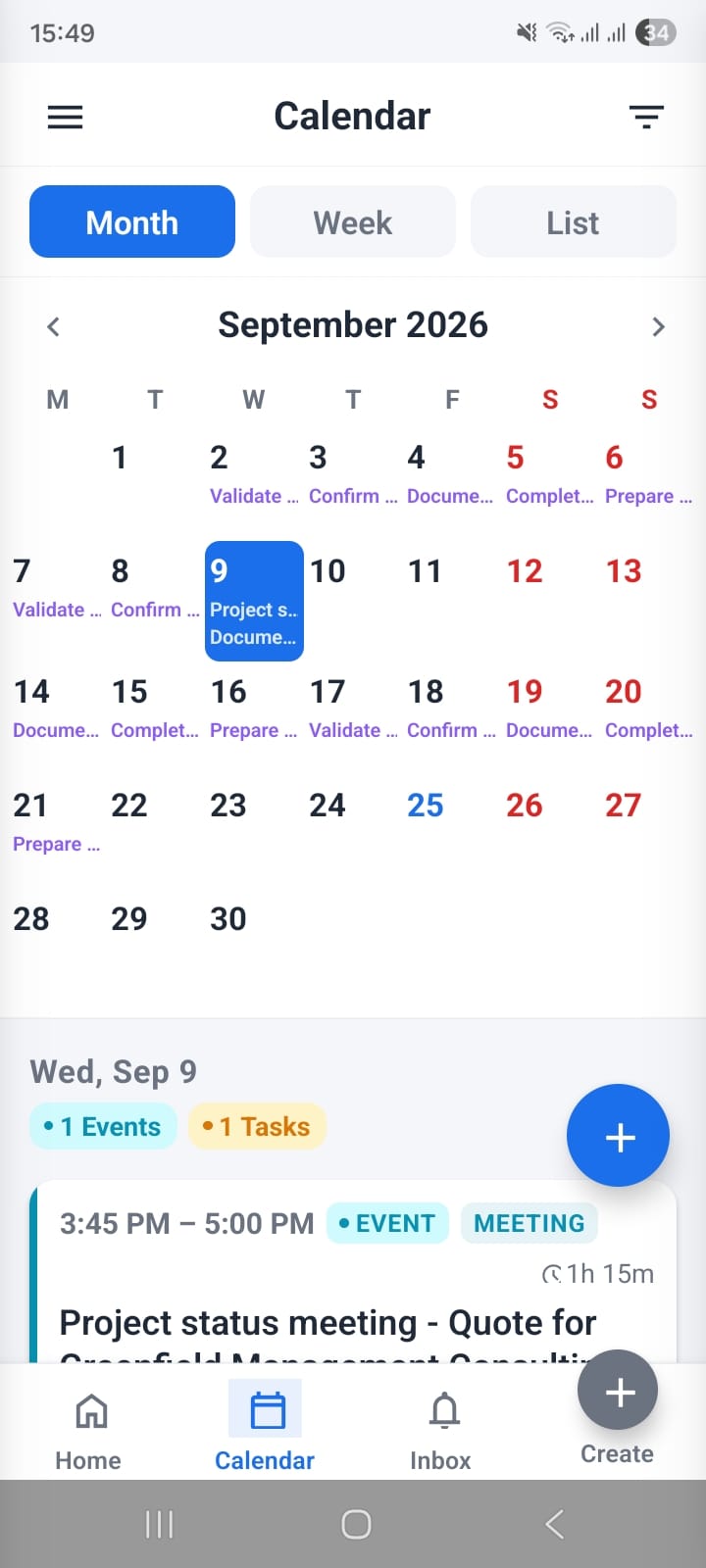
Month view — tap a day to see its events and tasks
Week View
The week view renders a time-grid from 00:00 to 23:59. Events appear as coloured blocks at their scheduled time slot. Tasks without a time slot appear in an all-day row at the top. Swipe left or right to move between weeks.
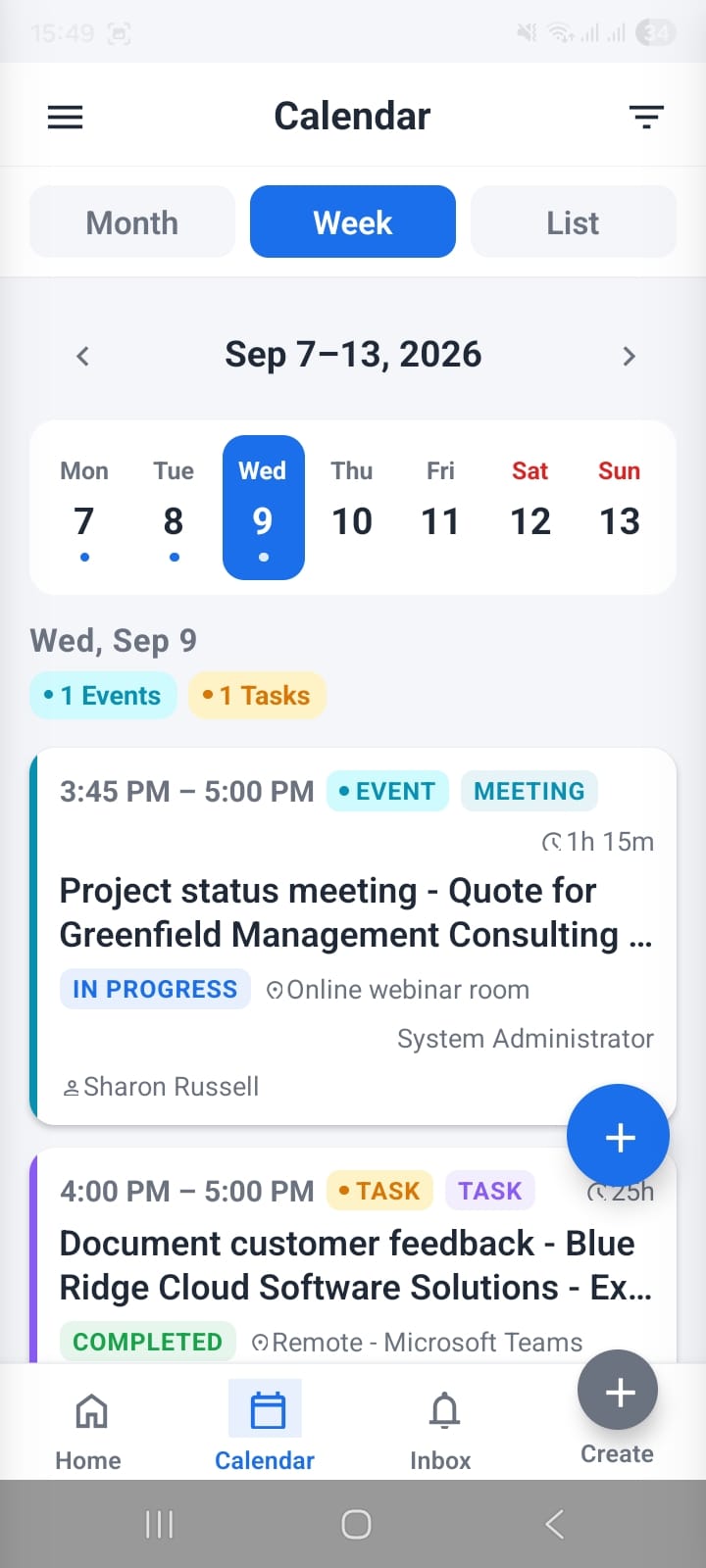
Week view — events as time-grid blocks, tasks in the all-day row
Agenda / List View
The agenda view lists every activity chronologically — great for a quick scan of what's coming up. Each row shows the activity title, type icon, start time, and status. You can scroll infinitely forward and backward in time.
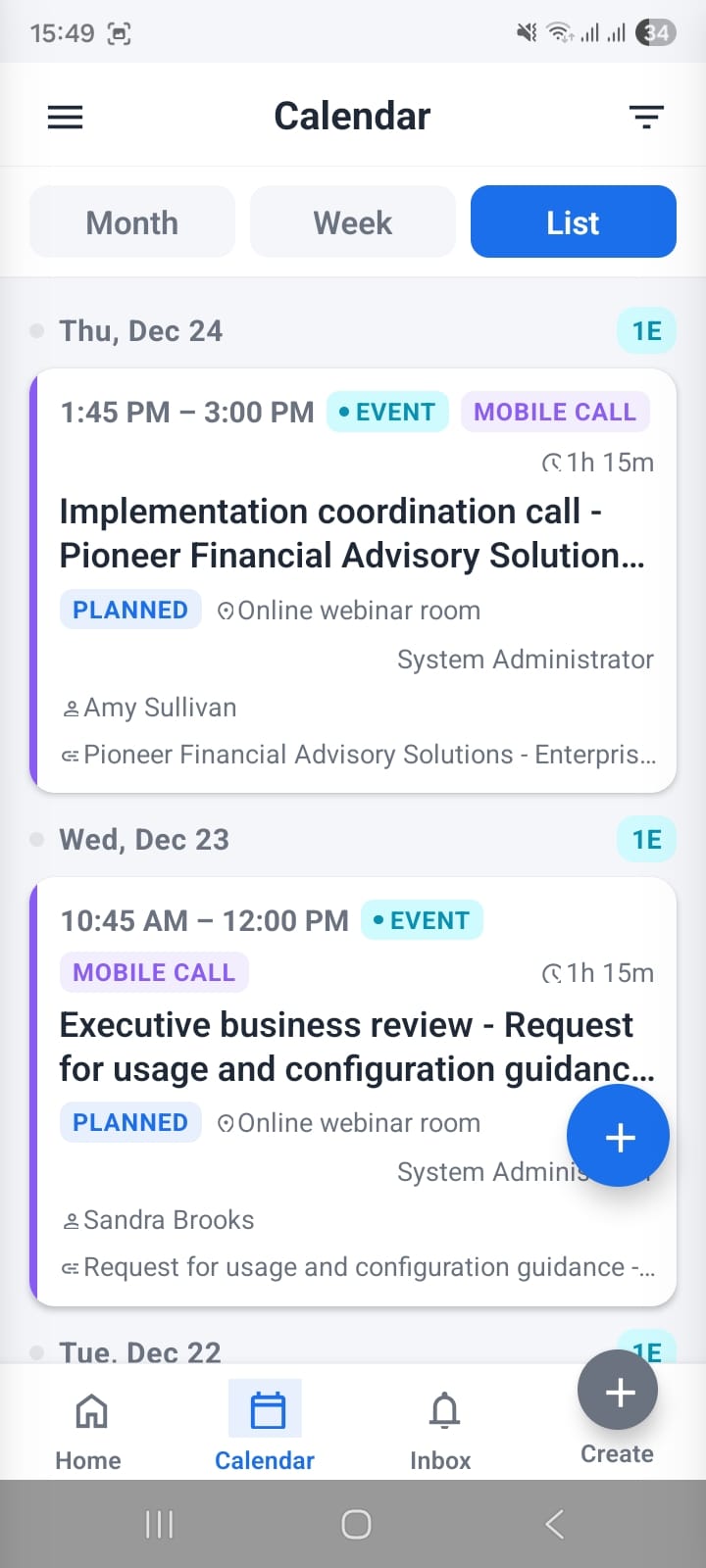
Agenda view — all activities in chronological order
Advanced Filters
Tap the filter icon to narrow the calendar by Source (Events vs Tasks), Assigned To (specific user or all users), Status (Planned, In Progress, Completed, etc.), and Activity Type (Call, Meeting, Email, and more). Filters apply instantly across all three views.
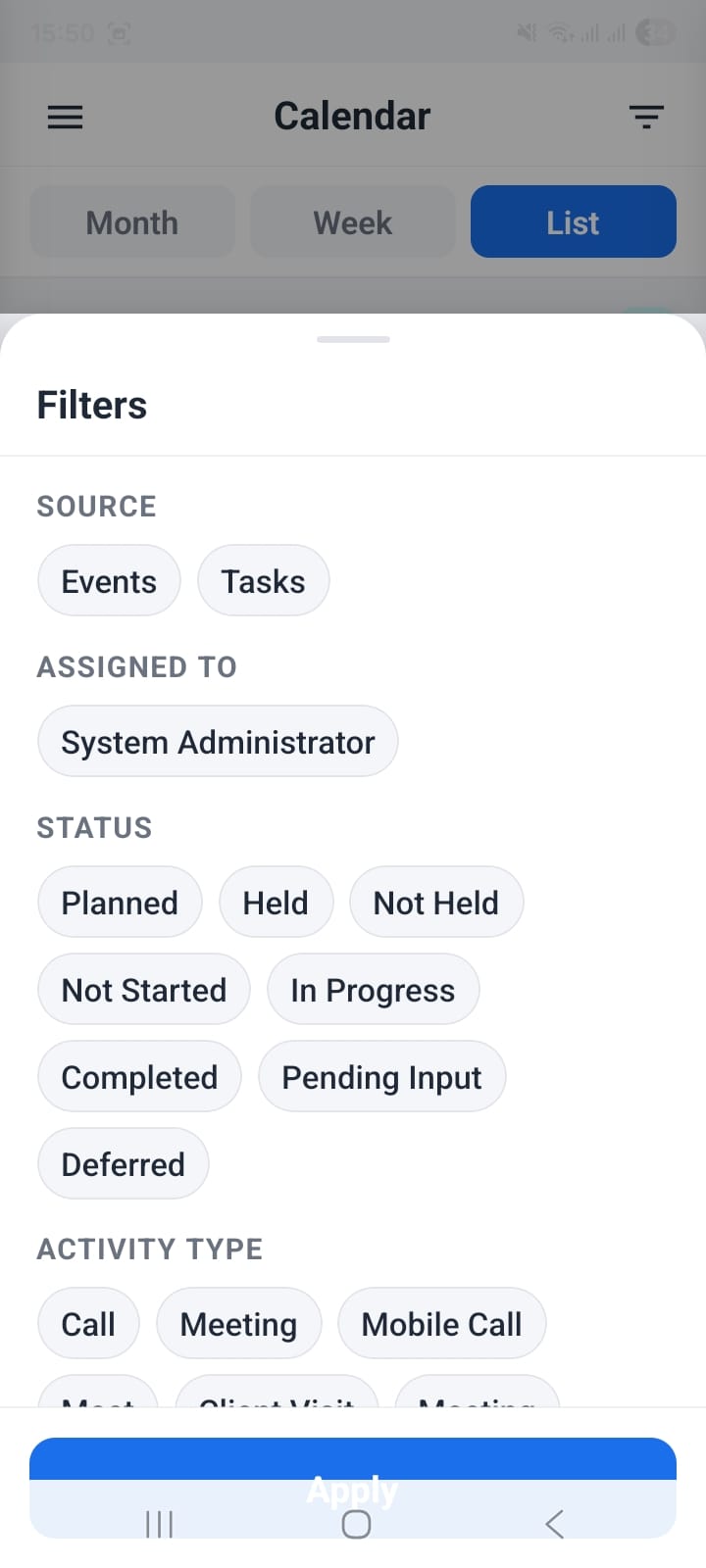
Advanced filters — source, assigned to, status, and activity type
Quick Create with Required-Field Counter
Tap + New Event or + New Task to open a streamlined creation form. The header shows a required filled / total required counter (e.g. 5 / 8) that updates as you complete fields, so you always know how close you are to saving.
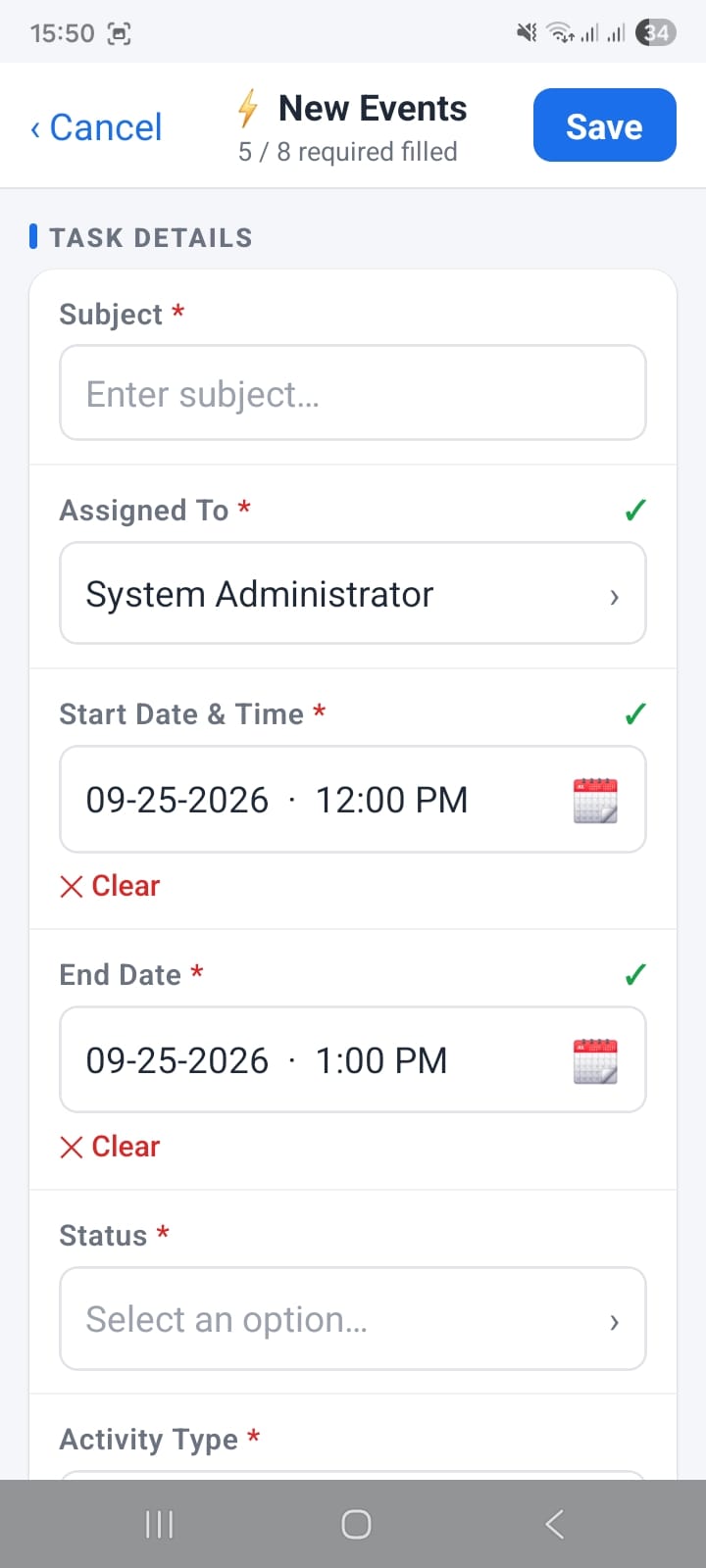
Required-field counter in the event creation header
Activity Detail View
Open an activity to see all its fields, related records, and inline status controls. Change the status from Planned to Completed with a single tap — ideal for closing out calls right after you hang up.
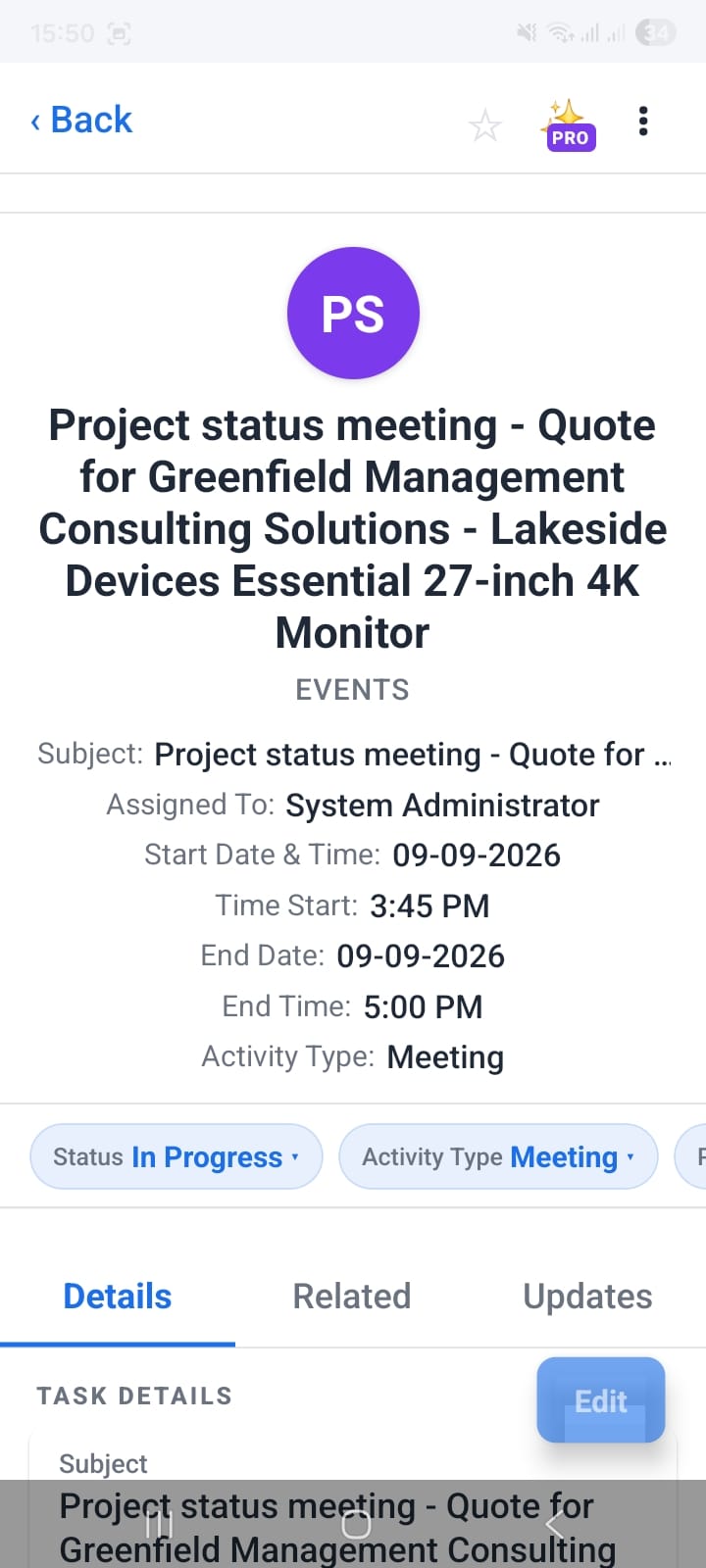
Activity detail view with inline status update
4. Global Features — Search, Home Screen & Notifications
Several features in OpenCRMApp span every module — they live permanently in the navigation bar and home screen so you can reach them from anywhere in the app.
Home Screen — Starred Records & Favourite Modules
The home screen is your personal dashboard. The top section shows Starred Records — contacts, deals, tickets, or any record you have pinned. Below that, Favourite Modules gives you one-tap access to the eight modules you use most. Drag to reorder them to your preference.
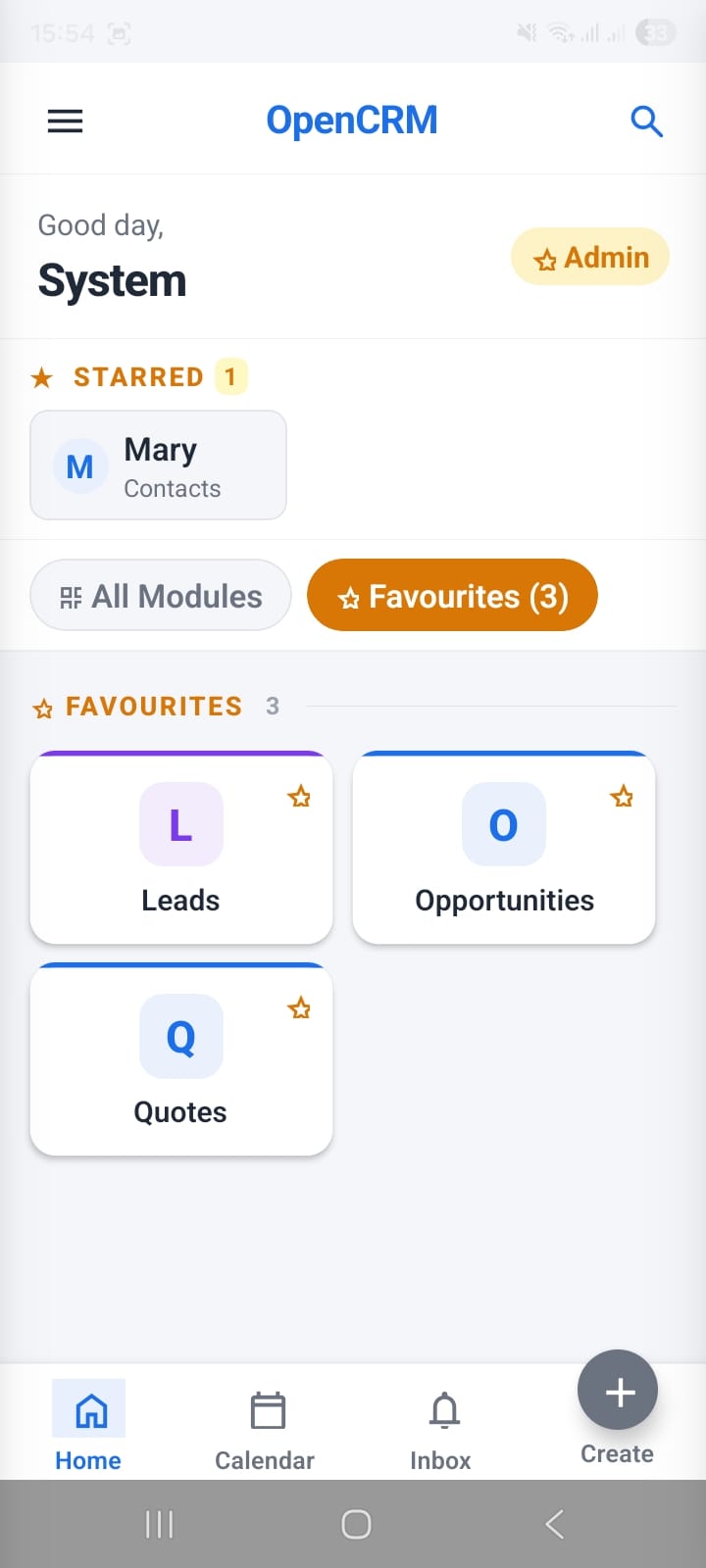
Home screen: starred records and favourite modules

All 38 modules accessible from the home screen
Global Search — 38 Modules at Once
The magnifying glass in the nav bar opens a unified search that queries all 38 CRM modules simultaneously. It also shows the 100 most recently modified records as a default list before you type, so your active work is always one tap away.
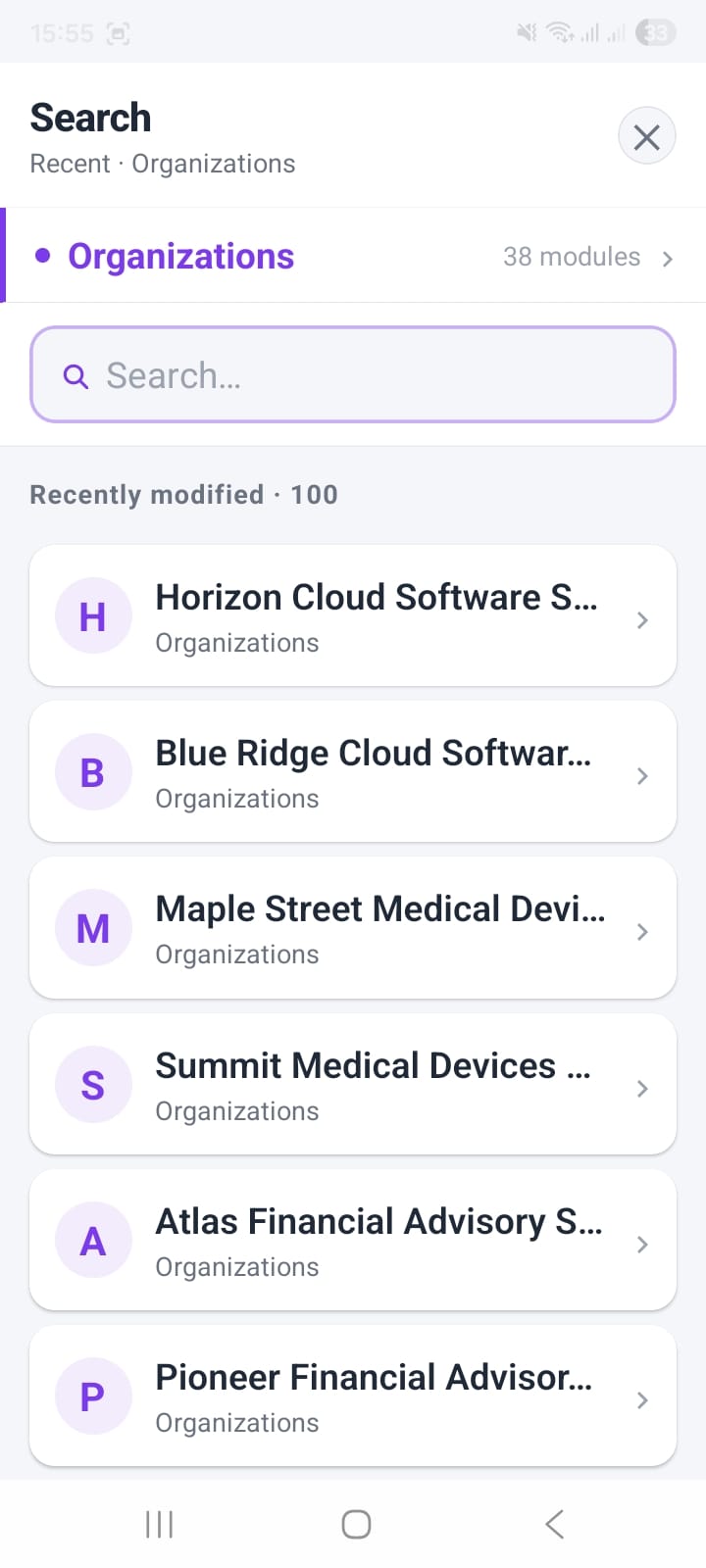
Global search returns results across all 38 modules
Quick Create from Anywhere
The + button in the bottom nav opens a Quick Create panel listing all modules grouped into Popular and All Modules. Tap any module to open a minimal creation form with only required fields shown by default.
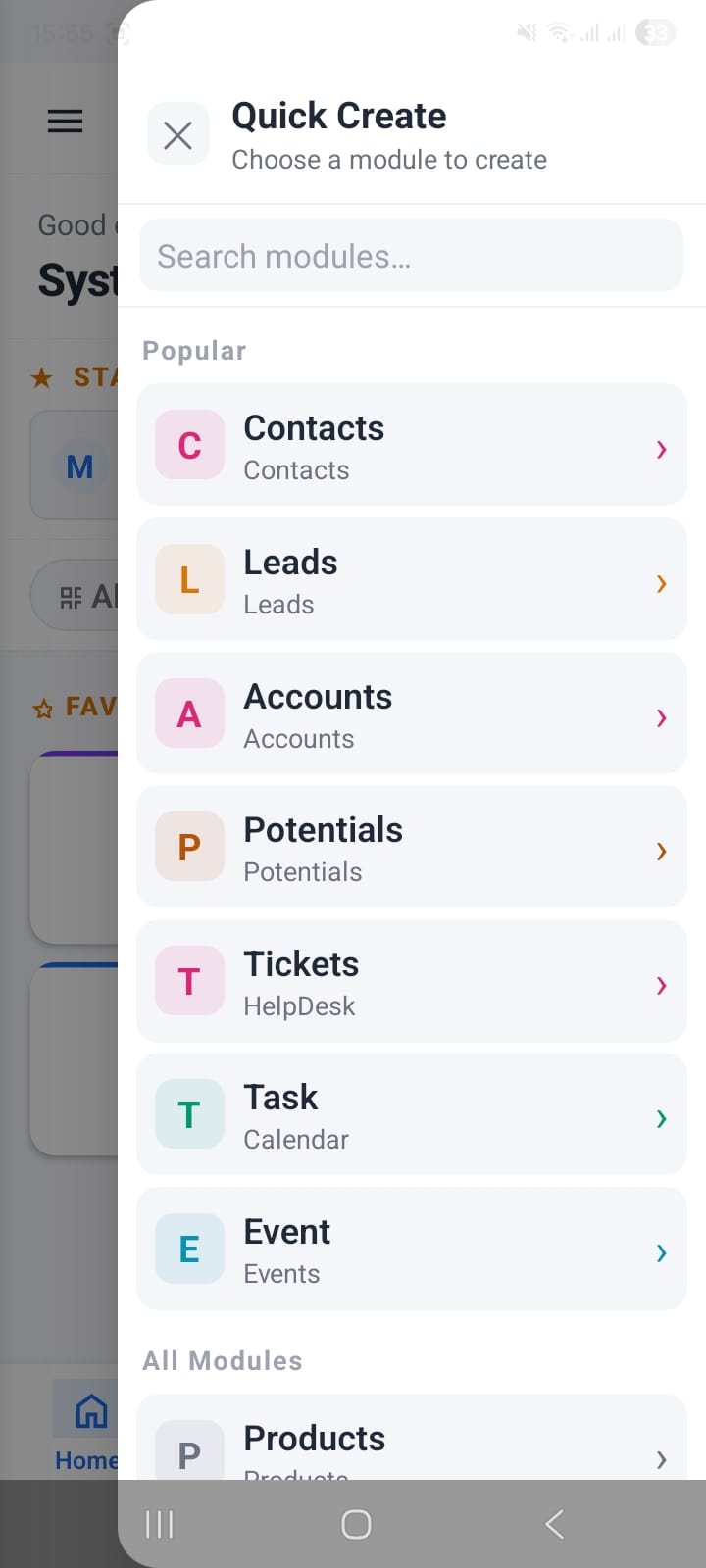
Quick Create panel — popular and all modules
Notification Inbox
The bell icon opens your notification inbox. Notifications are grouped by workflow so you can scan by category — e.g. Deal Closed Won (1). Each notification shows the workflow name, the record that triggered it, and action buttons (Open record, Call, Email) defined in your workflow.
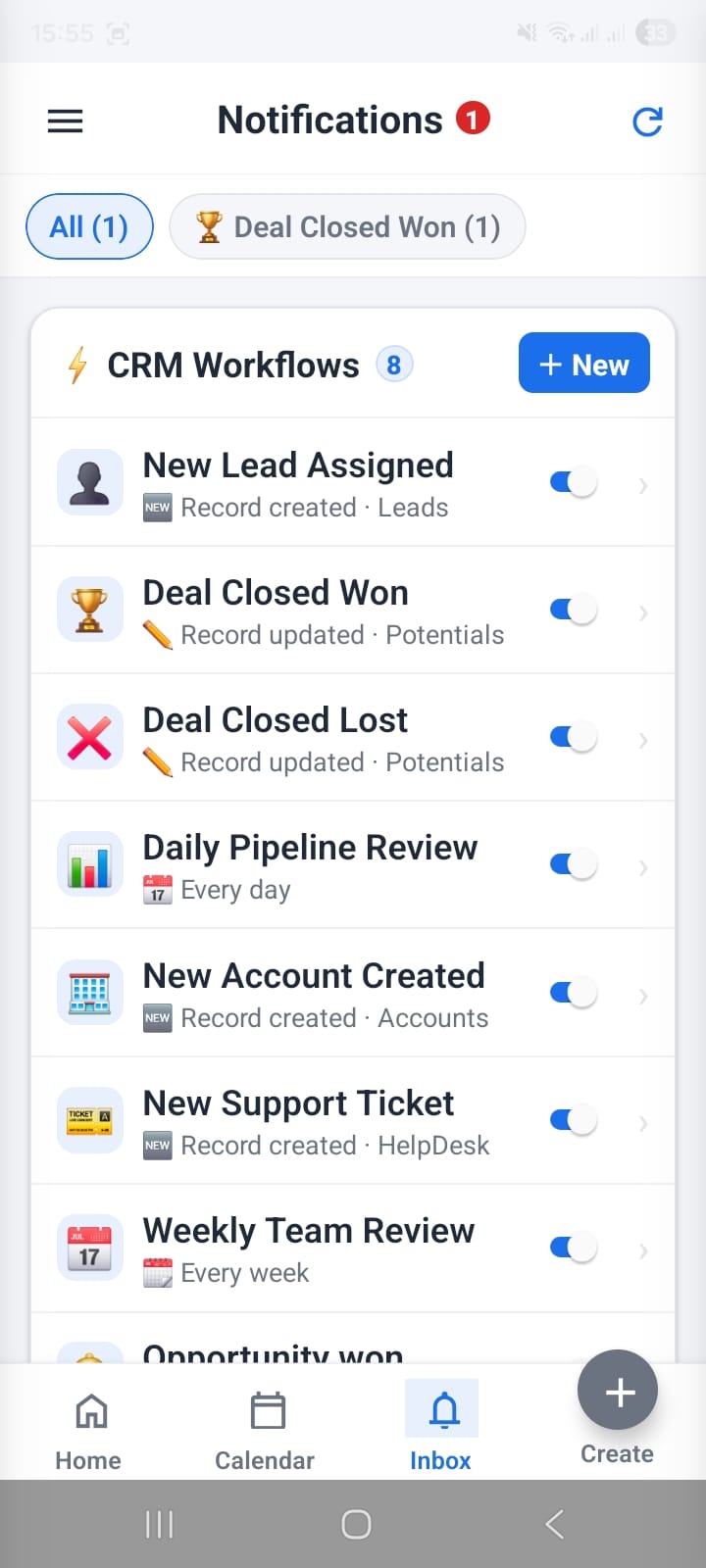
Notification inbox grouped by workflow category
Local Workflow Manager
Settings → Local Workflows shows all workflows you have created, each with an enable/disable toggle. No server-side configuration required — workflows run entirely on the device and continue to fire even if your CRM admin changes nothing.
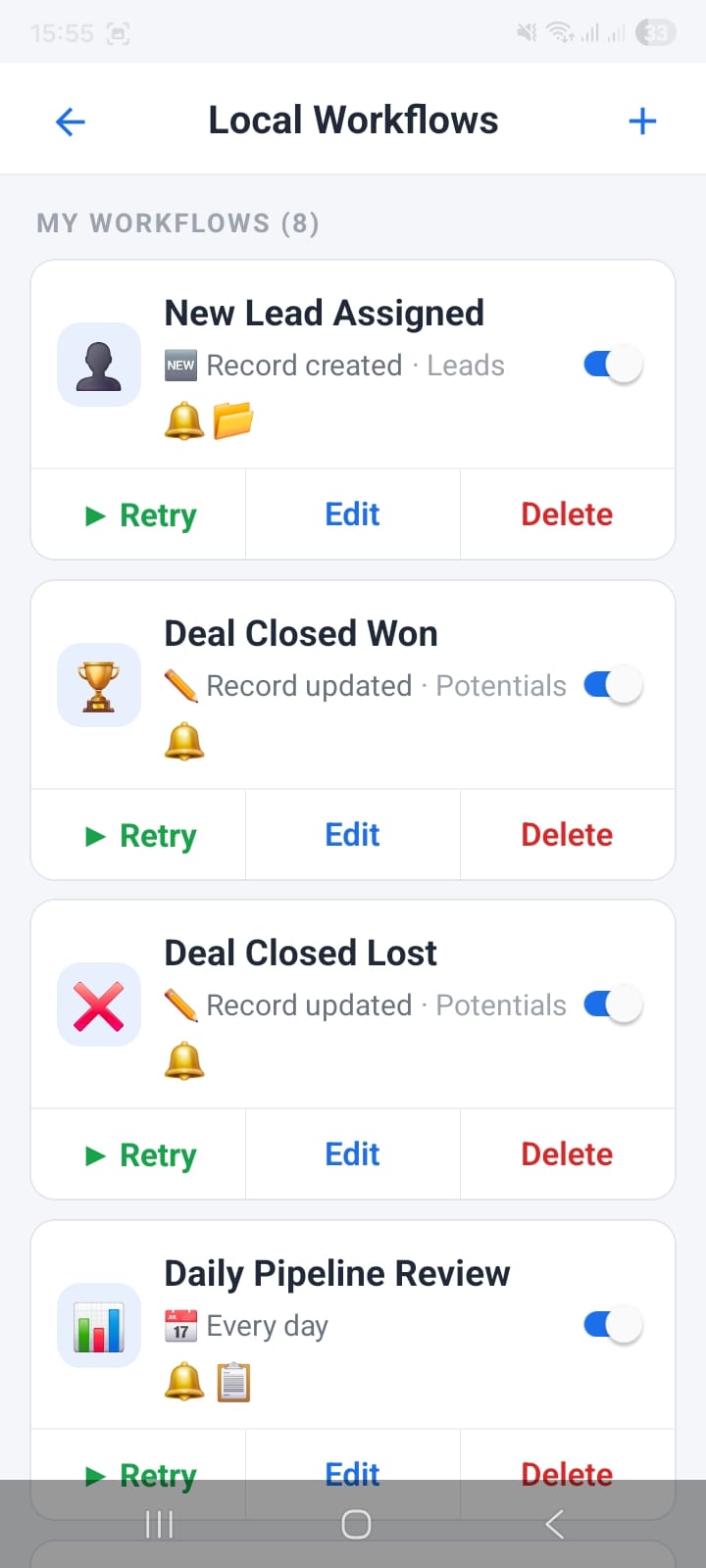
Local Workflows in Settings — no server changes required
Multi-Language Support
OpenCRMApp ships with 9+ languages. Change the display language from Settings → Language and the entire UI — including menu labels, section headers, and field names — switches immediately. Arabic triggers full right-to-left layout.
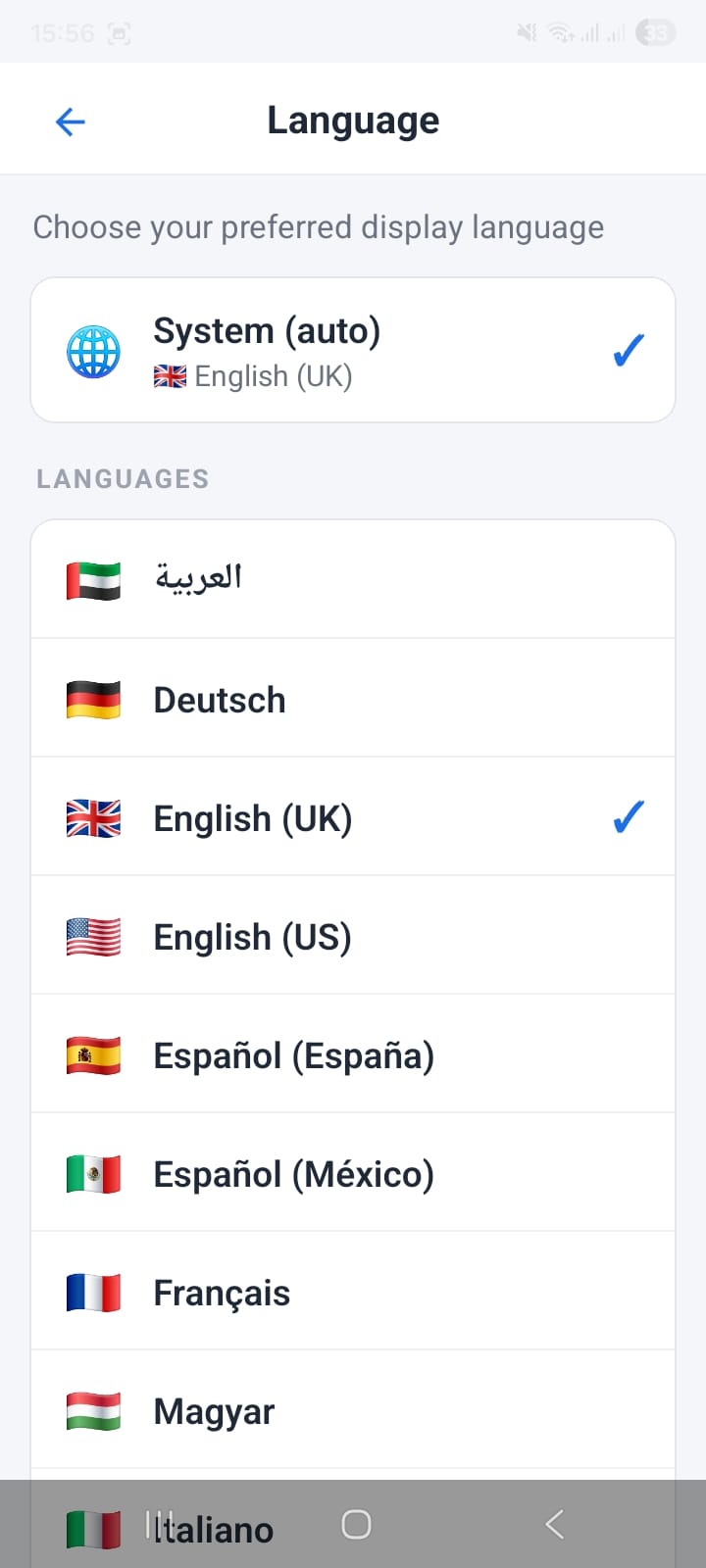
9+ languages available — switch instantly in Settings
In-App Support Chat
Can't find what you need? Tap Chat with us in Settings to open a live chat with the OpenCRMApp support team — directly inside the app, without leaving your CRM context.
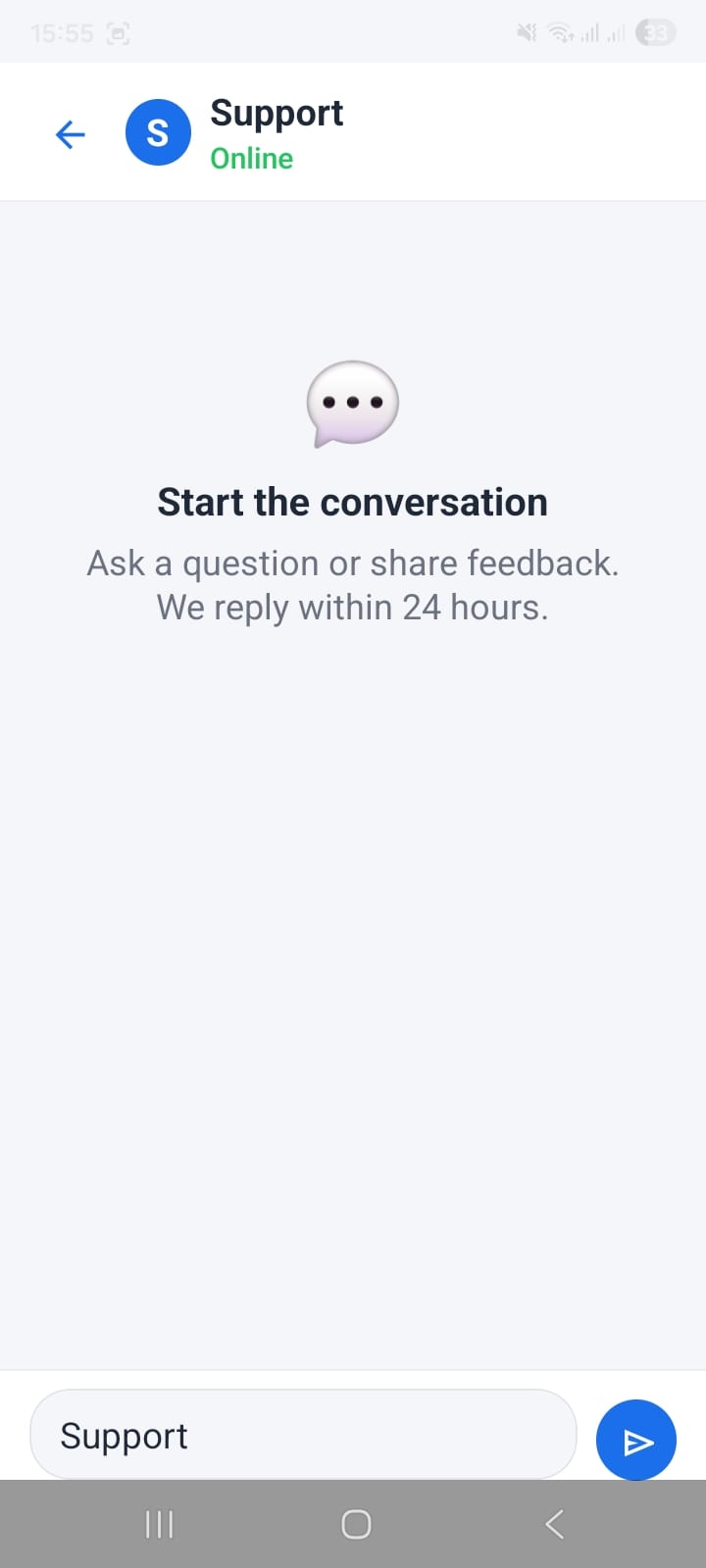
Live support chat built into the app
5. Record Actions — Call, WhatsApp, Email & Maps
Every record with a phone number, email address, or physical address exposes instant action buttons so you can reach people or navigate without leaving the app.
Detail View & Quick Inline Update
The record detail view groups fields into logical sections — Basic Info, Contact Details, Address. A Status pill at the top lets you cycle through workflow stages (Not Started → In Progress → Completed) with a single tap and a picker sheet.
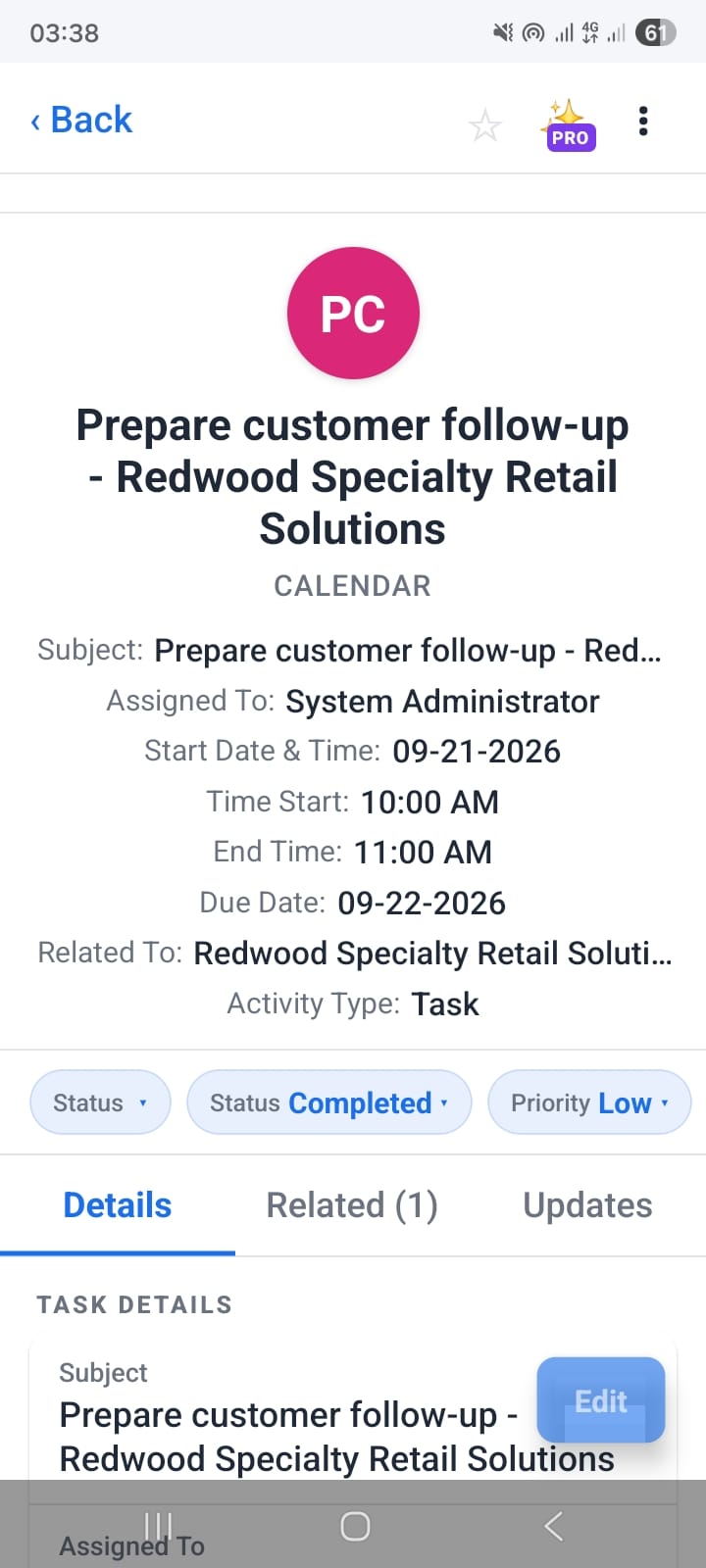
Task detail view with key fields at a glance
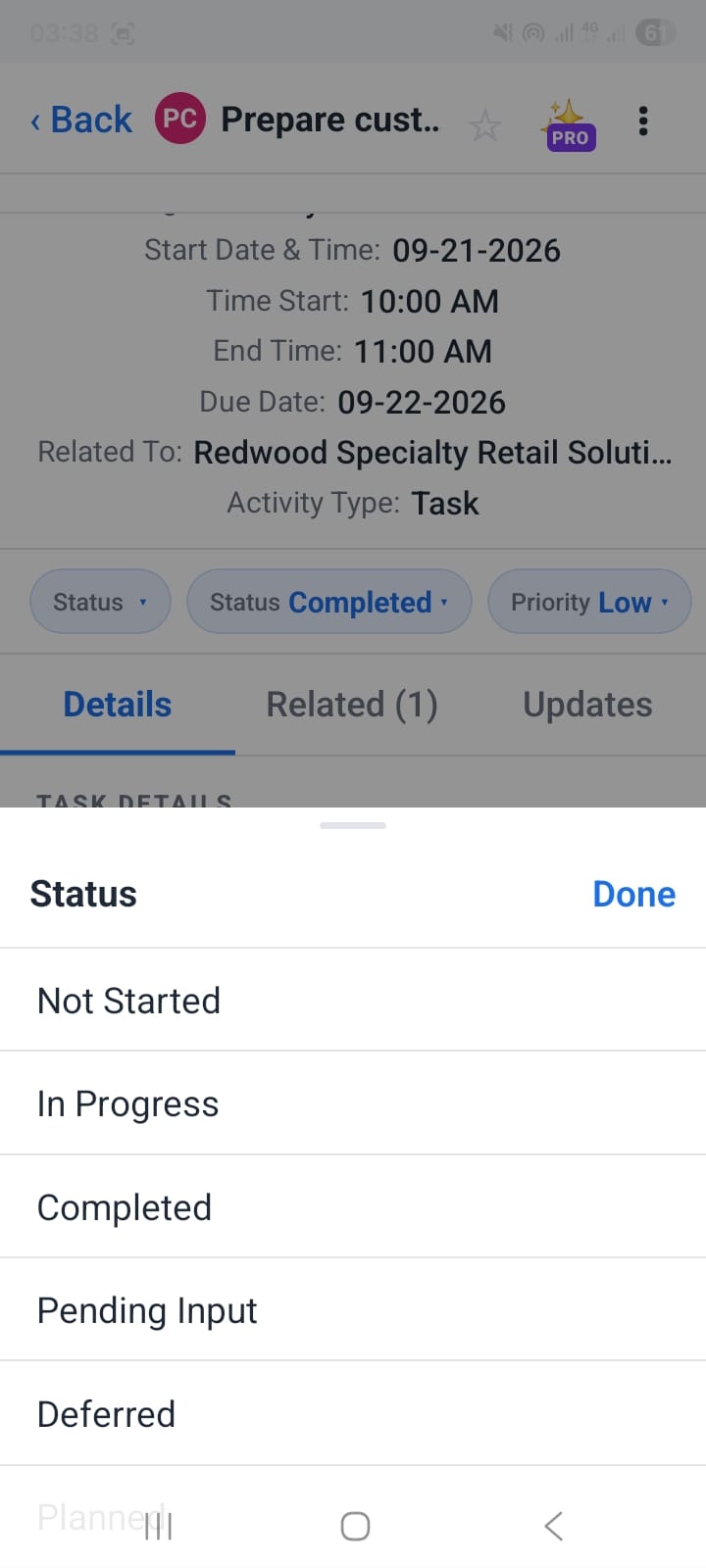
Inline status picker — update without opening the edit form
Action Buttons in the List View
Each row in a module list shows small action icons to the right: Edit, Call, Email, Website/WhatsApp, and View. You can start a call or open a contact's website directly from the list — no need to open the detail first.
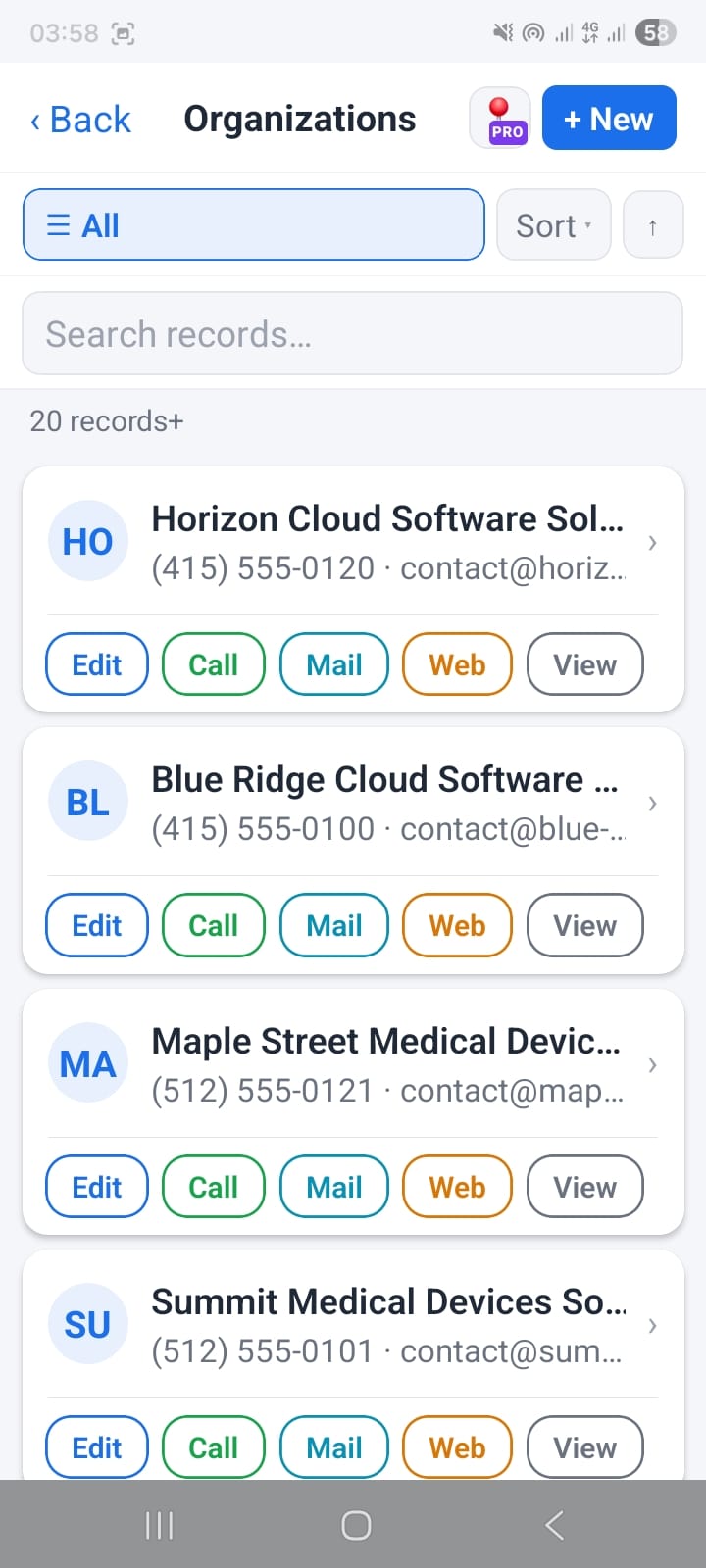
Inline action buttons in the Organizations list
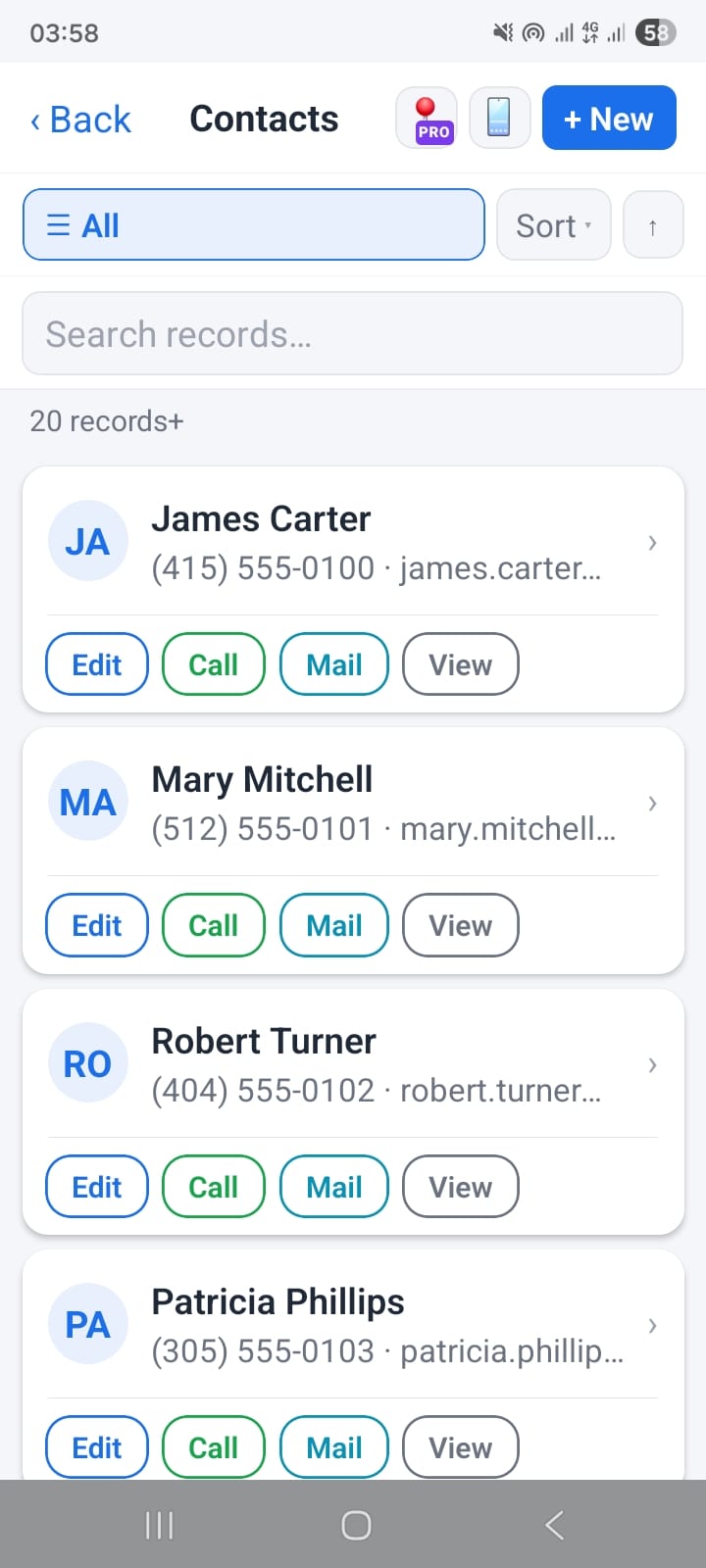
Action icons in the Contacts list view
Call, WhatsApp & Email from the Detail View
Inside a record, the header bar shows Call, WhatsApp, and Email buttons next to the contact's name. Tap Call to open your phone's dialer pre-filled. Tap WhatsApp to choose between WhatsApp Business and personal WhatsApp.
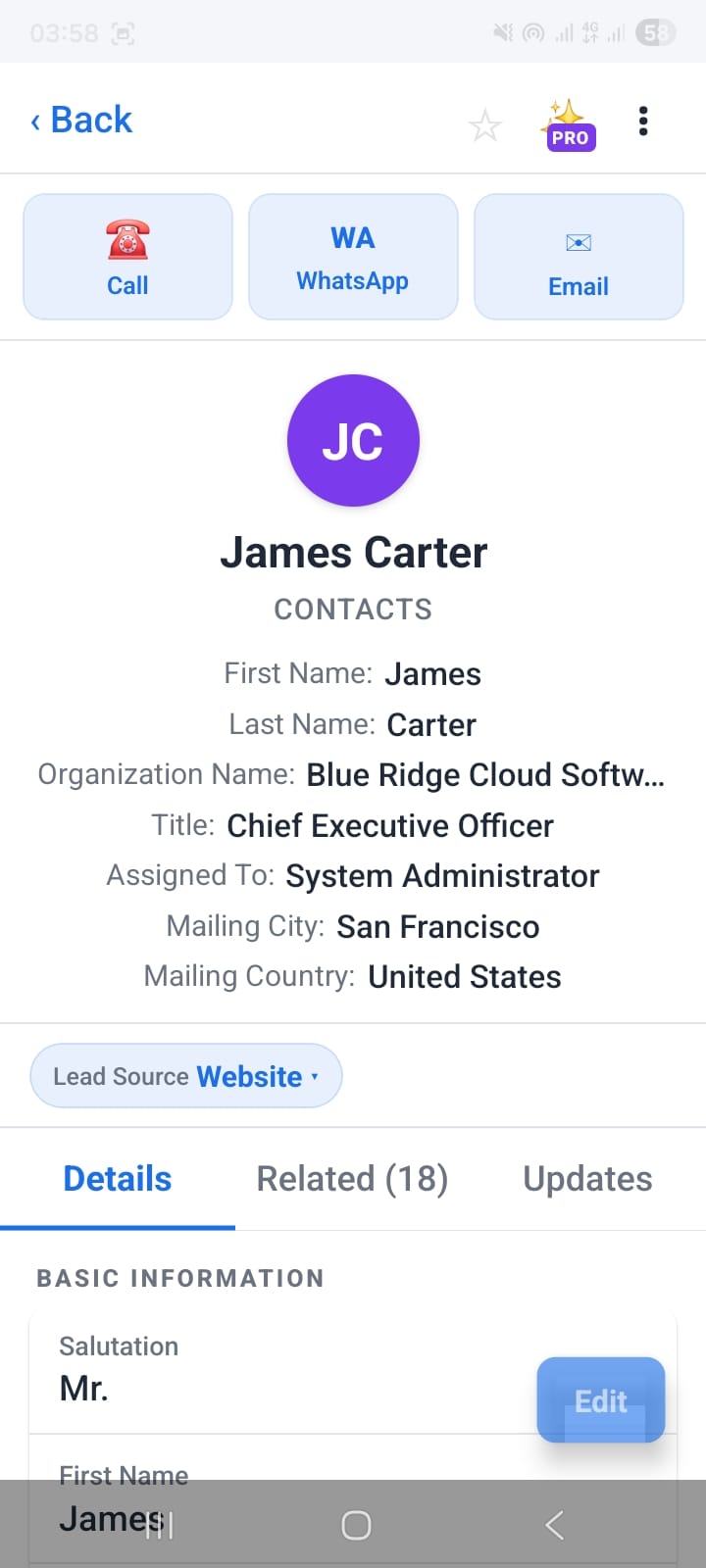
Call, WhatsApp, and Email in the contact detail header
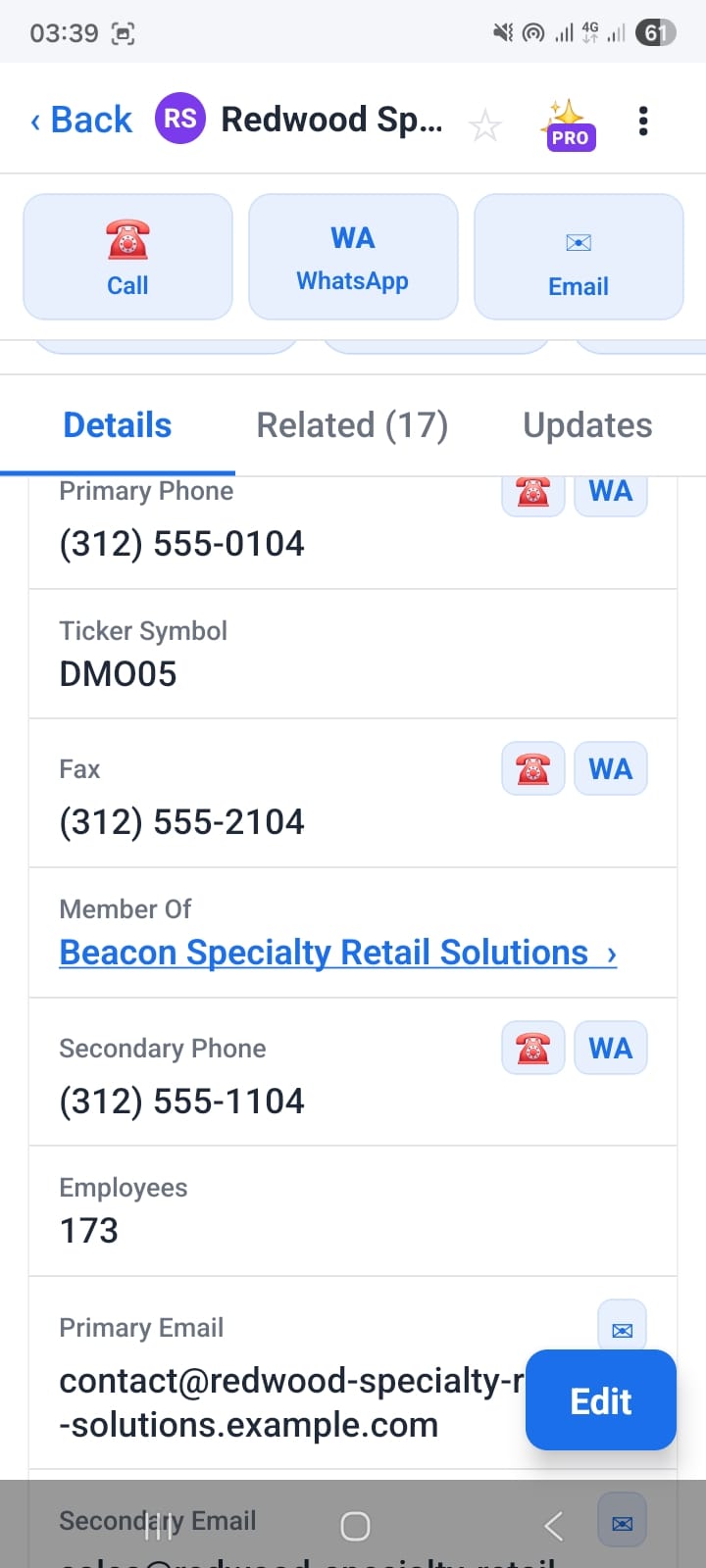
Actions available from the Organizations module
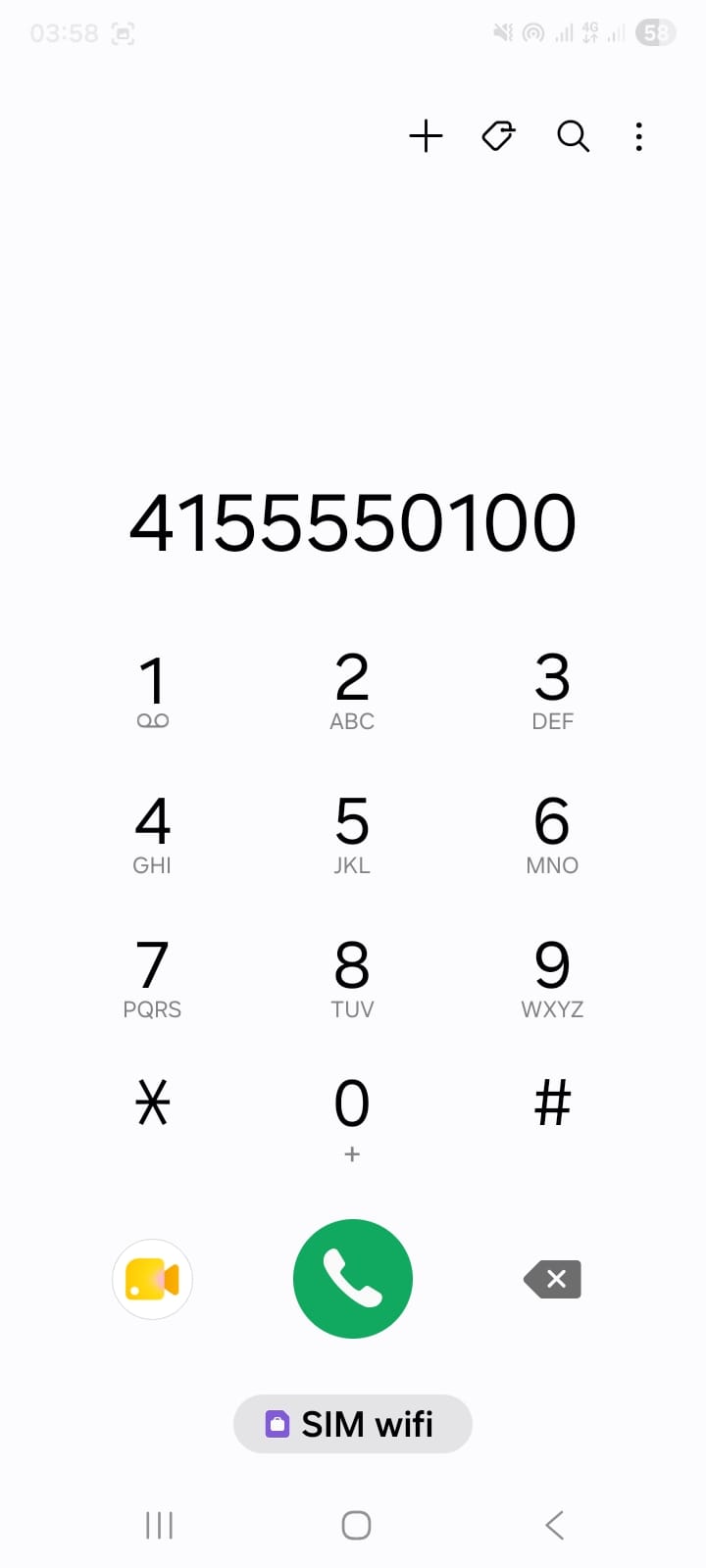
Tap Call — your dialer opens pre-filled
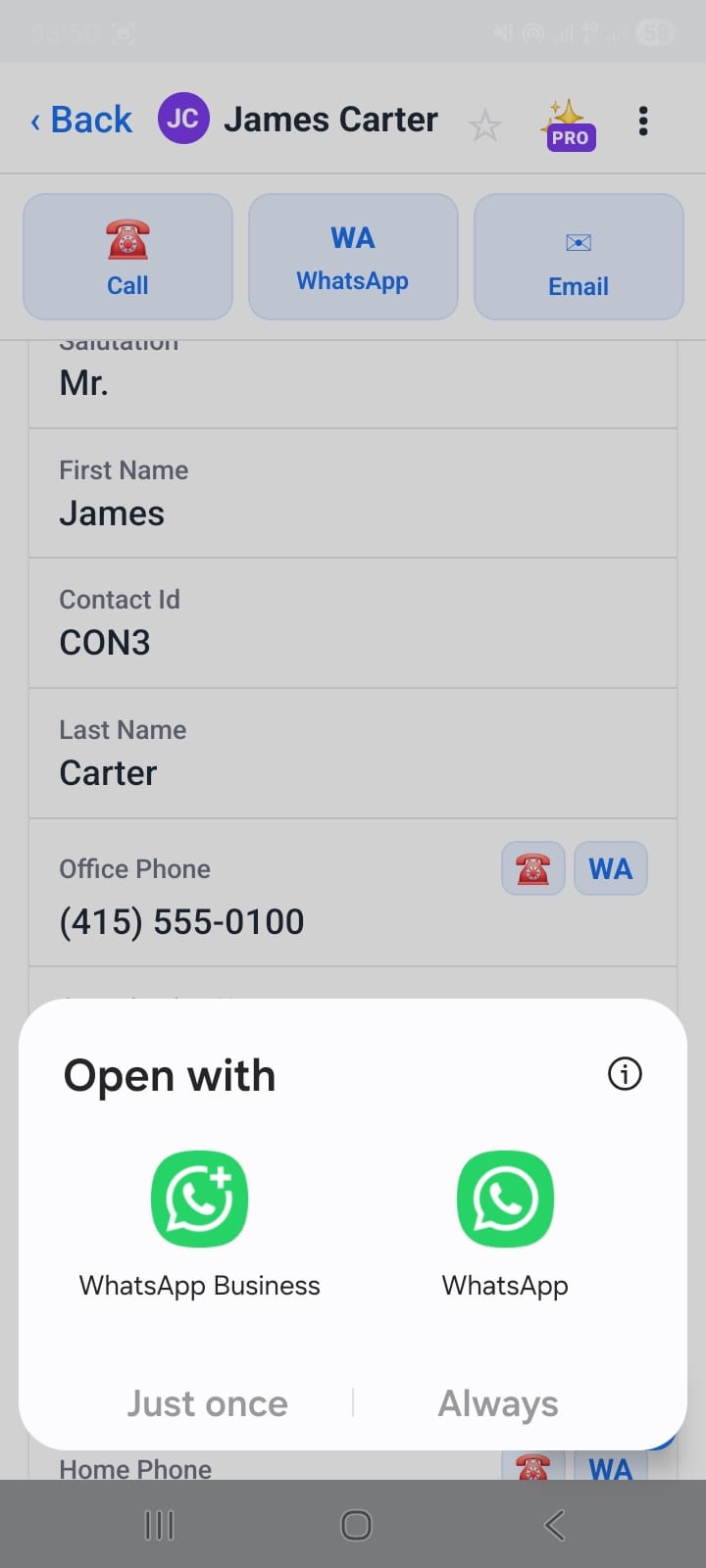
WhatsApp chooser — Business or personal, remembered if Always selected
Open Address in Maps
Every address field in a detail view shows a map-pin button to the right. Tap it to launch Google Maps (or your default maps app) pre-loaded with that address. Perfect for navigating to a client site directly from their CRM record.
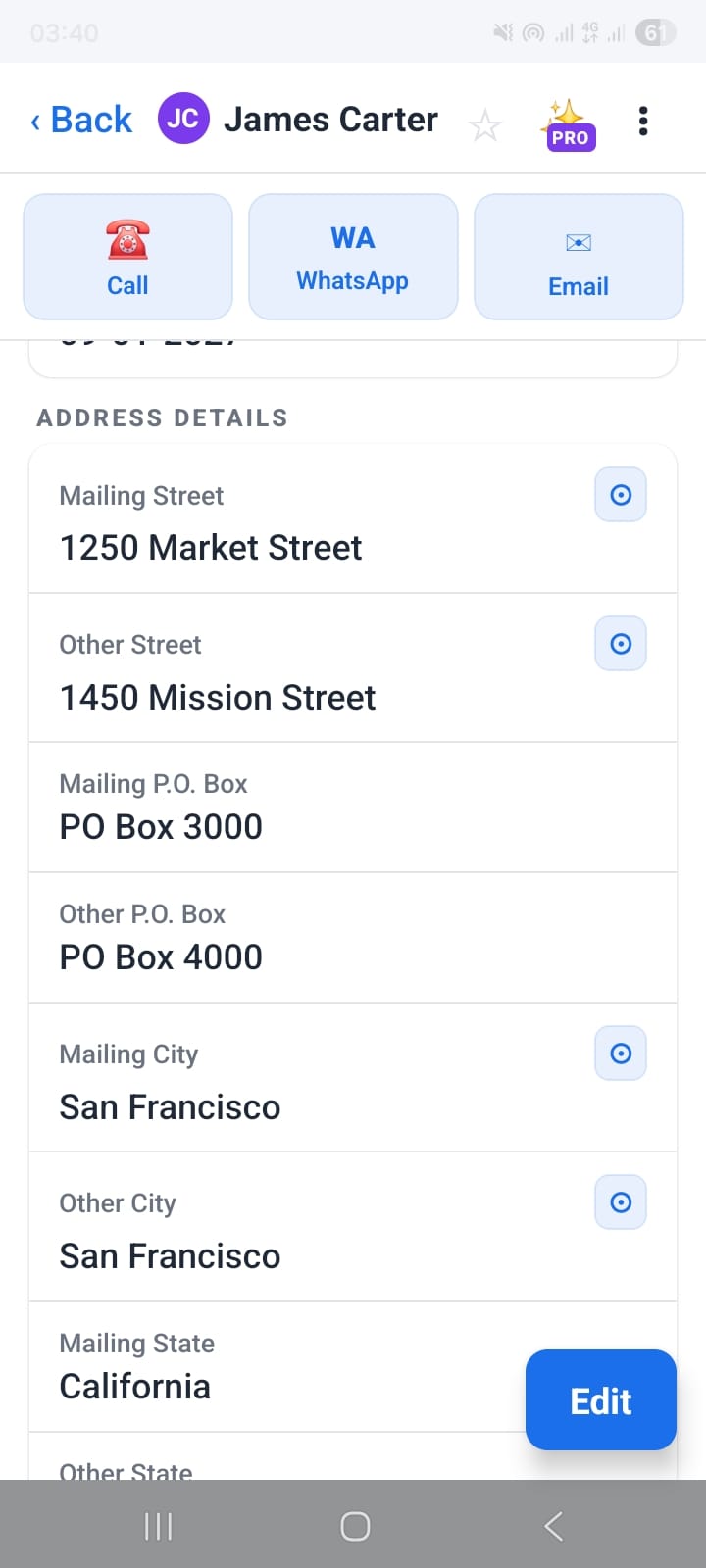
Map-pin button next to each address field
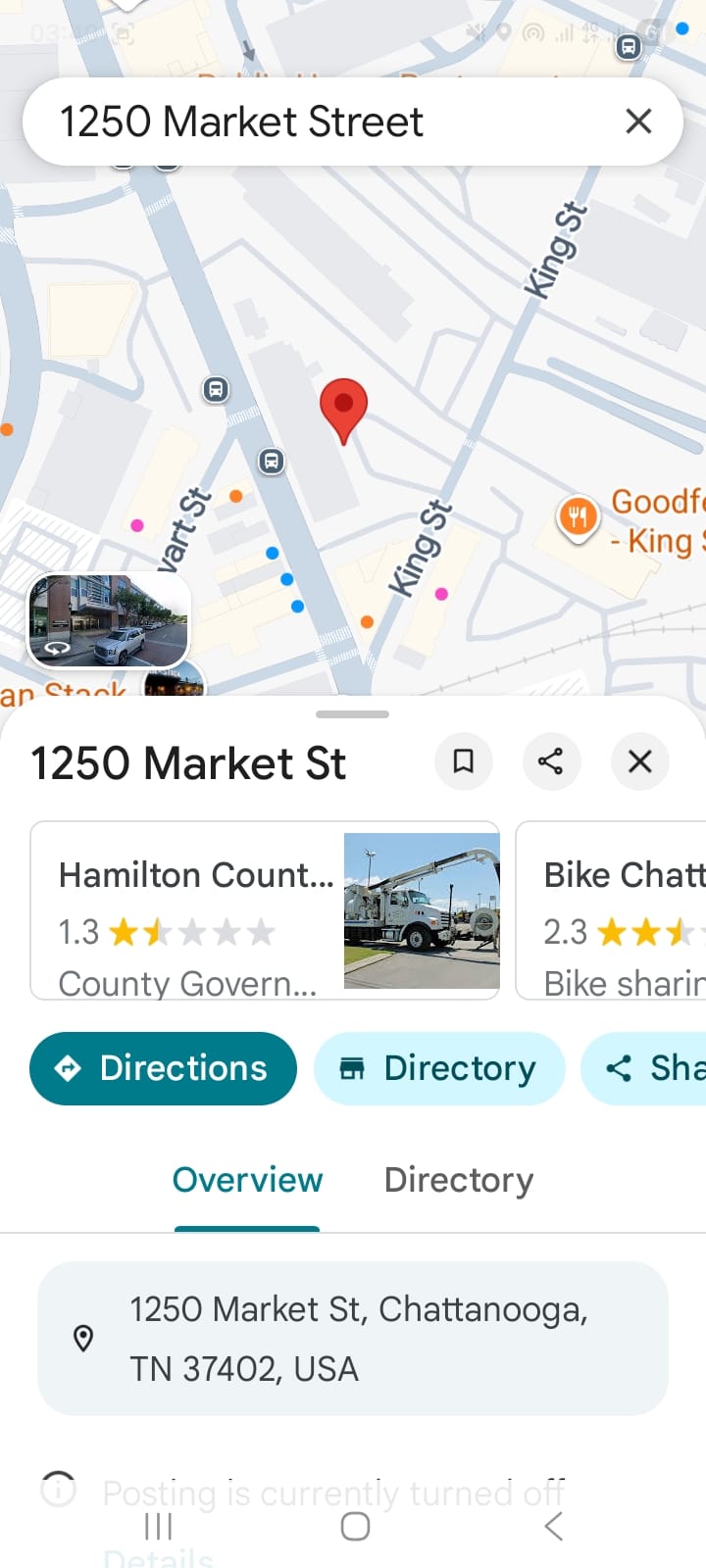
Address opens directly in Google Maps
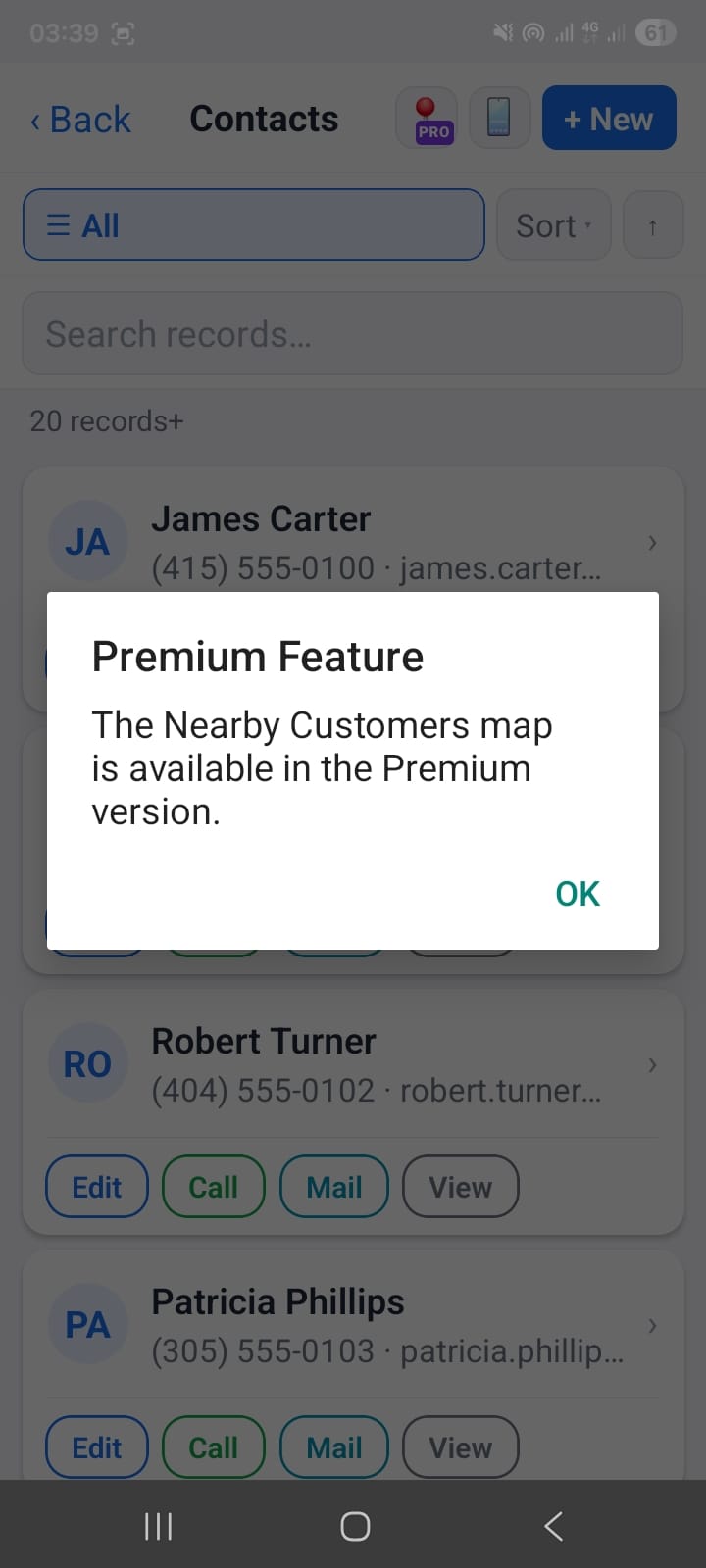
Nearby Customers — Premium feature
6. Quick Create
The + button in the bottom navigation bar opens the Quick Create panel from any screen in the app. No matter which module you're browsing, new records are always two taps away.
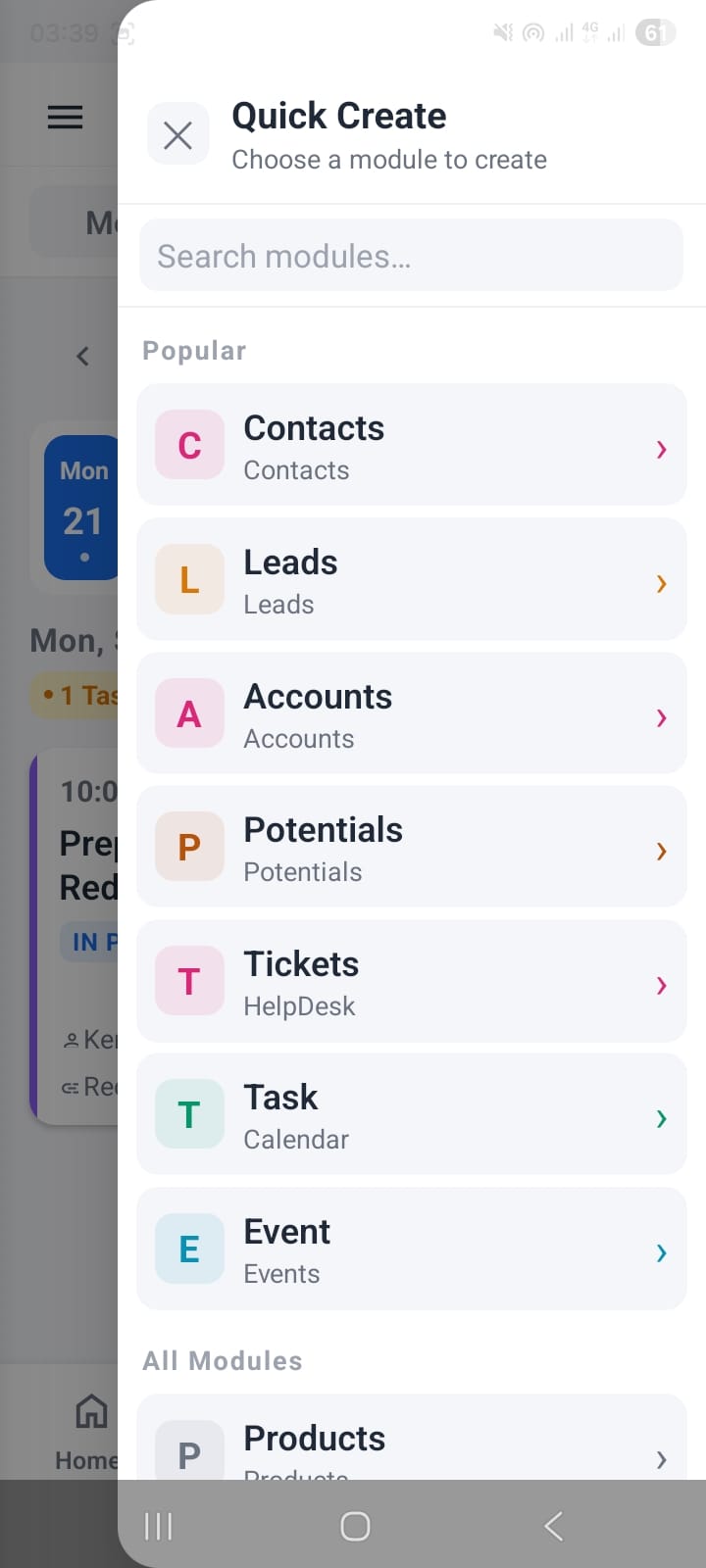
Quick Create panel with Popular and All Modules sections
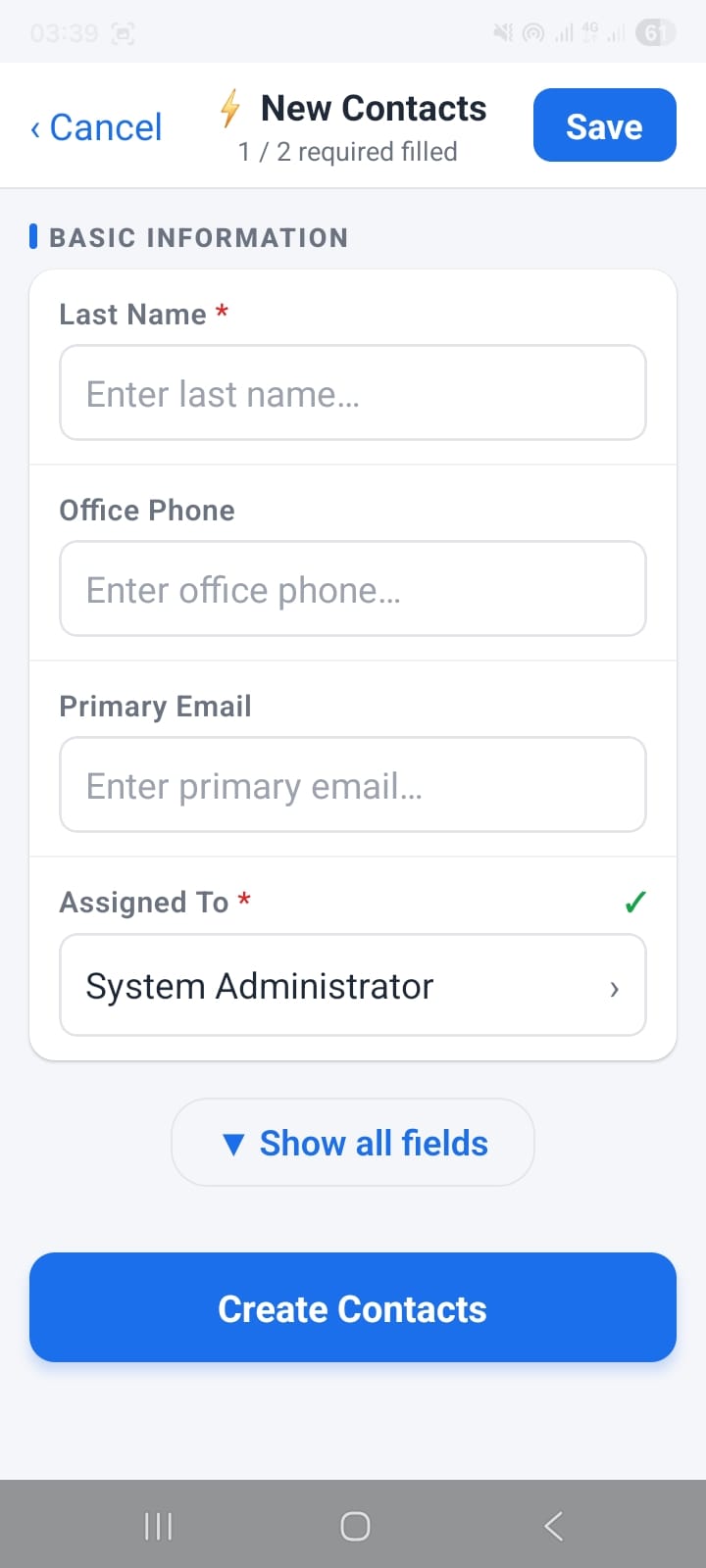
Minimal creation form — required-field counter in the header
The creation form shows only the required fields by default to keep things fast. Toggle Show all fields to access optional fields when you need them. The counter in the header (1 / 2 required filled) prevents accidental saves with missing mandatory data.
7. Products, Services & Quotes
OpenCRMApp gives you a full inventory panel inside the Quotes (and Orders/Invoices) edit form, letting you add products and services from your vtiger catalog — with quantity, unit price, discounts, and totals calculated in real time.
Products Catalog
In the Products & Services panel, the Products tab lists your vtiger product catalog with names and unit prices. Tap any product to add it to the current quote line.
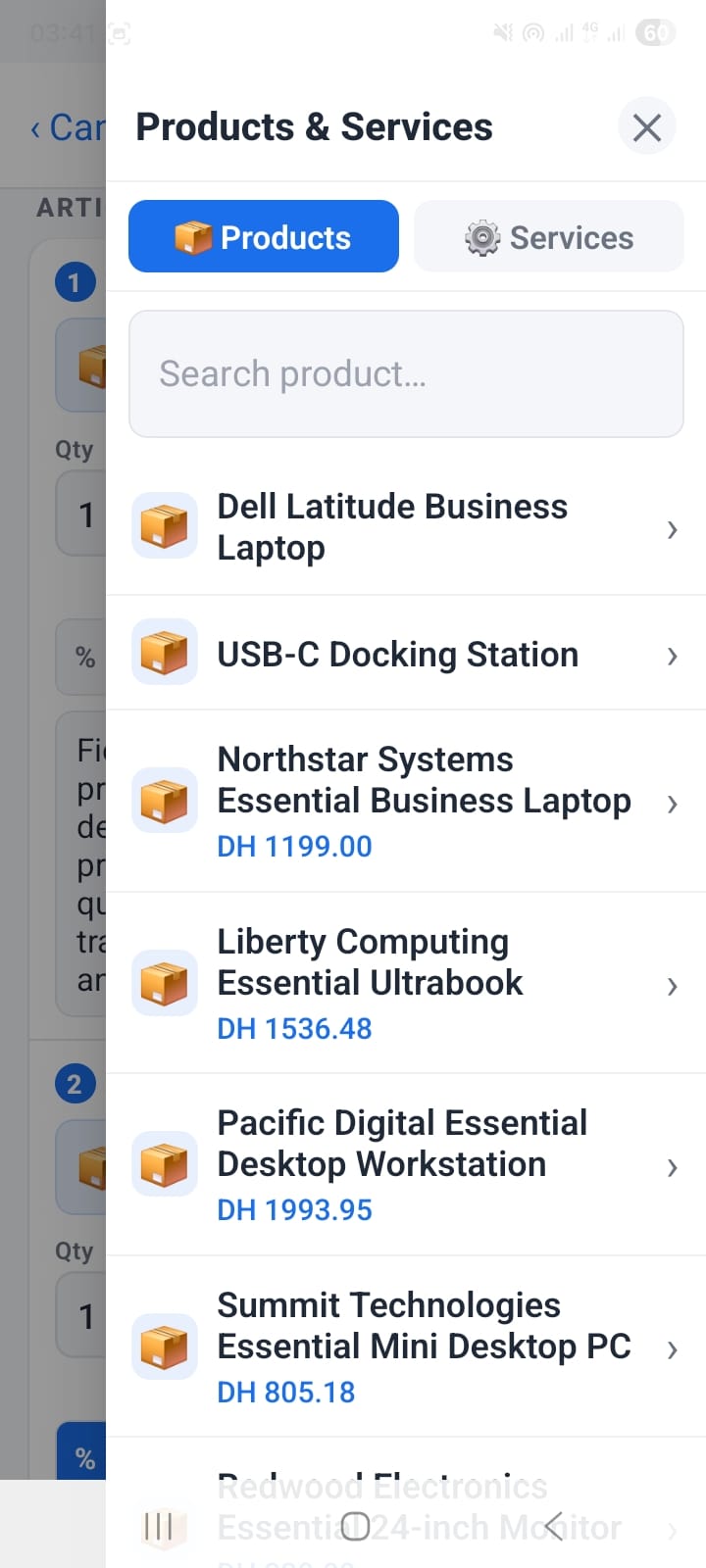
Products tab — tap to add to the quote
Services Catalog
Switch to the Services tab to browse your vtiger services — CRM workshops, implementation packages, training sessions — and add them as line items alongside products.
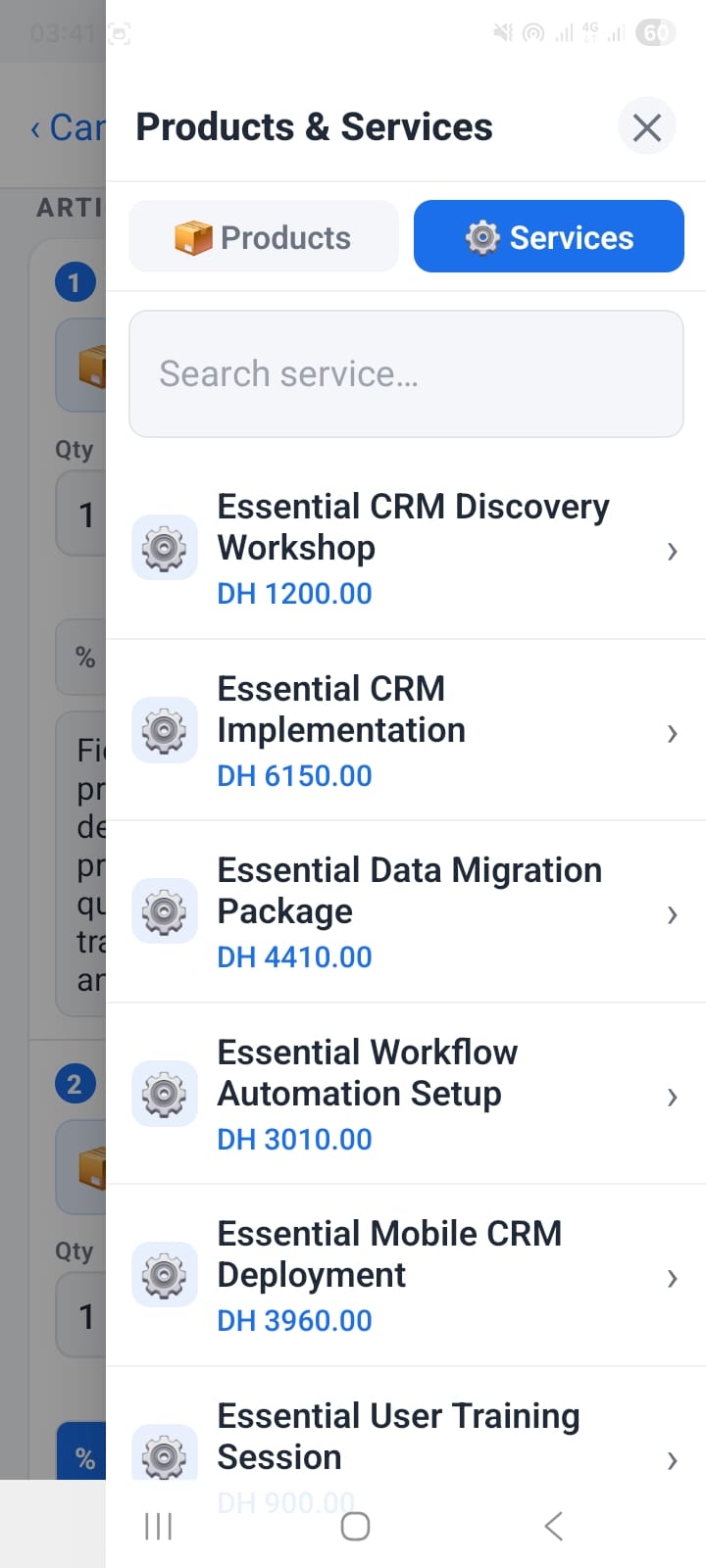
Services tab — add consulting and training line items
Editing a Quote — Line Items, Discounts & Totals
The quote edit screen shows each line item with editable Qty, Unit Price, Discount, and a calculated Total. The required-field counter in the header (6/6 required filled) ensures you never submit an incomplete quote.
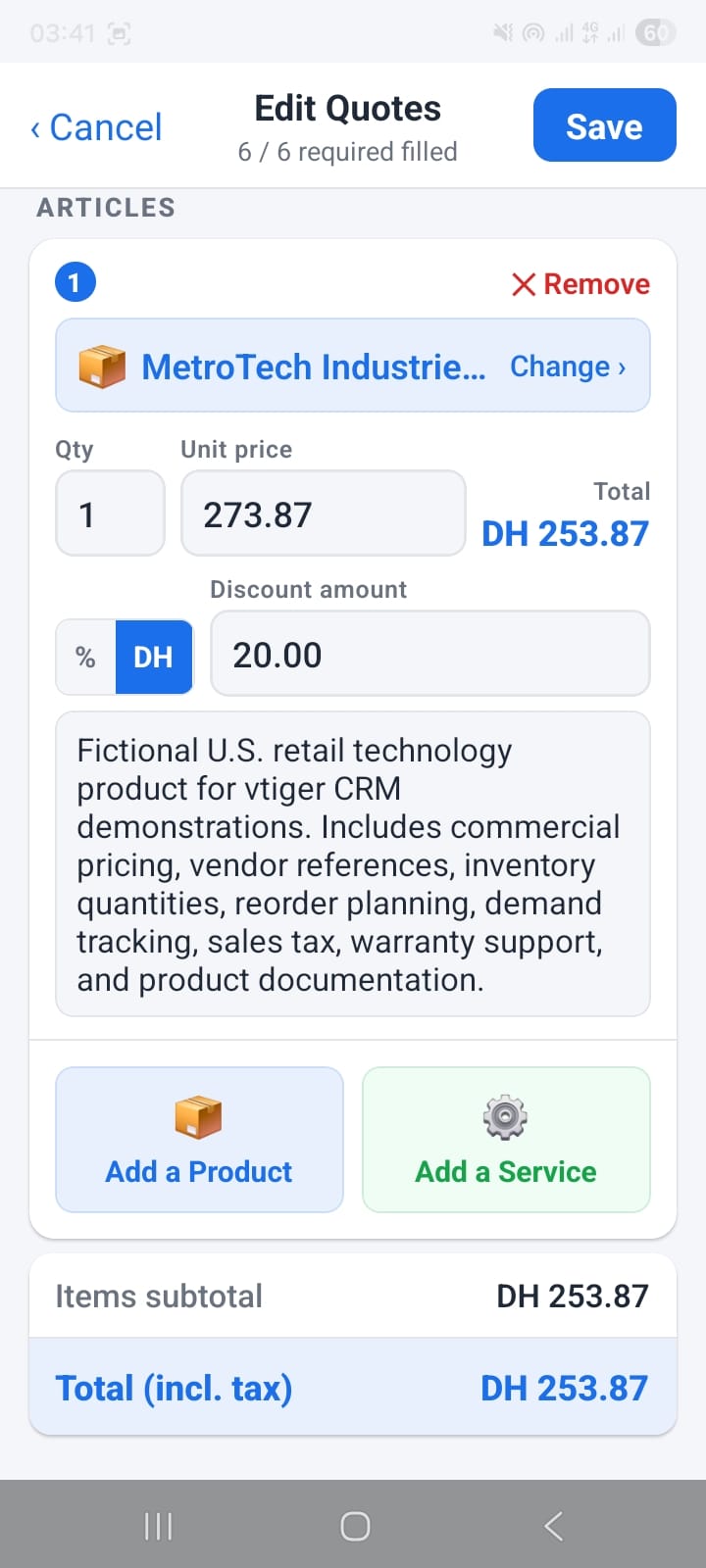
Quote editor with line items, discounts, and live totals
Quote Detail View with ARTICLES Table
The quote detail screen shows the ARTICLES section with a formatted table of products, quantities, unit prices, and discounts — exactly as it would appear on a PDF quote sent to the customer.
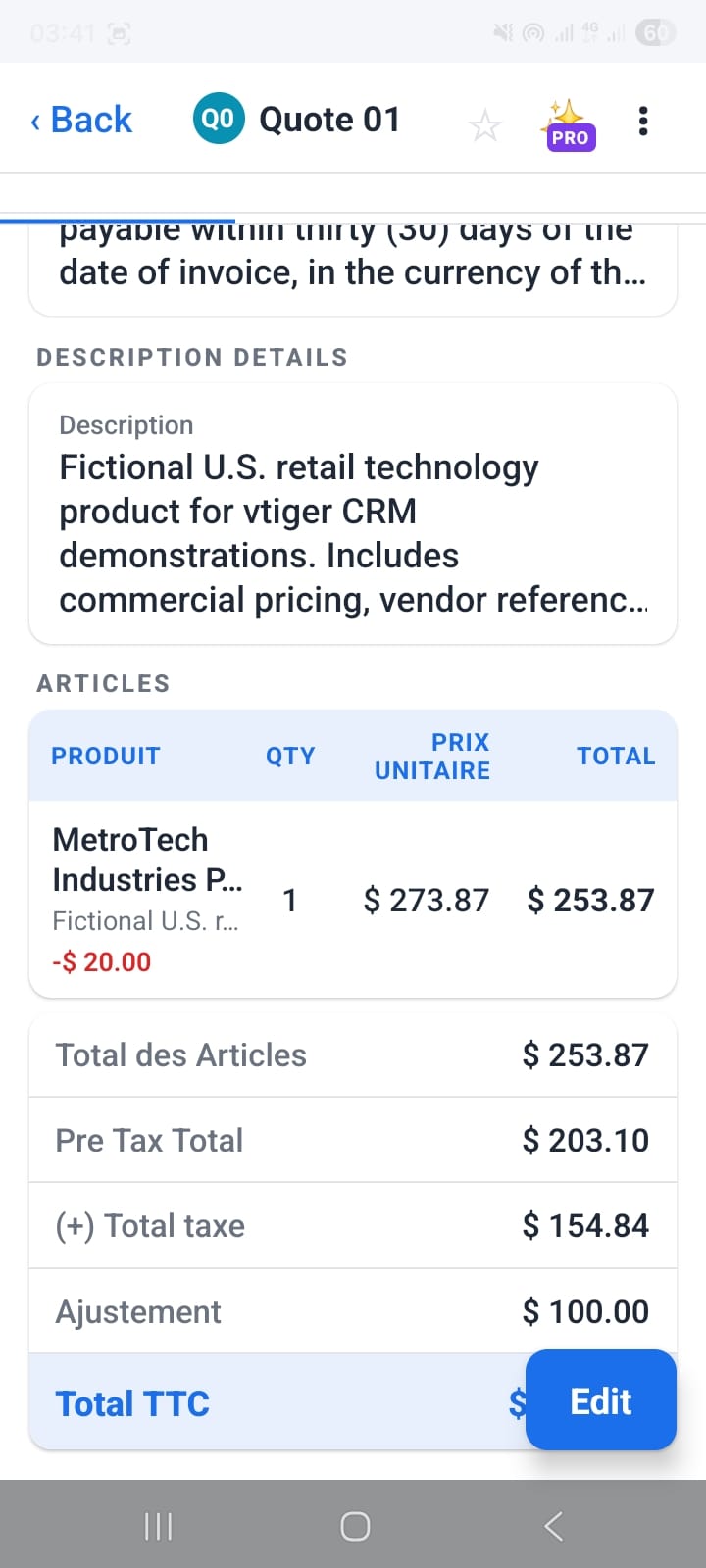
ARTICLES table in the quote detail view
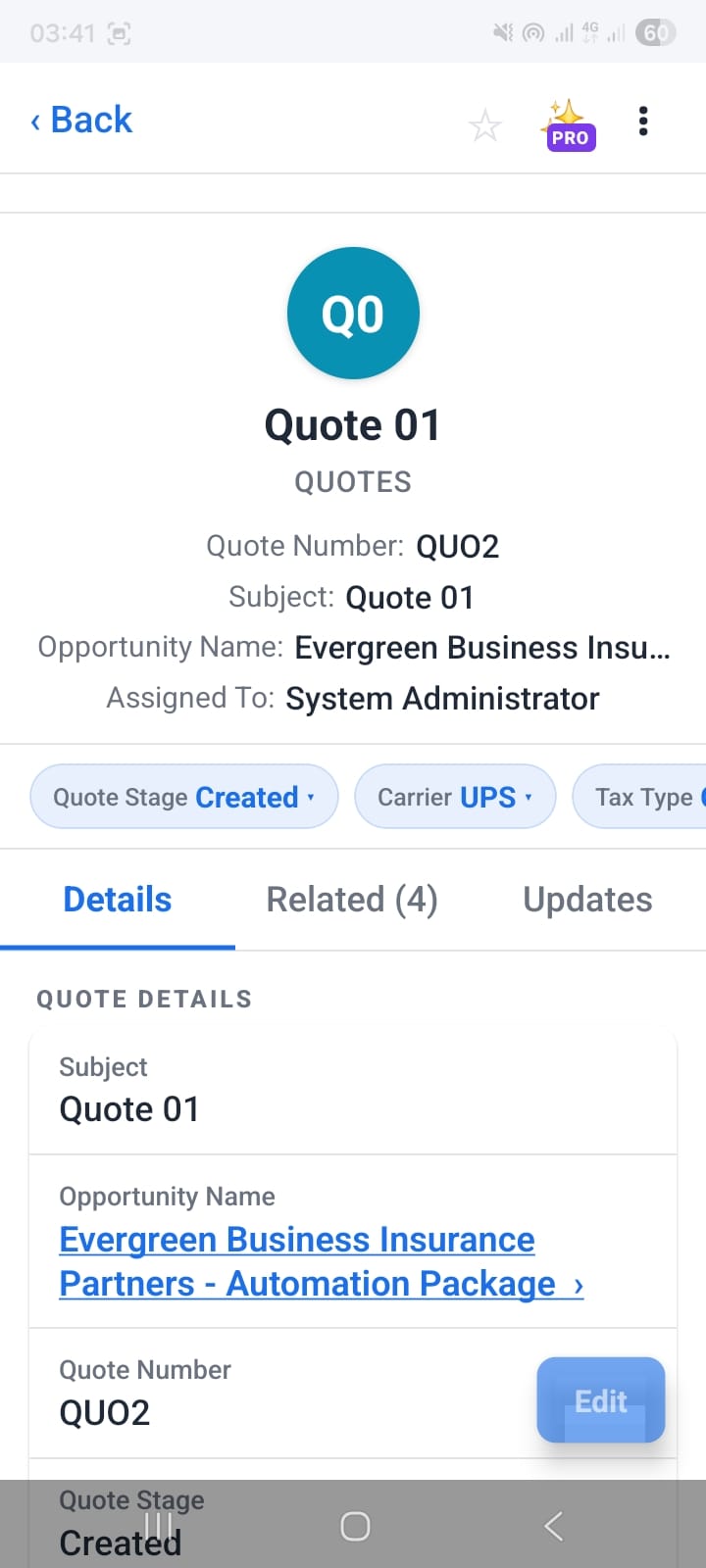
Quote header fields — stage, opportunity, carrier
8. Mandatory Field Validation
OpenCRMApp validates required fields before you can save a record. Required fields receive a red border and the app shows an explanatory banner listing every field that still needs to be filled — so nothing important gets skipped.
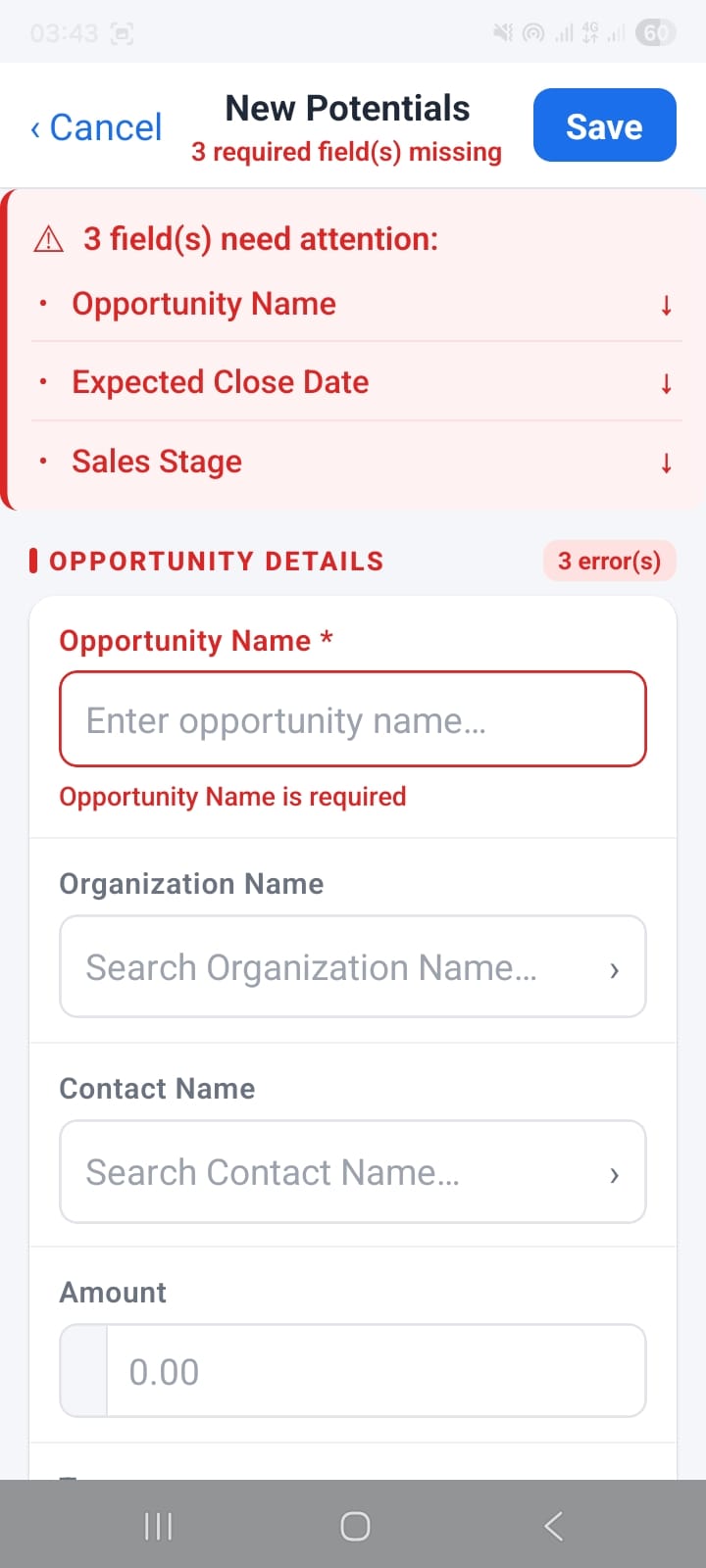
Potentials: 3 required fields highlighted before save
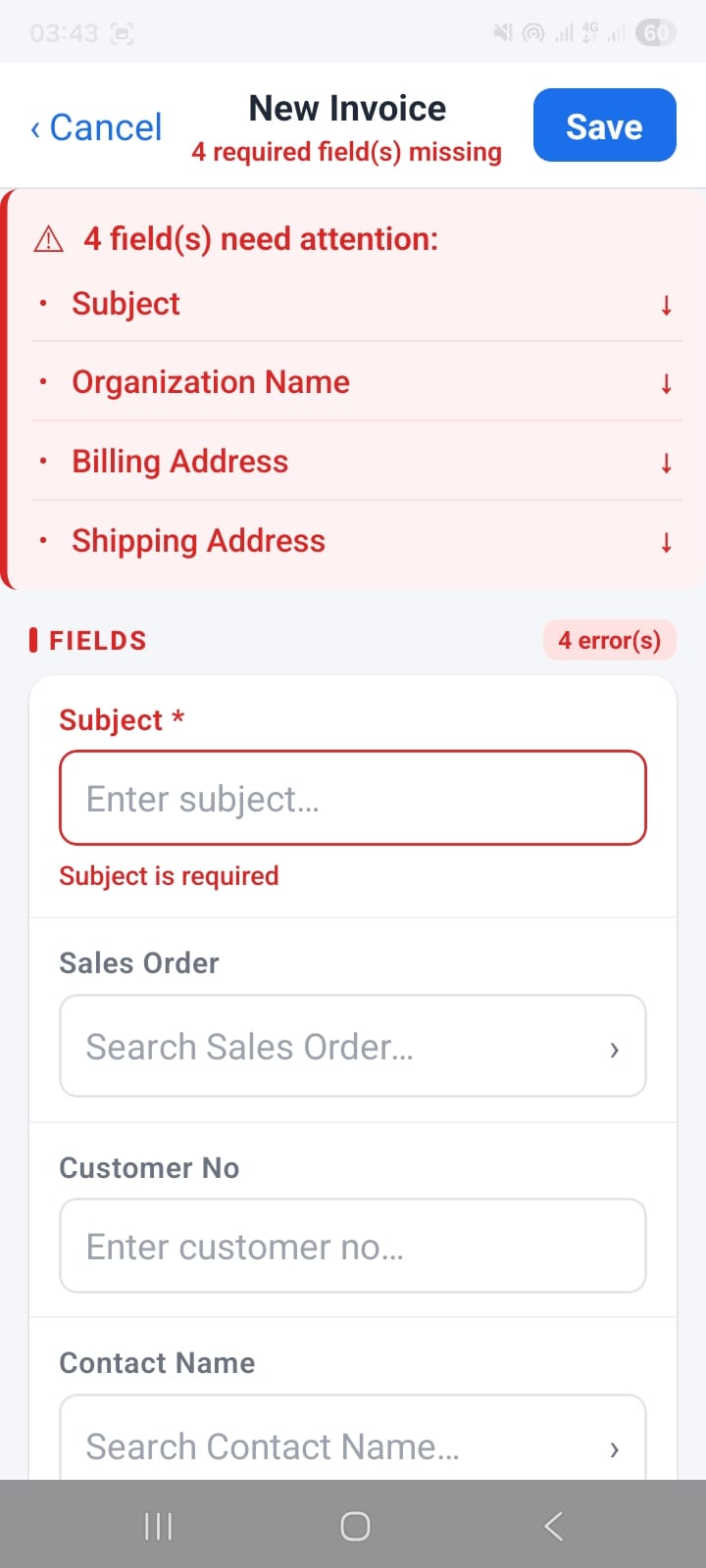
Invoice: 4 required fields highlighted before save
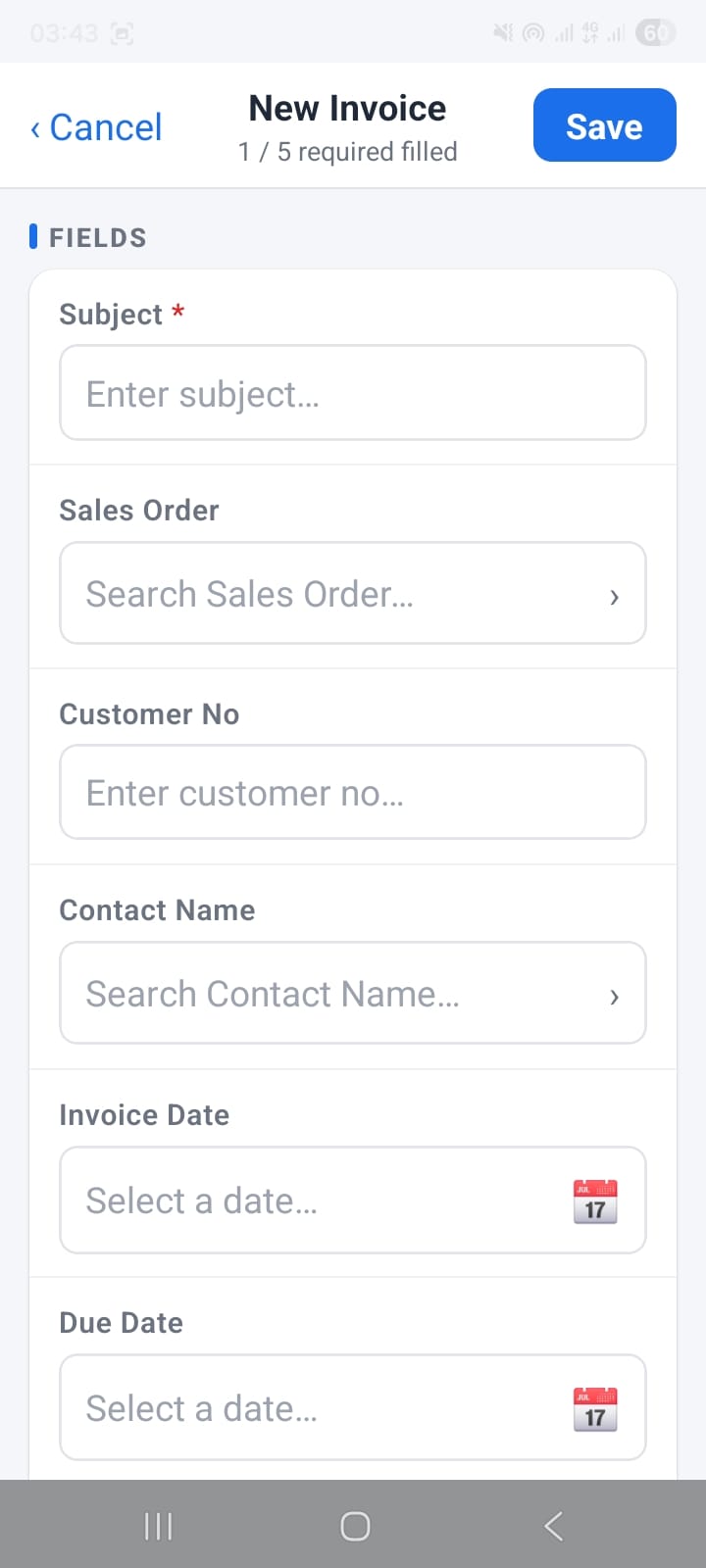
Invoice form — required fields marked with a red asterisk
9. Workflow Builder
OpenCRMApp includes a four-step Local Workflow Builder that runs entirely on your device — no vtiger server configuration needed. Build automation rules that fire push notifications, open records, initiate calls, or send emails based on CRM events.
Step 1 — WHEN: Trigger
The WHEN step defines what event fires the workflow. Free-plan users can choose Record created or Record updated. Pro users unlock time-based triggers: Every day, Every week, and At a specific time.
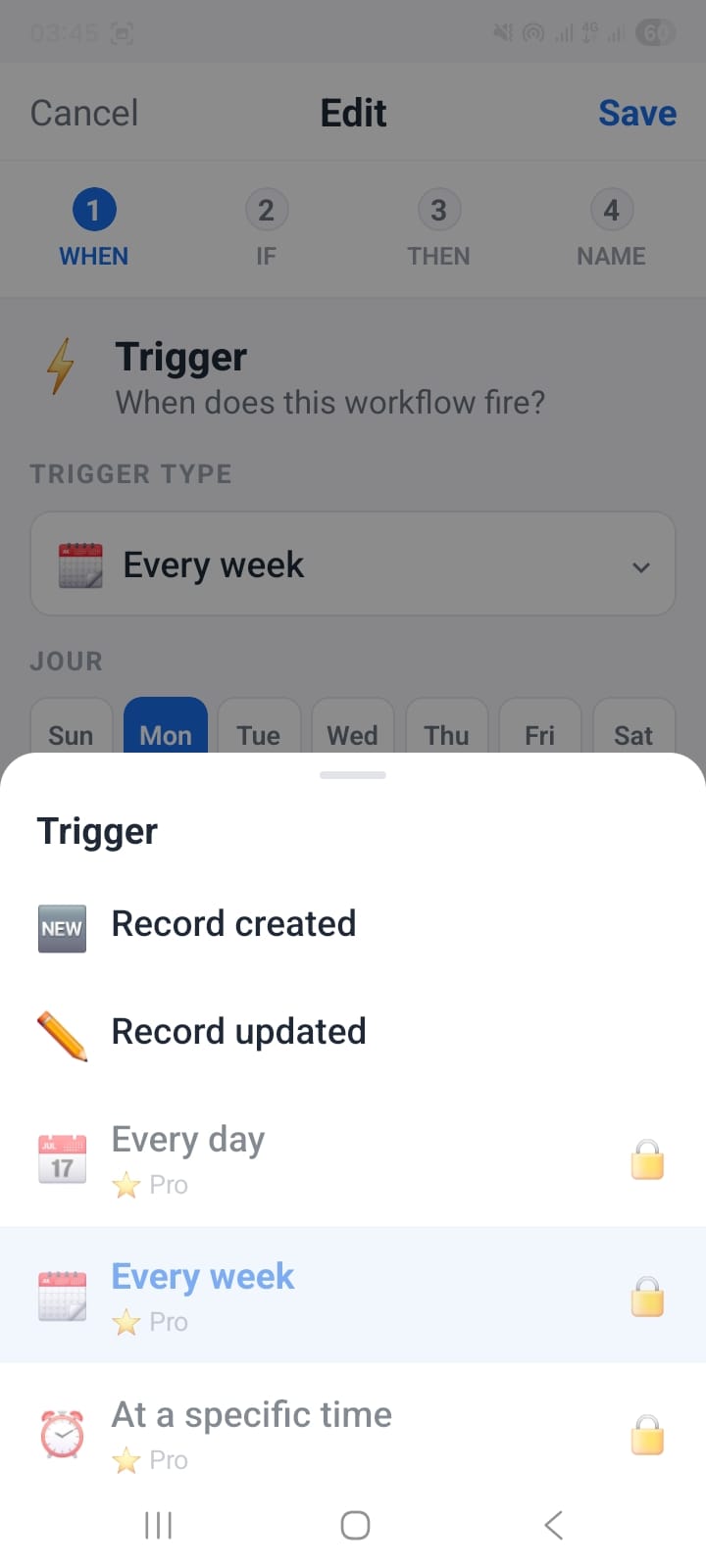
Step 1 WHEN — choose the event that triggers your workflow
Step 2 — IF: Conditions
Conditions let you narrow which records fire the workflow. The condition builder supports 19+ operators: equals, is not, contains, does not contain, starts with, ends with, greater than, less than, is empty, is not empty, is enabled, is disabled, is today, is tomorrow, was yesterday, is before, is after, is between, N days ago/later.
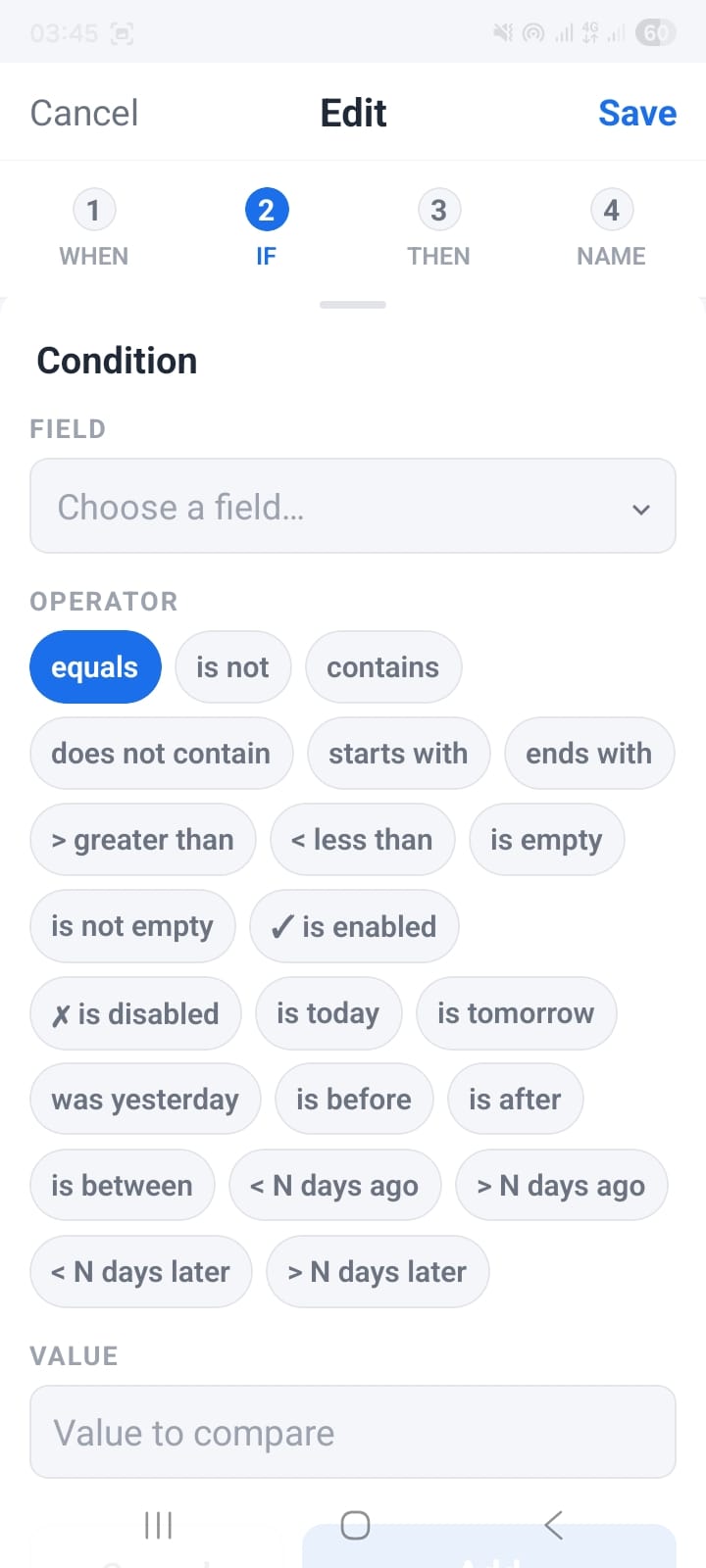
Step 2 IF — 19+ condition operators for precise filtering
Step 3 — THEN: Actions
Define what happens when the workflow fires. You can chain up to four actions:
- Notification — sends a push notification with a custom title and body
- Open record — opens the triggering record with one tap from the notification
- Call — initiates a call to the record's primary phone number
- Send email — opens a compose window to the record's primary email
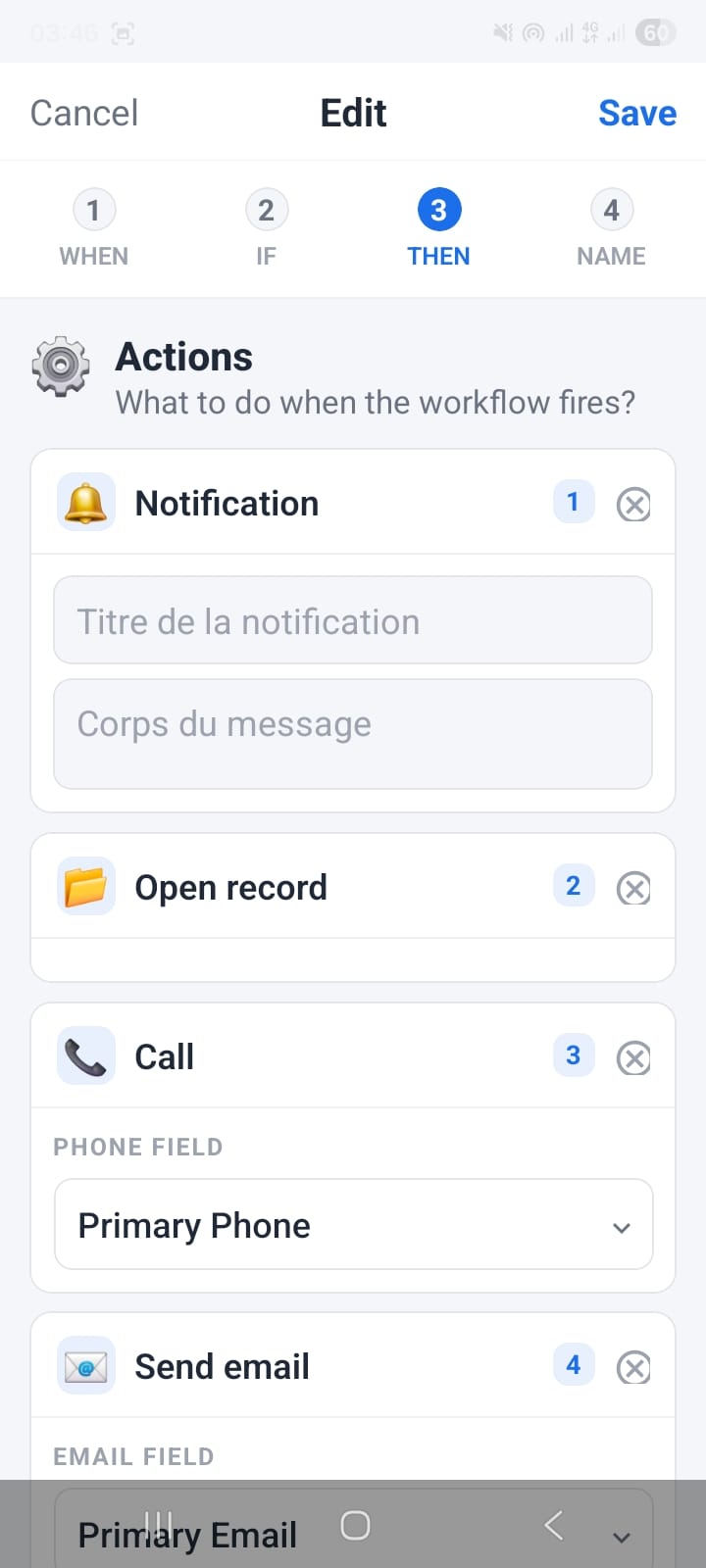
Step 3 THEN — up to four chained actions per workflow
Step 4 — NAME: Message & Variables
Give the workflow a name and an emoji icon. Write the notification body using field placeholders like ${firstname} and ${phone} — these are replaced with real values from the triggering record when the notification fires. Toggle Enable this workflow to activate it immediately.
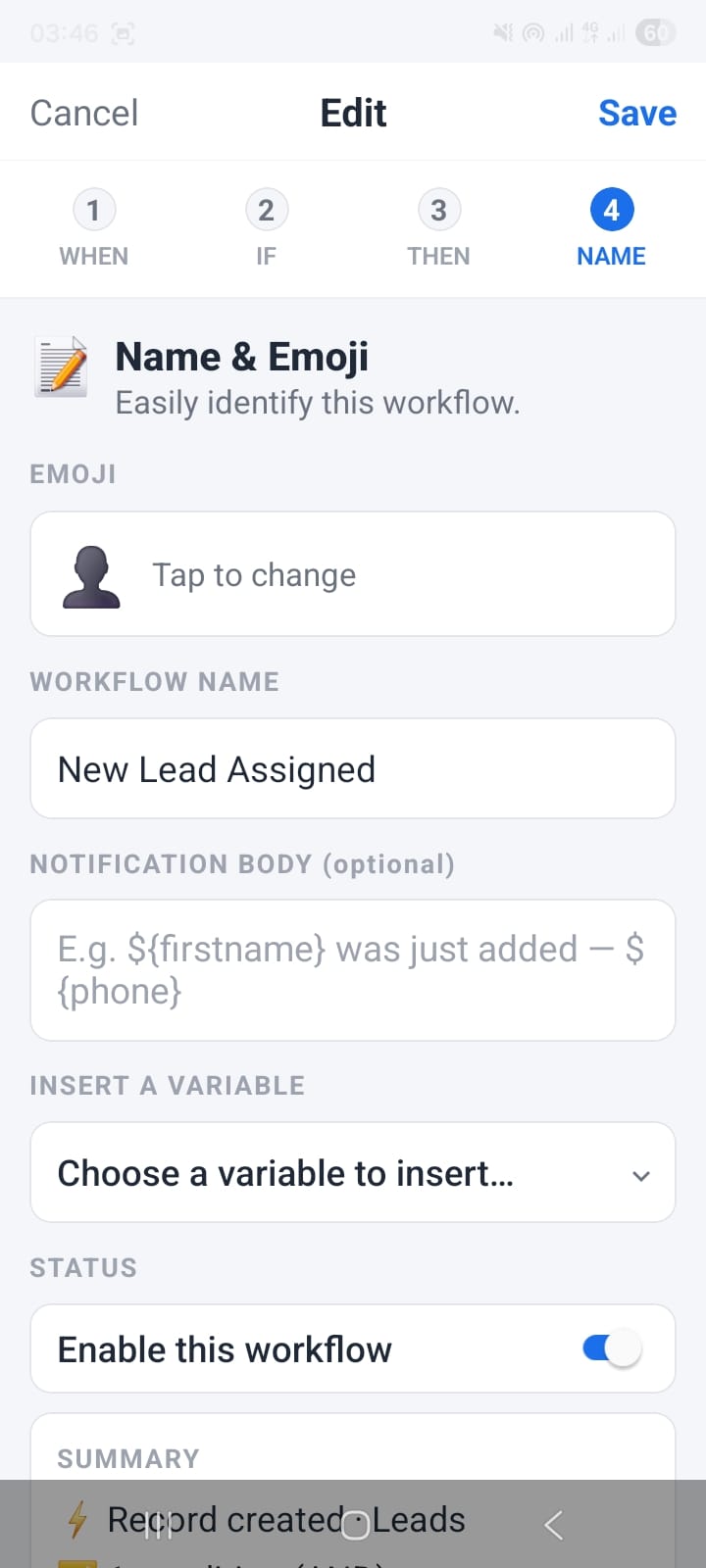
Step 4 NAME — custom message body with field variable placeholders
Workflow Summary & Save
Before saving, the SUMMARY section shows a concise overview of your entire workflow: trigger, conditions, and all actions. Review it, then tap Save or go Back to adjust any step.
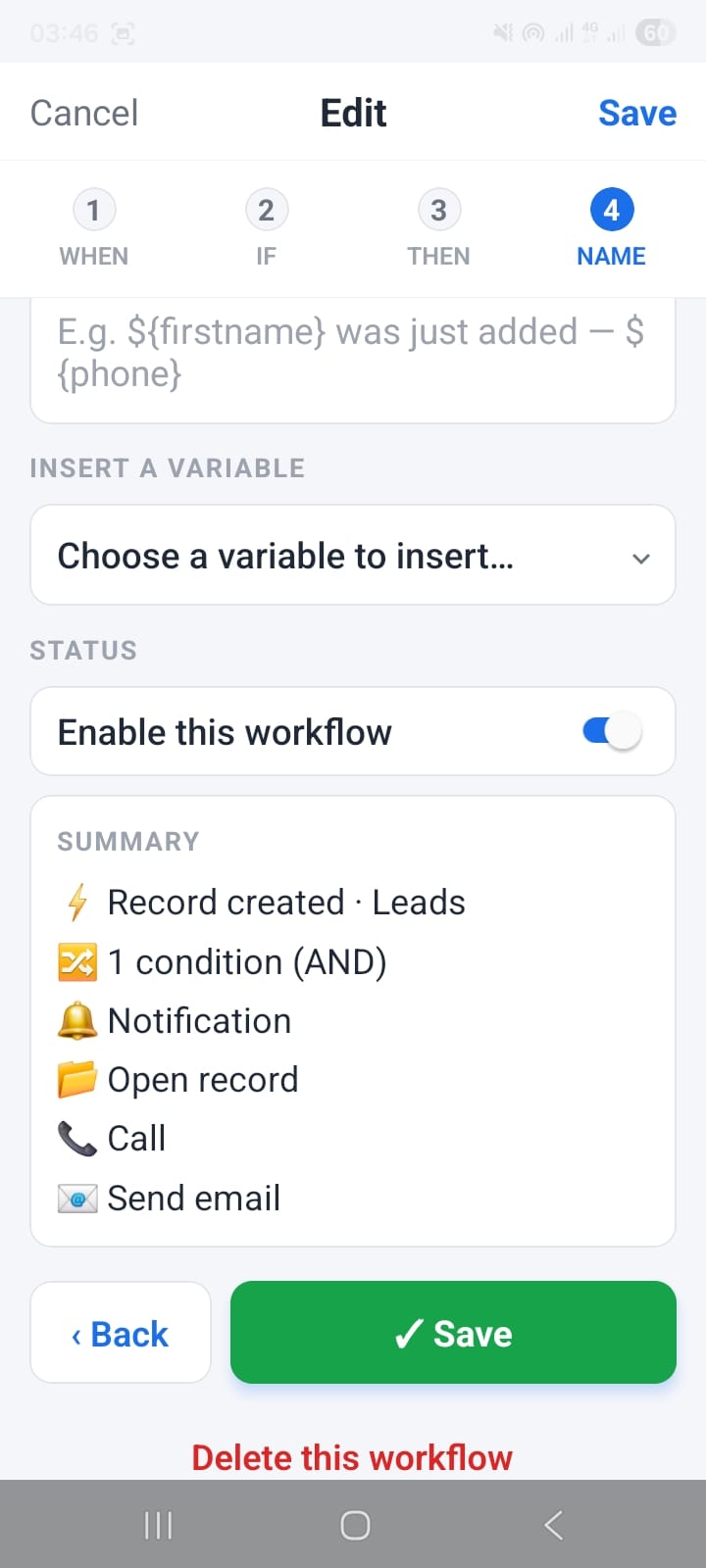
Workflow summary — review trigger, conditions, and all actions before saving
10. Notification Inbox & Workflow List
The bell icon in the bottom nav opens your Notification Inbox. It is split into two sections: CRM Workflows (your local automation rules) and the notification history (fired notifications grouped by workflow).
CRM Workflow List
The top section lists all your saved workflows with an enable/disable toggle next to each one. Tap any row to edit the workflow. Tap + New to start the four-step builder. Sample workflows shown: New Lead Assigned, Deal Closed Won, Deal Closed Lost, Daily Pipeline Review, New Account Created, New Support Ticket, Weekly Team Review, Opportunity Won.
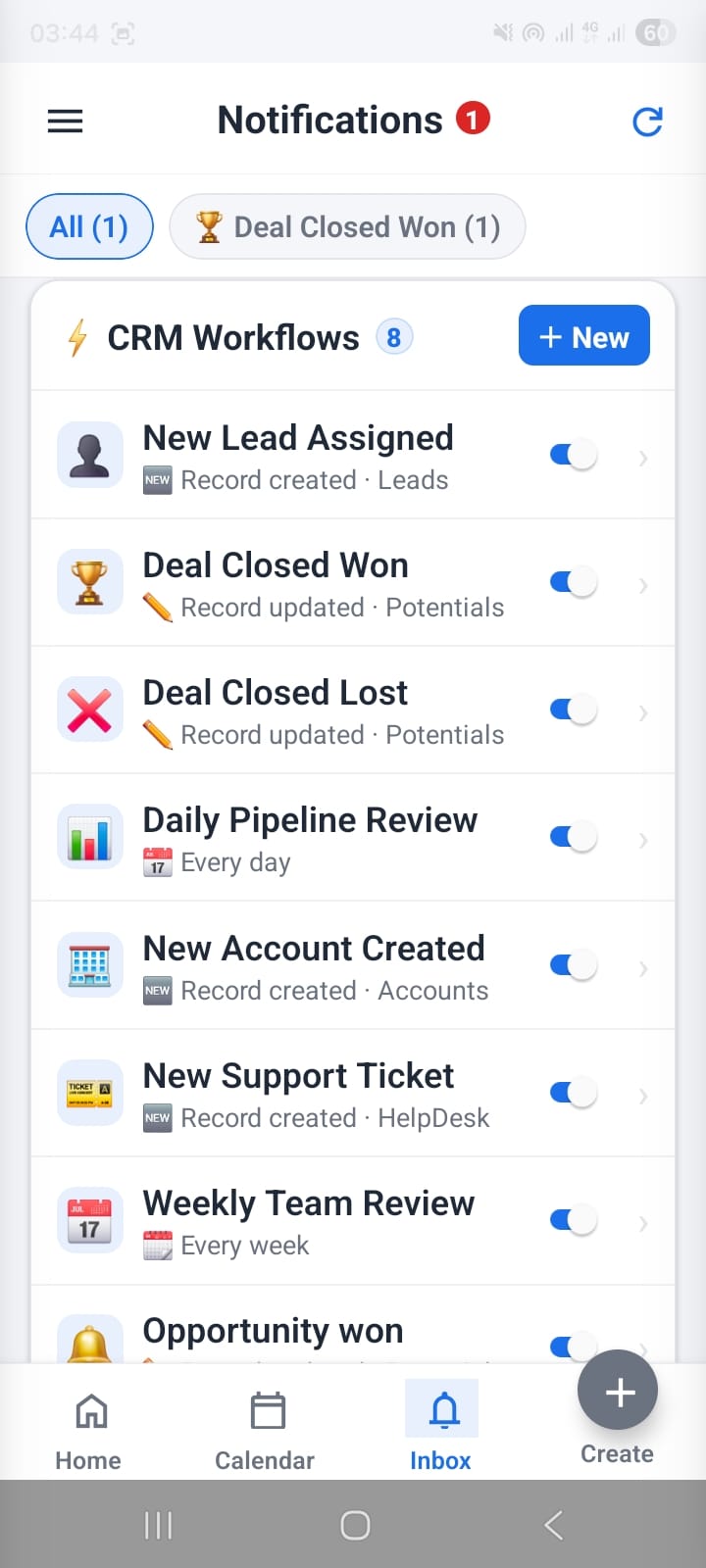
CRM Workflows list — 8 workflows with enable/disable toggles
Notification History
Below the workflow list, fired notifications appear grouped by workflow name — e.g. Deal Closed Won (1). Each entry shows the record that triggered it, a timestamp, and the action buttons you configured (such as Open). Tap Clear history at the bottom to dismiss all past notifications.
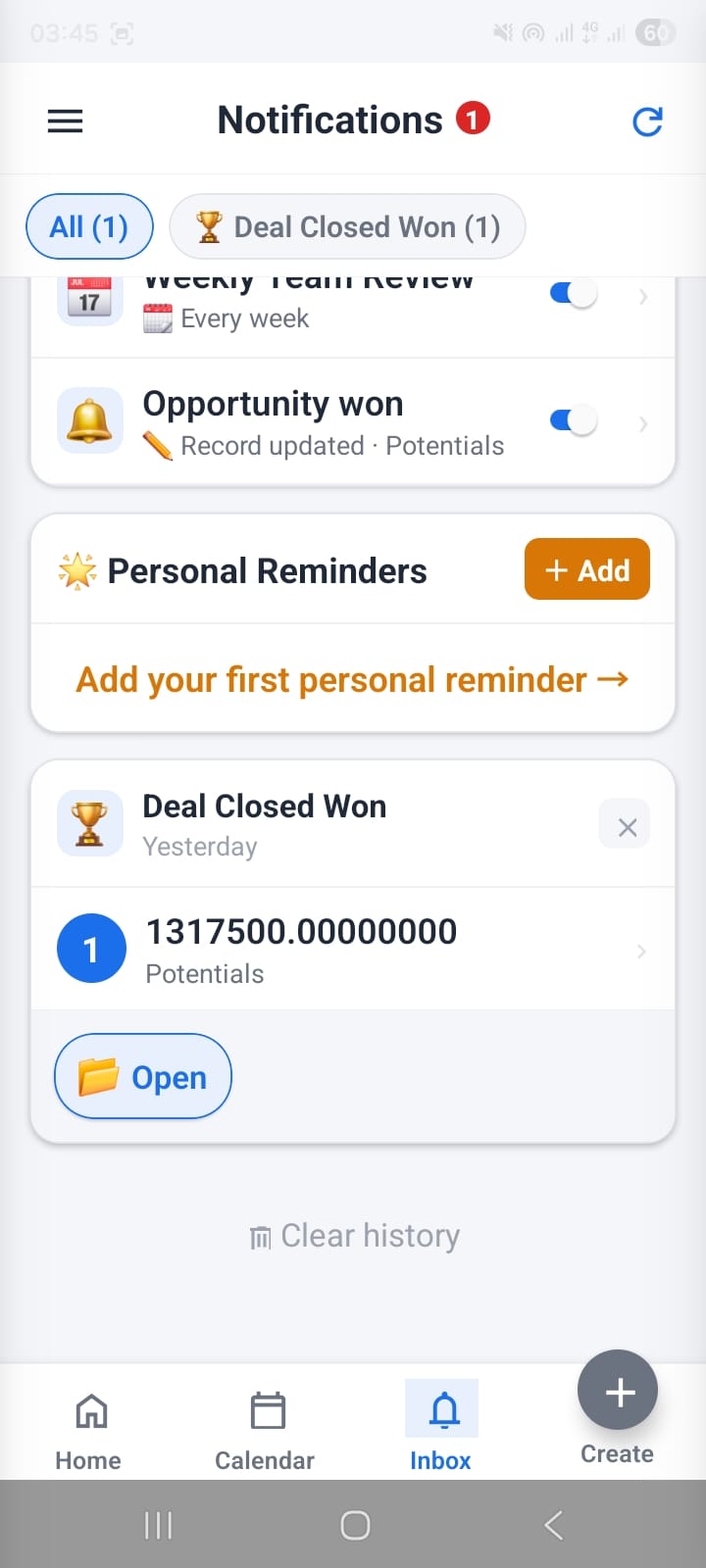
Notification history with record links and Clear history option
11. Personal Reminders
Personal reminders are standalone notifications that are not tied to any CRM record — perfect for personal to-dos like "Call mum" or "Doctor appointment". They live in the same Notification Inbox screen, below the CRM workflow list.
Tap + Add in the Personal Reminders section to create one. The form lets you set a title, a notification message, a recurrence (Every day, Every week, a specific date, or a one-off), a time, and an optional number to call when the reminder fires.
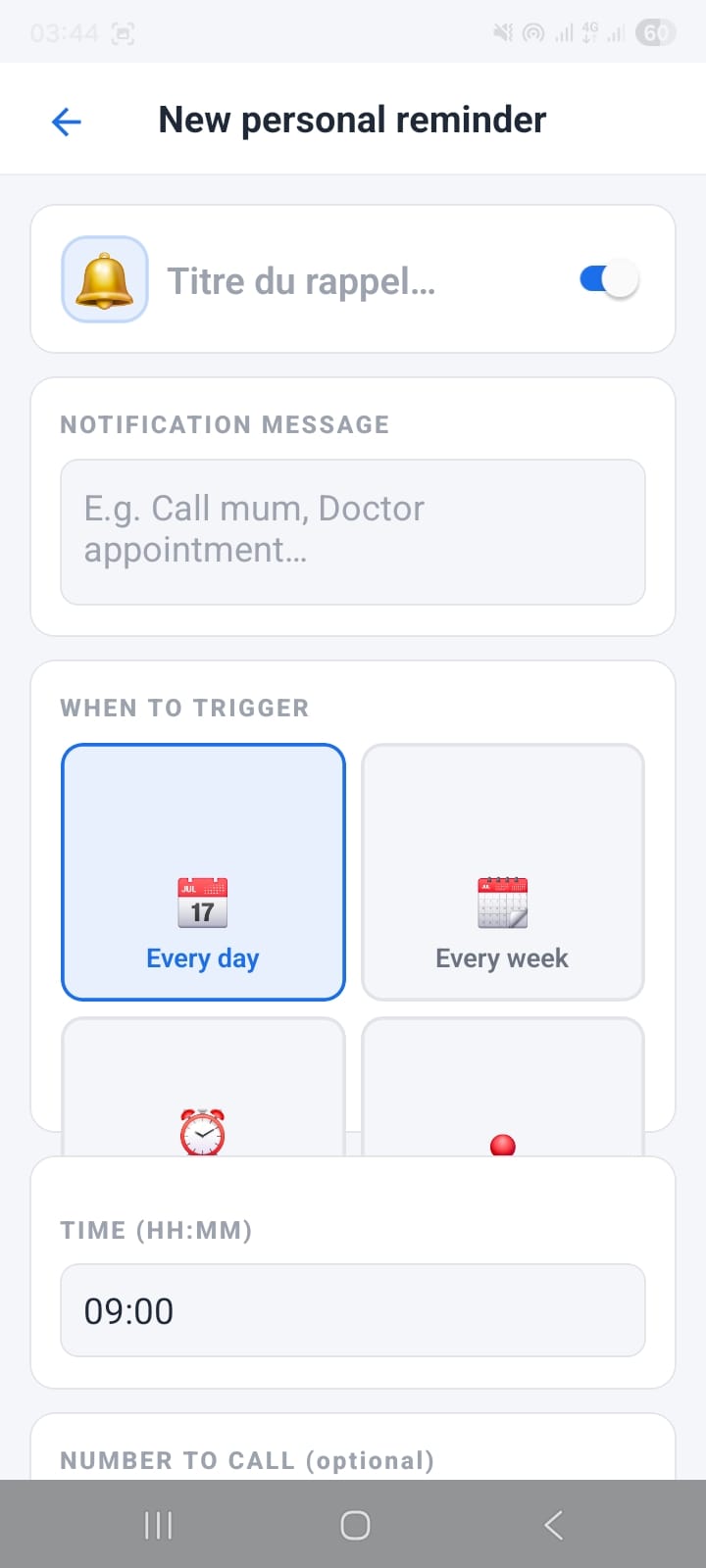
Personal reminder form — recurrence, time, and optional call number
12. Multi-Language Support
OpenCRMApp is available in 9+ languages. The language setting lives in Settings → Language and changes the entire app UI immediately — no restart required. The language picker shows a System (auto) option that follows your device locale, plus a full list of supported languages.
Language Picker
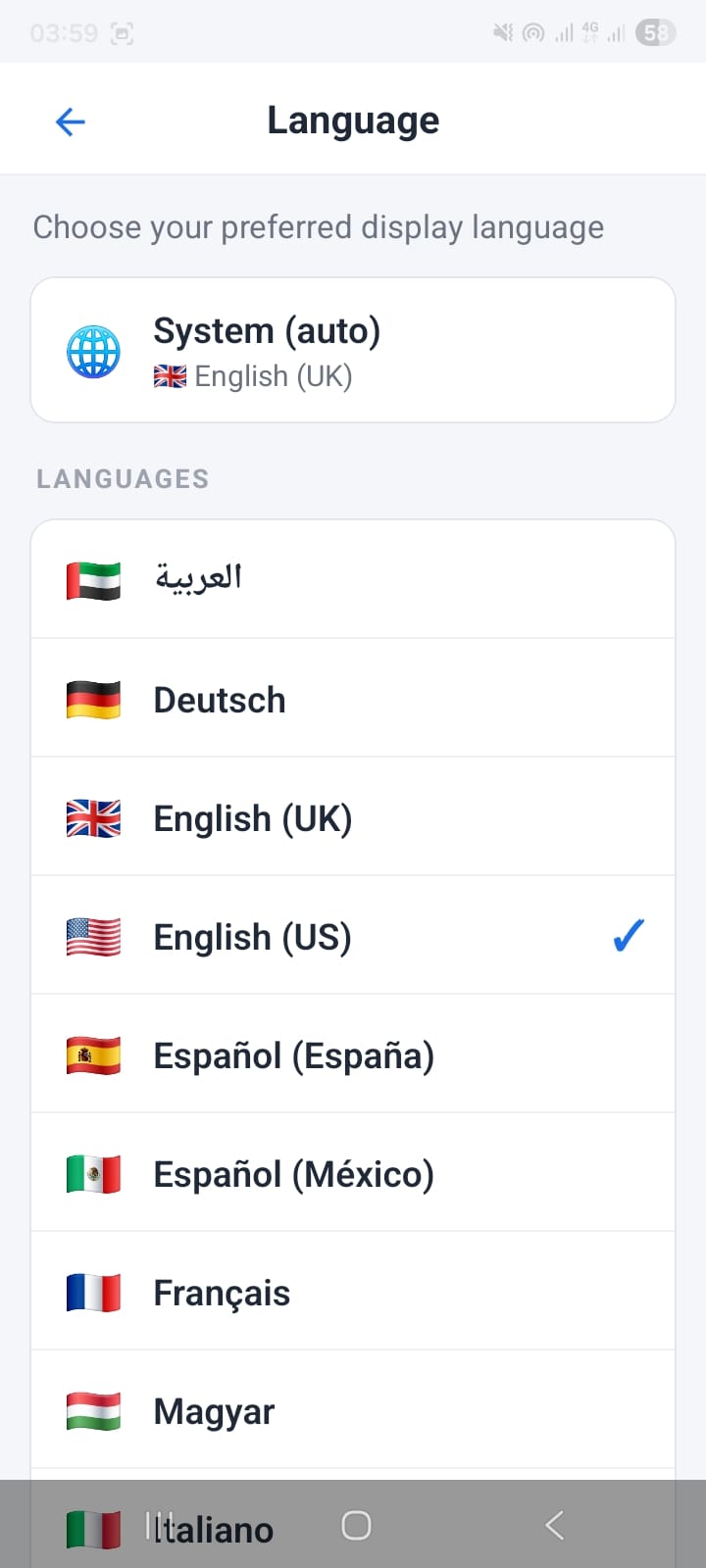
Language picker — system auto or choose from 9+ languages
Arabic — Right-to-Left Layout
When Arabic is selected the entire interface mirrors to a right-to-left layout, including navigation, menus, and form fields. Section labels translate to Arabic (اللغة, الأتمتة, المساعدة).
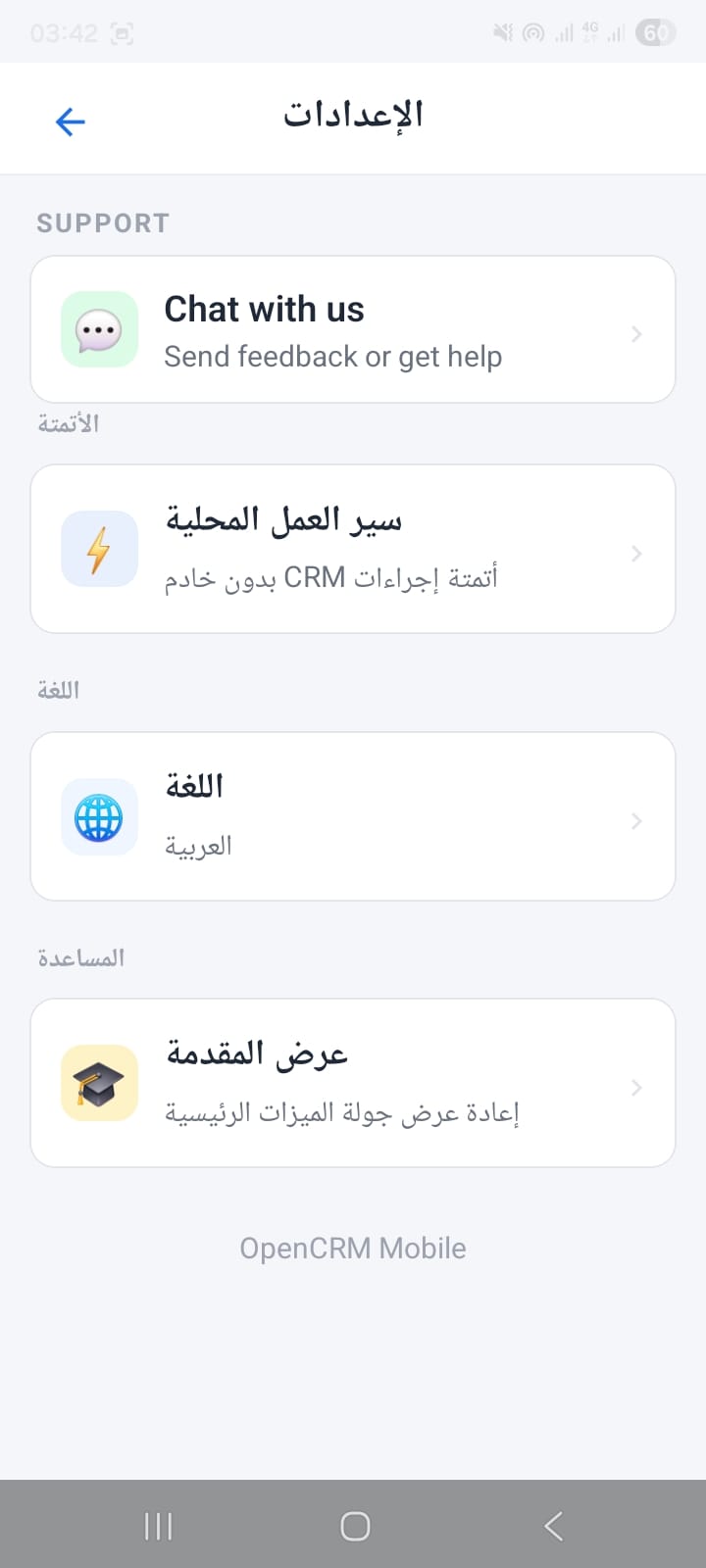
Settings in Arabic — full RTL layout and translated labels
Additional Languages
The same Settings screen below shows Deutsch, Español, Français, Русский, and Türkçe — each with their native translations for all UI labels:
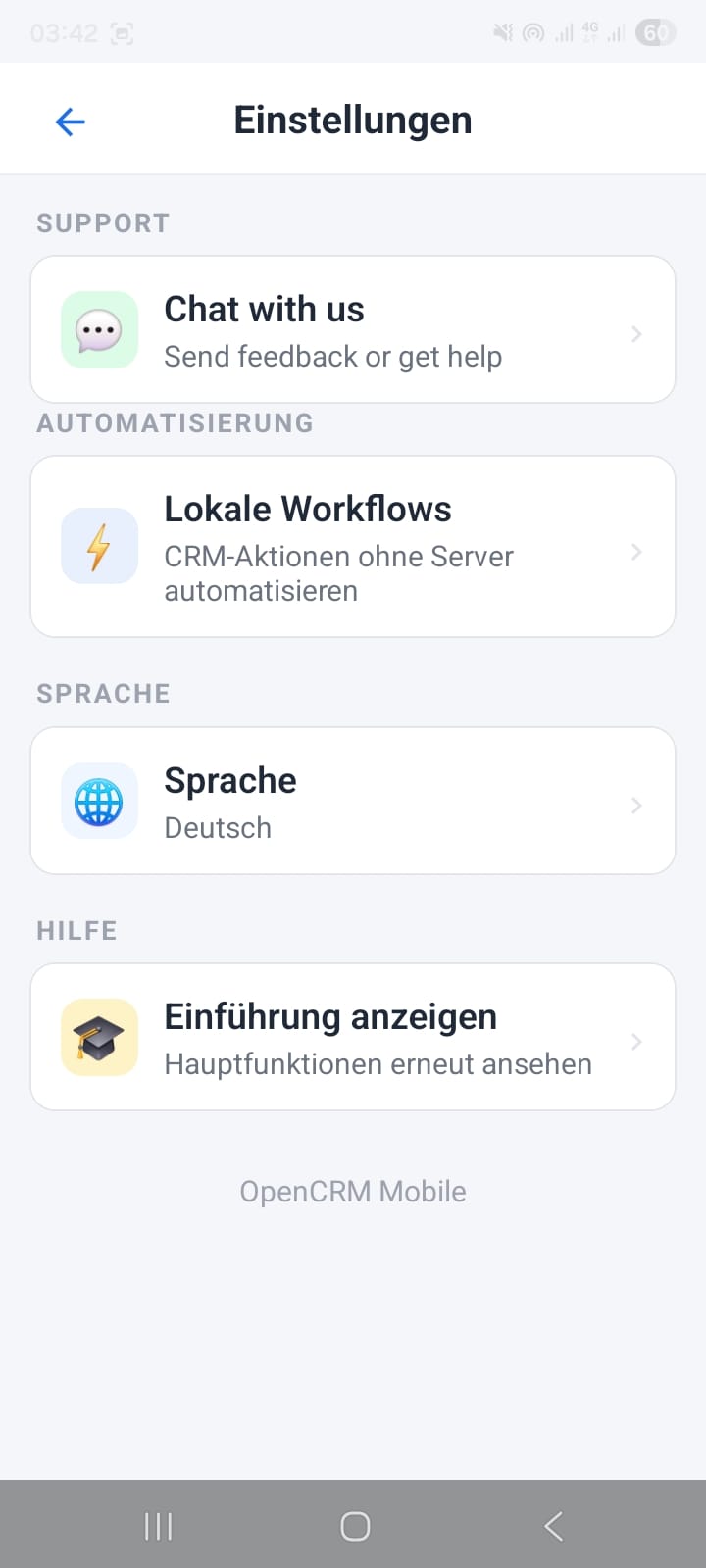
Deutsch
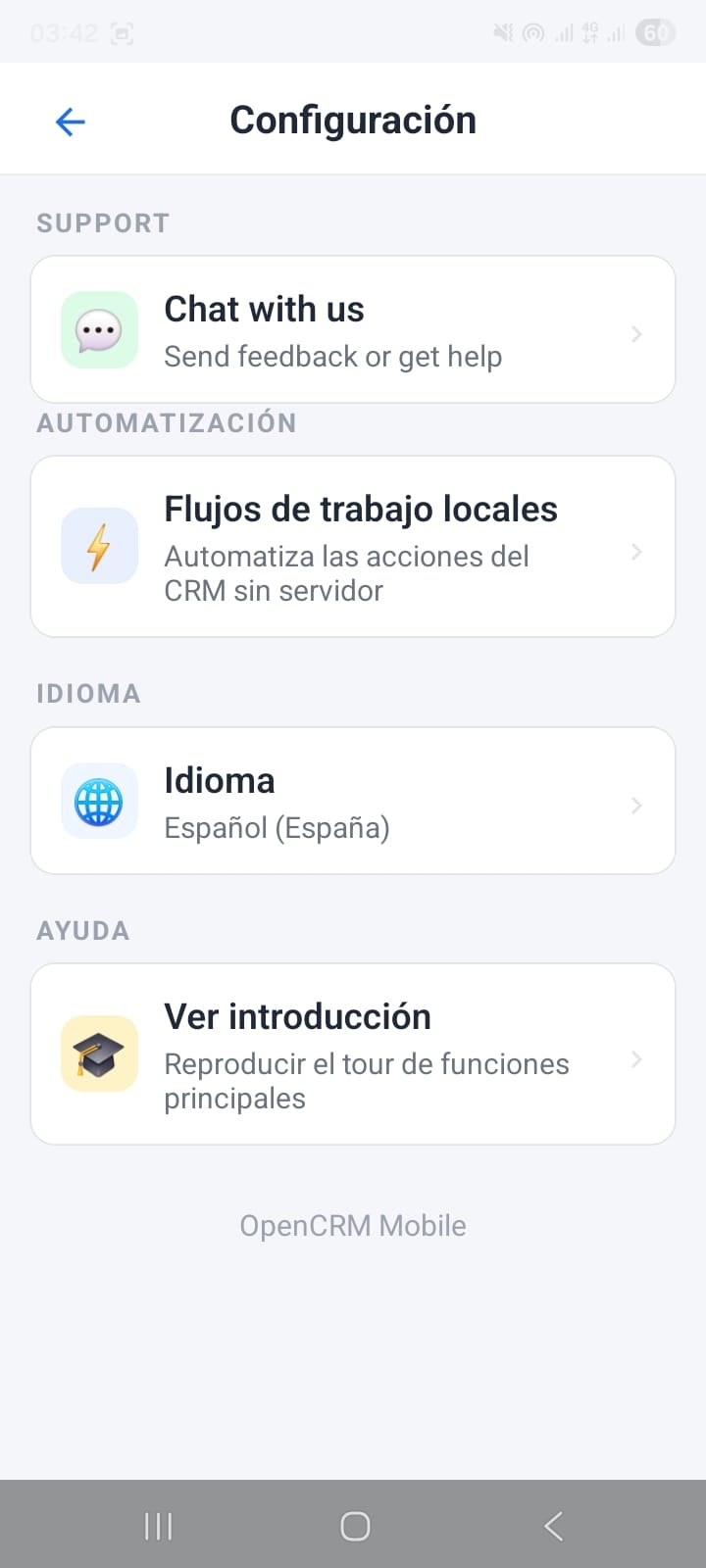
Español (España)
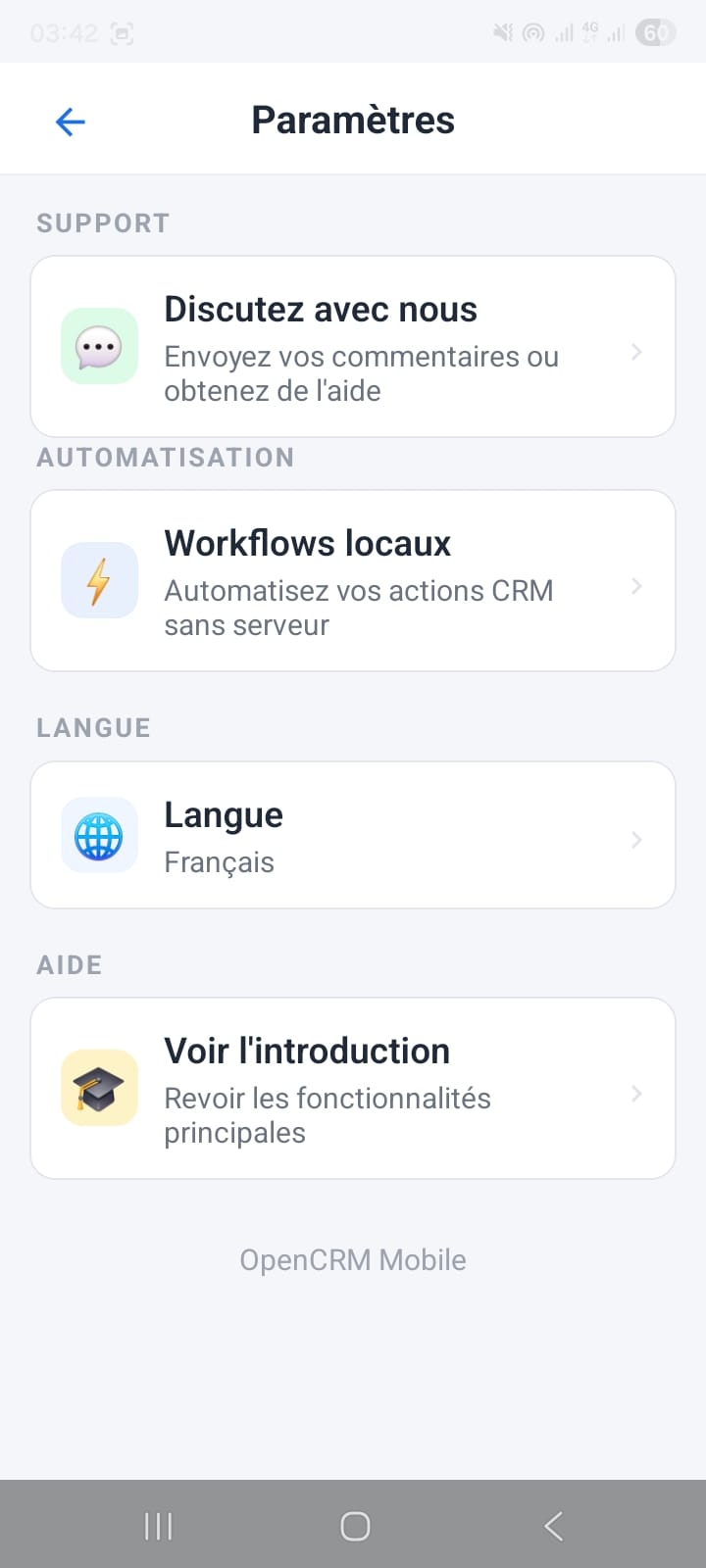
Français
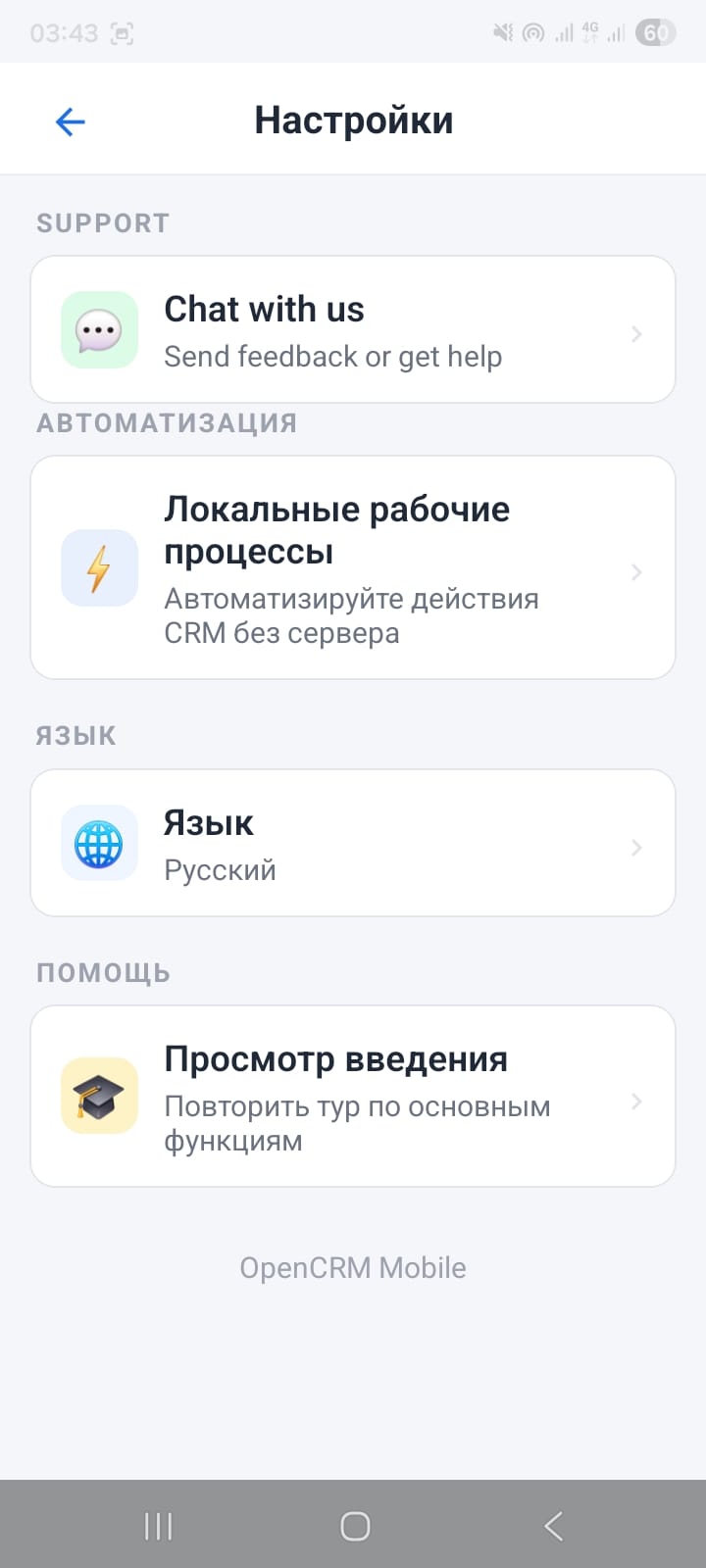
Русский (Russian)

Türkçe (Turkish)
13. Offline Detection
OpenCRMApp monitors your network connection in real time. If it detects that your device has lost internet access — whether on Wi-Fi or mobile data — it immediately shows a clear "You're Offline" modal so you know why data isn't loading.
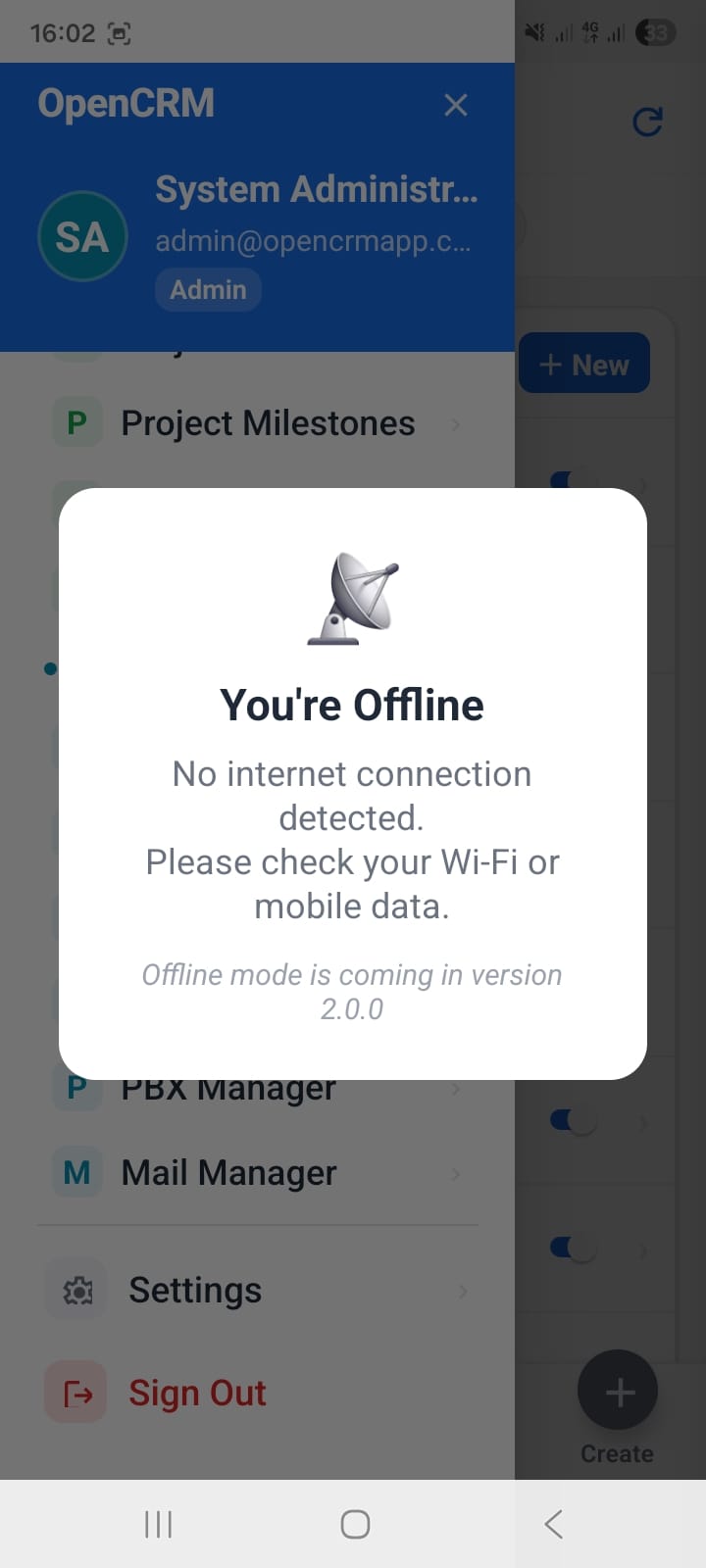
Offline detection modal — instant feedback when connectivity is lost
Ready to try it?
OpenCRMApp is available on iOS and Android. Connect to your existing vtiger CRM instance in minutes.